Navigate studio settings
Find configuration areas that my access permits. Settings shows only permitted customer-facing configuration destinations and each link opens its canonical…
- Status
- Draft, not yet re-verified
- Who can do this
- Organization owners, Managers, Staff
- Required access
organization.membership- Where in PositiveForm
/settings
"Copy for AI" puts the full Markdown of this page on your clipboard. Paste it into ChatGPT, Claude, or any assistant and ask it to walk you through the steps.
Who this is for
Owners, managers, and staff who need to find a customer-facing studio configuration area allowed by their current access.
Required access: membership in the selected organization. Some destinations also require owner or feature-specific permissions.
Before you begin
- Select the organization you intend to configure.
- Finish or cancel any unsaved operational work before navigating away.
Steps
- Select Settings in the main navigation, or open
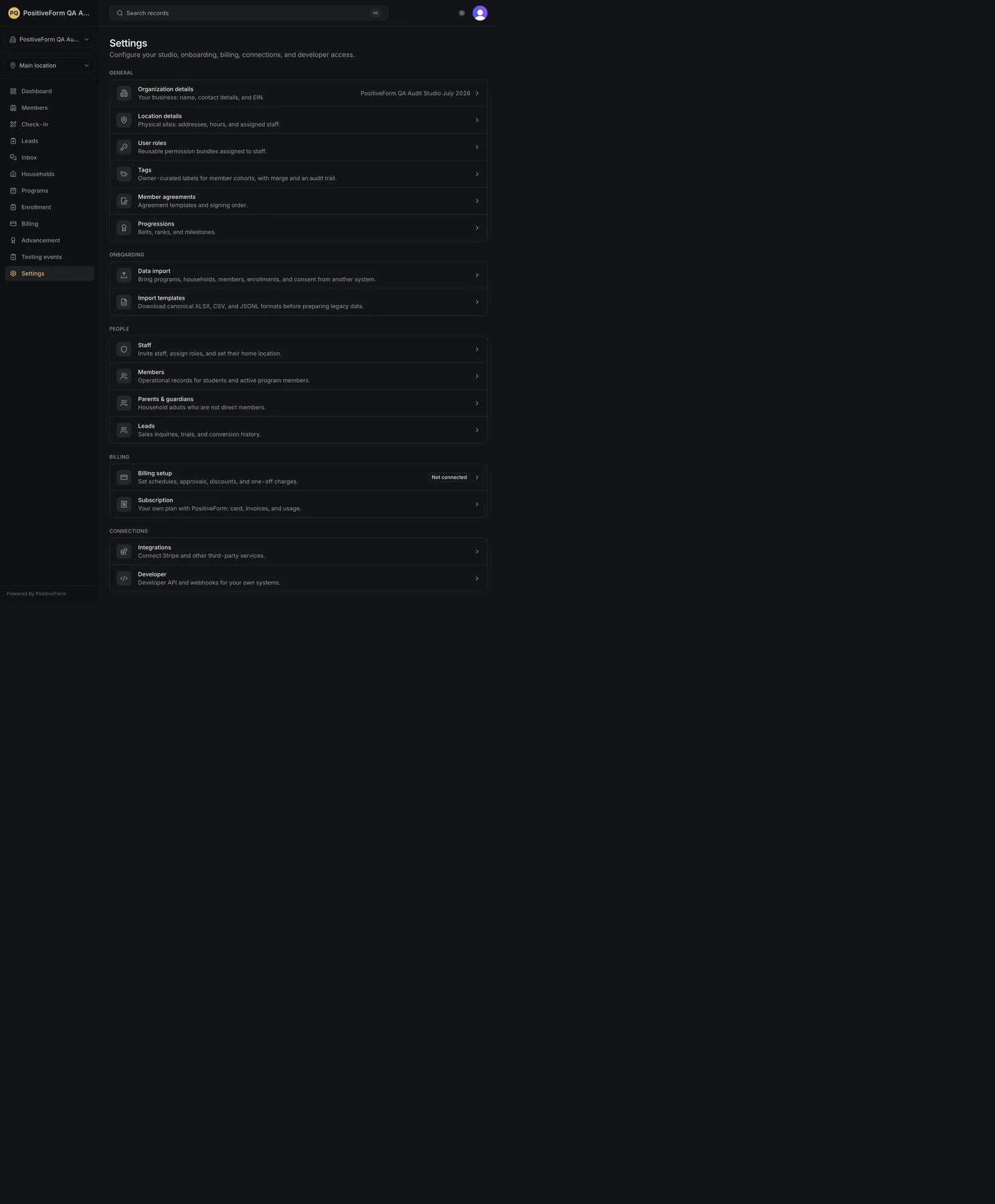
/settings. - Review the available destinations under General, Grouping, Onboarding, People, Billing, and Connections. A group is hidden when none of its destinations are permitted.
- Select the row for the area you need, such as Location details, Training areas, Tags, Staff, Billing setup, or Integrations. Each row carries a one-line description of what it configures.
- Confirm that the destination opens under its normal route and still shows the intended organization context.
- Use the Settings breadcrumb or main navigation to return to the settings index when you need another area.
Some rows carry a status on the right edge: Organization details shows the organization's name, and Billing setup shows whether Stripe is connected.
Expected outcome
Settings lists only the destinations permitted for the signed-in role, grouped by purpose, and each visible row opens its canonical configuration route.
Settings is organization-wide. Unlike operational pages, it is not narrowed by the selected location, so what you change here applies across the organization.
Screenshots
Recovery
- Owner-only destinations do not appear for non-owners: Organization details, Member sizing, and PositiveForm plan.
- Data import and Import templates appear only for roles with import-management access, so the whole Onboarding group is hidden without it.
- Find duplicates appears only for a role that may delete member records, because merging deletes one of the two.
- If a visible row opens a missing or unauthorized page, return to Settings and contact PositiveForm support with the row label and resulting route.
Related guides
- ORG-001 — Update organization details when signed in as an owner.
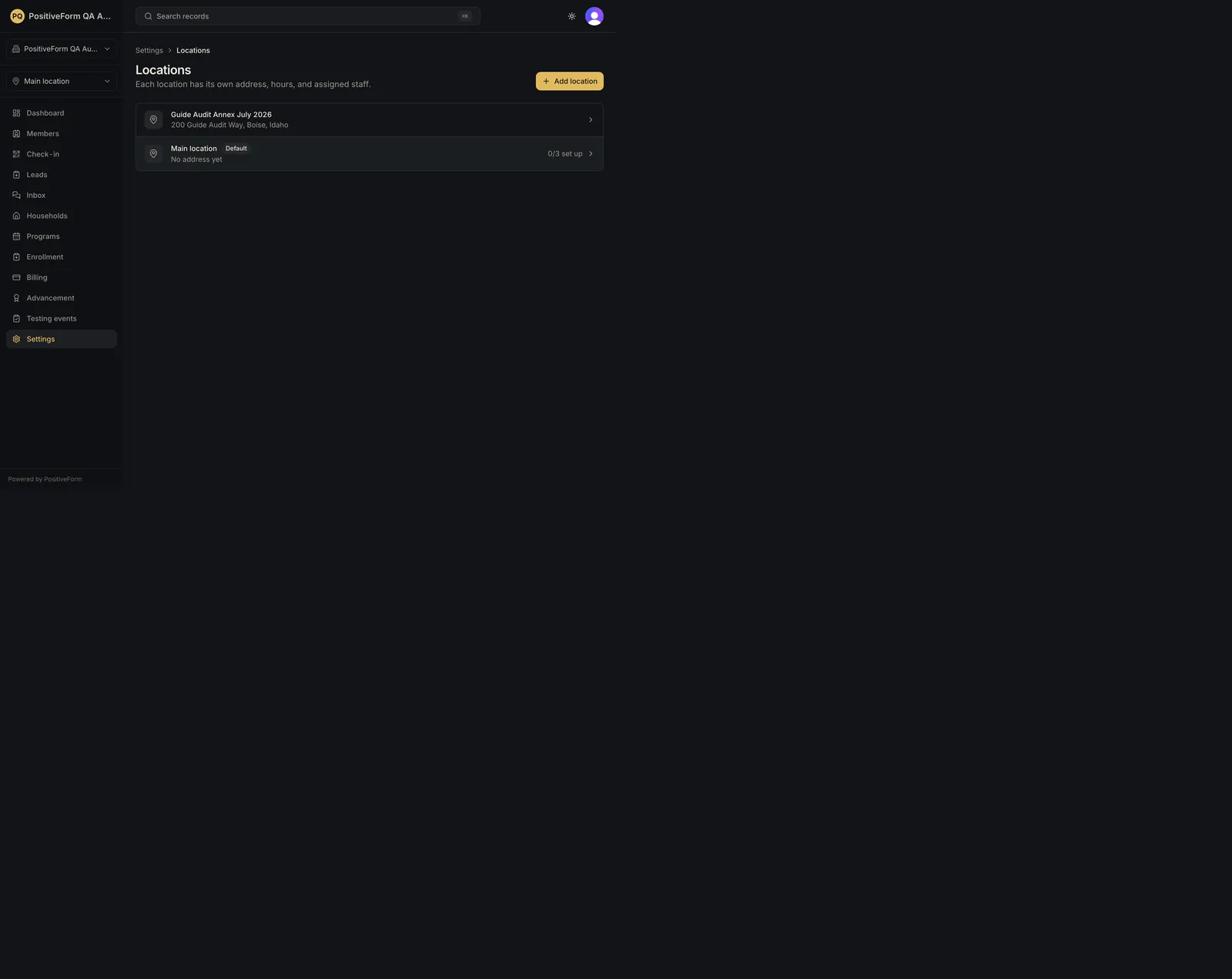
- LOC-001 — Review configured studio locations.
- STAFF-001 — Review staff access and assignments.