Sign in to the staff console
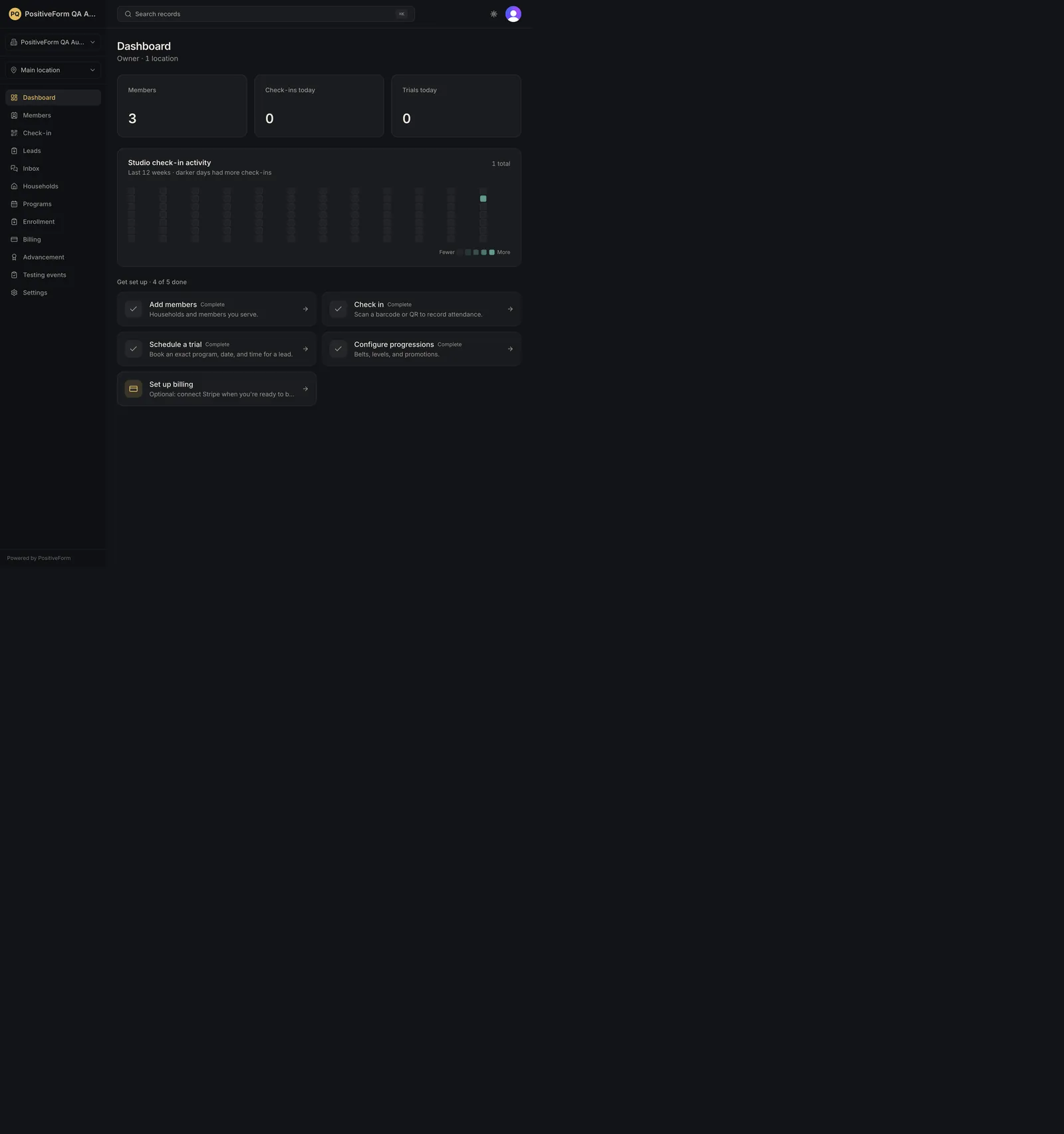
Sign in and reach the organization-scoped console. The authenticated user reaches the selected organization or a clear organization setup/access state.
- Status
-
Verified 2026-07-26
on build
1096a65 - Who can do this
- Staff, Managers, Organization owners, Studio owners
- Required access
clerk.authentication- Where in PositiveForm
/sign-in
"Copy for AI" puts the full Markdown of this page on your clipboard. Paste it into ChatGPT, Claude, or any assistant and ask it to walk you through the steps.
Who this is for
Staff, managers, and studio owners who already have a PositiveForm account and need to enter their organization-scoped console.
Required access: an active Clerk account connected to a staff record.
Before you begin
- Confirm that your account belongs to an active staff record.
- Ask a studio owner which organization you should see after sign-in if your account can access more than one.
Steps
- Open
/sign-in. - Select Continue with Google, or enter your account email address and select Continue.
- Complete Clerk's remaining sign-in prompts. Keep passwords and verification codes private.
- Confirm that PositiveForm opens the selected organization's console. A new account without organization access may instead see the organization setup or access screen.
Expected outcome
The signed-in user reaches the correct organization-scoped console, or sees a clear organization setup/access state when no organization is available.
Screenshots
Recovery
- If Clerk says the account cannot be found, confirm the email address or ask a studio owner to invite the account.
- If the wrong organization opens, use the organization switcher before doing any work.
- If sign-in loops or returns an error, reload once and try again. Preserve the visible error and contact PositiveForm support if the problem continues.
Related guides
- AUTH-002 — Create a staff account when one does not exist.
- ONB-001 — Create an organization when the account has no organization access.