Create a staff account
Open the dedicated registration flow from sign in. The application renders Clerk registration at the dedicated sign-up route.
- Status
-
Verified 2026-07-26
on build
1096a65 - Who can do this
- New staff (signed out)
- Required access
public- Where in PositiveForm
/sign-up
"Copy for AI" puts the full Markdown of this page on your clipboard. Paste it into ChatGPT, Claude, or any assistant and ask it to walk you through the steps.
Who this is for
Prospective staff who need to open PositiveForm's dedicated account registration flow before joining or creating a studio workspace.
Required access: none. This is a public, signed-out workflow.
Before you begin
- Sign out of any existing PositiveForm session.
Steps
- Open the PositiveForm sign-in page and select Sign up, or go directly to
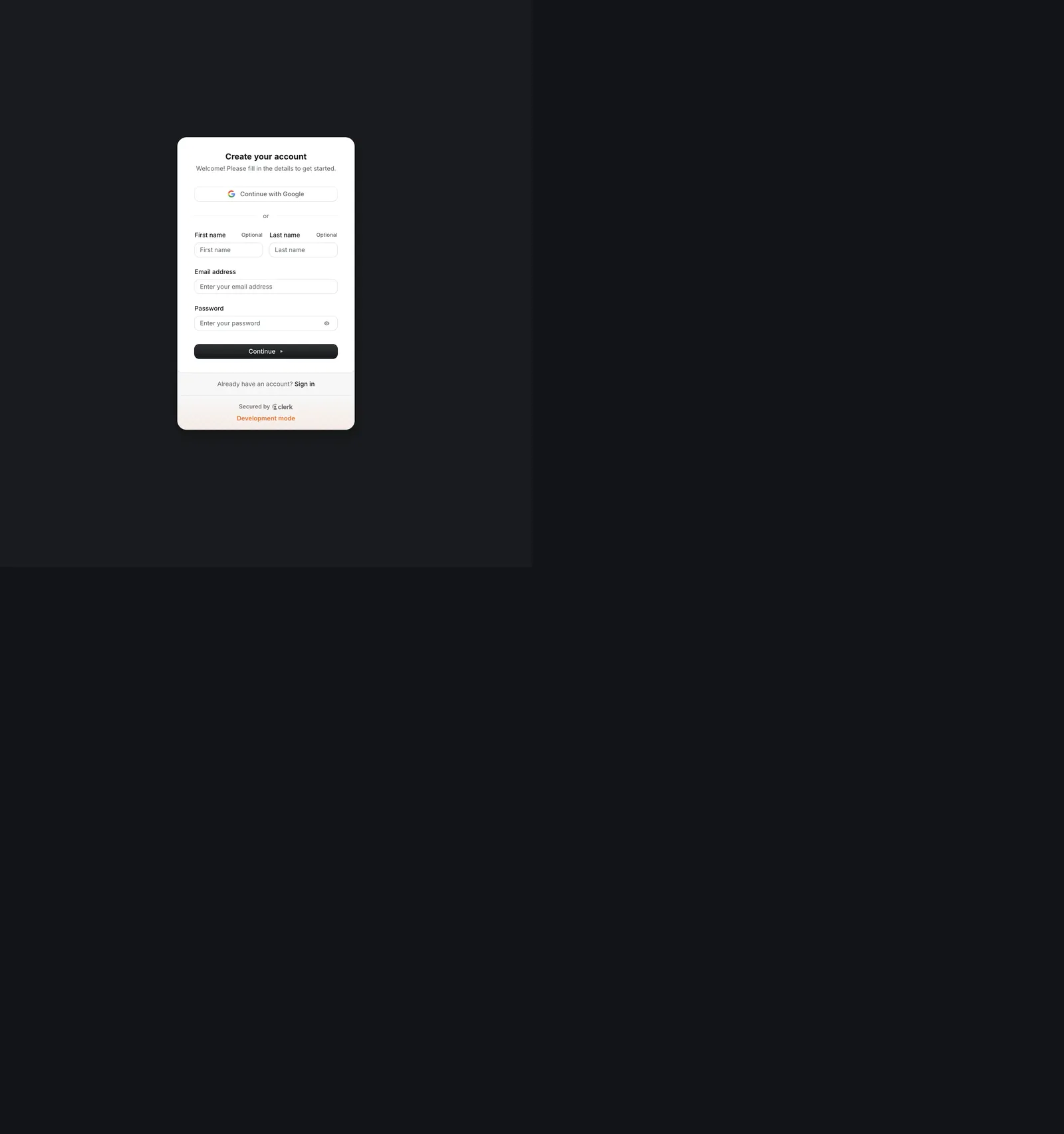
/sign-up. - Confirm that the page says Create your account and offers both Continue with Google and an email registration form.
- For email registration, enter optional first and last names, an email address, and a password, then select Continue.
- Follow any verification prompts from Clerk. After account creation, PositiveForm will either open an available organization or show the next organization access/setup step.
Expected outcome
The /sign-up route renders Clerk's Create your account form. It includes
Google registration, email and password fields, a Continue button, and a
link back to Sign in.
Screenshots
Recovery
- If sign-in appears instead, sign out and reopen
/sign-up. - If the email is already registered, select Sign in rather than creating a duplicate account.
- If the form does not load, reload once. Preserve the visible error and report a finding if the dedicated route still does not render.
Related guides
- AUTH-001 — Sign in to the staff console after the account exists.
- ONB-001 — Create an organization when the account has no studio access yet.