Manage developer API keys
Create, rotate, and revoke developer API keys from the product. Key lifecycle is visible, new secrets are shown only once, and revoked keys cannot be used.
- Status
- Draft, not yet re-verified
- Who can do this
- Organization owners, Managers
- Required access
integrations.manage- Where in PositiveForm
/settings/developer/api
"Copy for AI" puts the full Markdown of this page on your clipboard. Paste it into ChatGPT, Claude, or any assistant and ask it to walk you through the steps.
Who this is for
This guide is for integration staff creating and managing developer API keys inside PositiveForm.
Before you begin
- Prefer a non-production studio when experimenting.
- Copy any new secret immediately; it is shown only once.
- Creating and rotating keys are organization-owner actions, and PositiveForm asks you to re-authenticate before either one. A manager with the manage-integrations permission can see the keys and revoke them, and the page says so instead of showing the form.
Steps
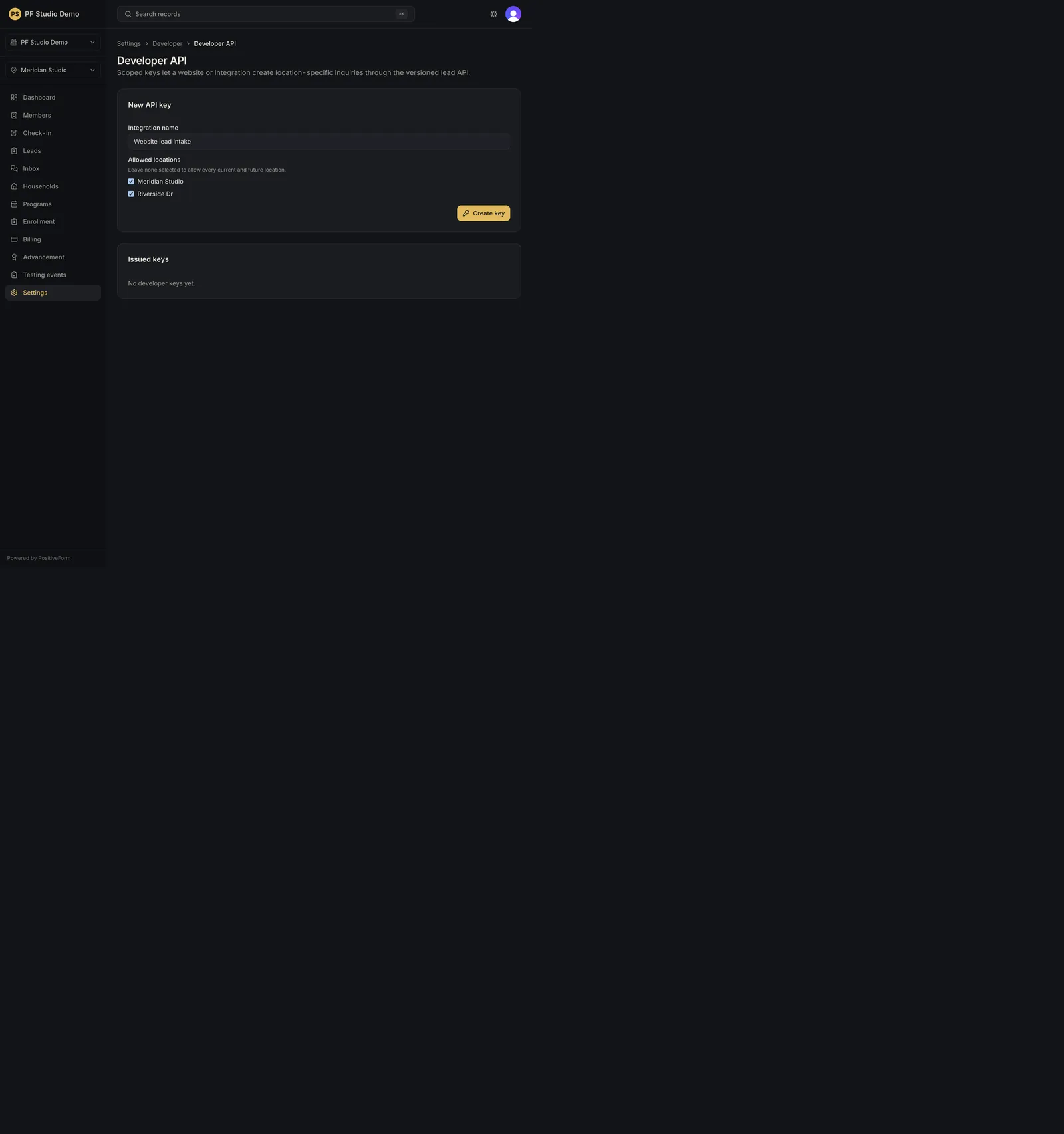
- Open Settings › Developer › API (
/settings/developer/api). The heading is Developer API. - Under New API key, enter an Integration name.
- Under Allowed locations, untick any location this key should not reach. Every location starts ticked. Leaving none selected allows every current and future location; it is not an error.
- Click Create key and complete the re-authentication prompt.
- Copy this key now appears with the secret. Click Copy key, store it in the integration's secret manager, then click I stored it. PositiveForm will not show the secret again.
- Each key under Issued keys shows its prefix, location scope, last use, and status, with Rotate and Revoke beside it. Rotate issues a replacement immediately and keeps the old key valid for 24 hours, so the integration can be updated without an outage. Revoke ends a key at once.
- Use the Developer breadcrumb to reach webhooks next if needed.
Expected outcome
Key lifecycle is visible. New secrets appear once; revoked keys cannot be used.
While the studio is a verified draft, a new key is issued disabled and the form says so. It cannot authenticate requests until the studio is activated.
Screenshots
Recovery
If create fails, check that Integration name is filled in. Locations are not required; none selected means every location.
If you cancel the re-authentication prompt, PositiveForm tells you the key was not created or not rotated, and nothing changed.
If the page says only an organization owner can create or rotate keys, ask an owner. Revoking is still available to a manager with the manage-integrations permission.
If the clipboard is refused, the secret stays on screen until you click I stored it, so select and copy it by hand.
If you lost a secret, revoke the key and create a new one rather than hunting for it anywhere outside PositiveForm.
Related guides
- API-002