Switch operating locations
Switch my operating location without changing organizations. Location-scoped pages reload for the selected location while the tenant remains unchanged.
- Status
- Draft, not yet re-verified
- Who can do this
- Organization owners, Managers, Staff
- Required access
organization.membership- Where in PositiveForm
/
"Copy for AI" puts the full Markdown of this page on your clipboard. Paste it into ChatGPT, Claude, or any assistant and ask it to walk you through the steps.
Who this is for
Owners, managers, and staff who work across multiple locations in one organization.
Required access: membership in the selected organization and access to its locations.
Before you begin
- Select the correct organization first.
- Confirm that at least two active locations are available to the account.
- Finish or cancel any unsaved form before switching. Changing location remounts the page under it, so PositiveForm asks you to confirm discarding unsaved work first.
Steps
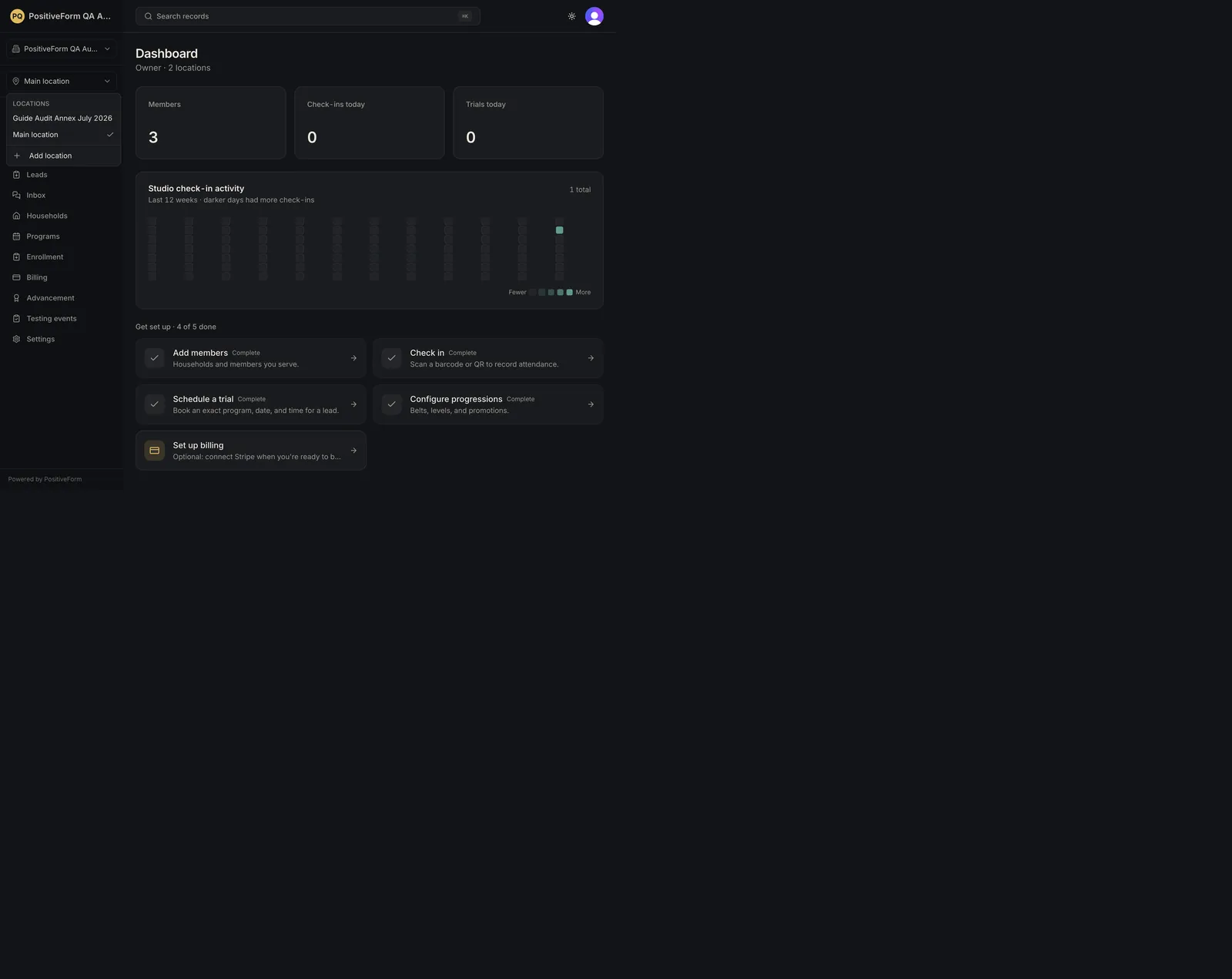
- In the application sidebar, open the control labeled Location, below the organization selector. It shows the name of the location you are working in. On a phone there is no sidebar, so the same control sits in the header.
- Under Locations, select the destination location. The check mark shows the current selection. Only active locations are listed.
- Wait for the Switching to
… state over the page to finish while the location-scoped data refreshes. - Confirm that the location control shows the destination while the organization name remains unchanged.
- Before editing anything, confirm that the visible records belong to the selected location.
For a role that carries locations.manage, the same menu ends with Add
location, which opens location setup and returns you here afterwards.
Expected outcome
Location-scoped pages refresh for the selected location while the active organization remains unchanged. Settings pages are organization-wide and are not narrowed by this choice.
Each browser tab keeps its own location, so a second tab stays where you left it.
Screenshots

Recovery
- If the selector is hidden, the account has only one available location and no permission to add another, so it has nothing to choose between. A role that can manage locations keeps the control with a single location, because it is also where Add location lives.
- If the destination is missing, ask an owner or manager to confirm that the location is active and available to your staff account.
- If the selector changes but the page retains records from the prior location, stop work, switch back, and contact PositiveForm support urgently.
Related guides
- WORK-001 — Change to a different organization before choosing its location.
- LOC-002 — Maintain the selected location's profile, hours, and staff assignments when your access permits it.