Manage agreement templates
Create, preview, publish, unpublish, or archive member agreement templates. Template lifecycle and signing order are explicit and published content remains…
- Status
- Draft, not yet re-verified
- Who can do this
- Organization owners, Managers, Staff
- Required access
members.change- Where in PositiveForm
/settings/agreements/templates
"Copy for AI" puts the full Markdown of this page on your clipboard. Paste it into ChatGPT, Claude, or any assistant and ask it to walk you through the steps.
Who this is for
This guide is for whoever owns the studio's paperwork: an owner, a
manager, or staff with the members.change permission.
An agreement template is the document families sign. It has a lifecycle you can see on the page: Draft while you write it, Published once families can sign it, and Archived when you retire it.
The property that matters is that published content is versioned. Editing a published agreement produces a new version rather than rewriting the one people already signed, so what somebody agreed to stays what they agreed to.
Before you begin
- Have the wording ready, or be prepared to draft it here.
- Know that only a published agreement can be sent or signed. A draft cannot be requested from a family.
- Know that archiving does not invalidate signatures already collected.
Steps
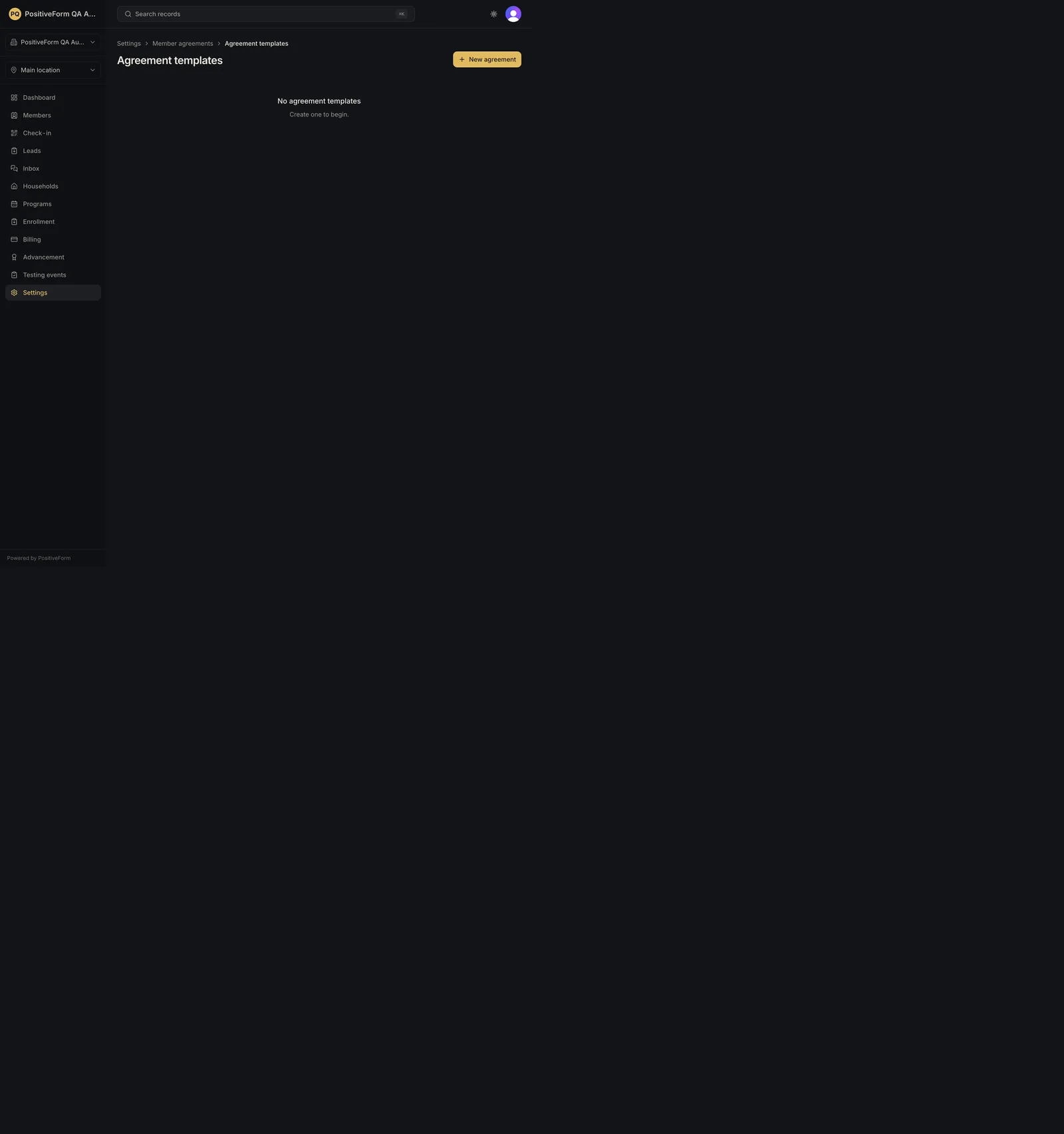
- Click Settings in the left navigation, then Member agreements, then Agreement templates in the row of buttons at the top of that page. With none set up it reads No agreement templates and invites you to create one.
- Click New agreement. Under Choose a starting point, either Start blank or pick a supplied template and click Use template. Supplied templates arrive as unpublished drafts and require studio review before they can be published.
- Give it a Title families will recognise, set the Agreement type (Participation waiver, Studio policy, Photo/video permission, or Other), and write the content. Inserted fields fill in signer details when the agreement is sent.
- Click Save agreement. It stays a Draft, and each template shows its version number and when it last changed.
- Check it with Signing Preview (what the signer sees) and Preview as Complete (the signed document).
- Click Publish when the wording is right, and confirm the responsibility acknowledgment in the dialog. It moves under Published, and only then can it be sent or signed. Publishing refuses while there are unsaved edits, and refuses a supplied template whose drafting notice has not been replaced.
- To change a published agreement, edit it and click Save new version. That creates a new version and returns the agreement to Draft, so it stops being offered for new signatures until you publish it again. Signatures already collected stay attached to the version that was signed. Return to draft does the same without a text change.
- To retire one, open it and click Archive. It moves under Archived and stops being offered for new signatures. Restore brings it back as a draft.
- From a published template's row, use General link for the front-desk QR code and link (Sign a public agreement), or Send to request a signature from a specific member.
Expected outcome
The templates page groups agreements by where they are in their lifecycle: Draft ones you are still writing, Published ones families can sign, and Archived ones you have retired. Each shows a version number and the date it last changed.
A published agreement becomes available everywhere signatures are collected, including the Request signatures and Sign here actions on a household; see Manage member agreement completion.
Publishing a new version does not alter what anyone has already signed. That is the reason it versions rather than editing in place.
Below the templates, Walk-in signatures to link lists public signatures signed at the front desk that arrived without a member attached. Each row offers Link to a suggested member, Link to a member… to search, or Dismiss. The section is absent when nothing is waiting.
Screenshots
Recovery
If an agreement does not appear when you try to send one, check it is published rather than still a draft. A draft is invisible to the sending flow on purpose.
If you archived one families still need, unarchive or republish it. Signatures collected before archiving are unaffected either way.
If you published wording with a mistake, fix it and publish again rather than trying to undo. Saving the correction returns the agreement to Draft, so publish it again promptly or families cannot sign it in the meantime. The corrected version applies to future signatures, and the earlier one stays attached to the people who signed it, which is what you want if anyone ever asks what they agreed to.
If Publish is unavailable, save your edits first; the button is disabled while changes are unsaved. If publishing refuses because the drafting-starter notice is still present, replace that notice and the instructions with the studio's own reviewed wording.
If saving or publishing fails, PositiveForm shows the reason and the template is unchanged.
Related guides
- Manage member agreement completion — send a published agreement to a family, or record one they signed on paper.
- Sign a public agreement — what the signer sees when they open the link.