Sign a public agreement
Review and sign an active agreement link without staff-console access. The signature is recorded once and the signer sees a safe completion or recovery state.
- Status
-
Verified 2026-07-30
on build
5dab2df - Who can do this
- Agreement signers (public link)
- Required access
public- Where in PositiveForm
/w/:linkId
"Copy for AI" puts the full Markdown of this page on your clipboard. Paste it into ChatGPT, Claude, or any assistant and ask it to walk you through the steps.
Who this is for
This guide is for a parent, guardian, or adult participant opening a studio's agreement link or scanning its front-desk QR code.
Required access: none. The signing page is public and does not ask you to sign in or create an account.
Before you begin
- Use the current link or QR code supplied by the studio. A disabled or replaced link cannot accept a signature.
- Have an email address the studio can use if it needs to follow up about the agreement.
- Know which students the agreement covers. Leave the student field blank when you are signing only for yourself.
- Read the agreement before completing the signature fields.
Steps
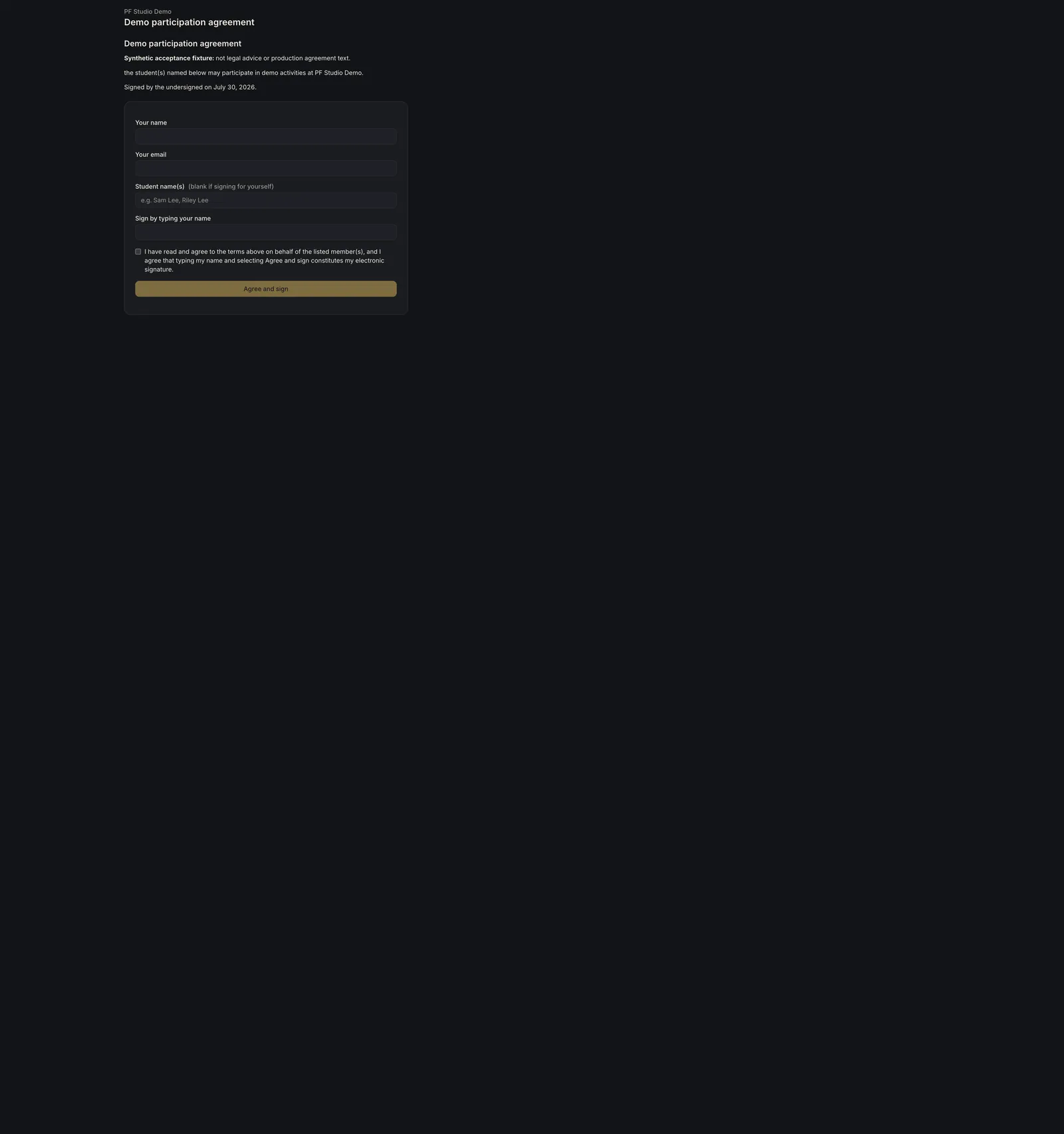
- Open the studio's agreement link or scan its QR code. The page identifies the studio and agreement above the full document.
- Read the agreement, then enter Your name and Your email.
- In Student name(s), list everyone the agreement covers. Leave this field blank if you are signing for yourself.
- Review Sign by typing your name. PositiveForm copies Your name into this field automatically; correct it if the legal signature should differ.
- Read and select the agreement checkbox. Agree and sign becomes available only after the required details and this attestation are present.
- Select Agree and sign once. Wait until the page says Signed, names the agreement and who it covers, and says the device can be handed back or the page closed.
Expected outcome
PositiveForm records one public signing submission and shows Signed without requiring a staff or family account. The studio receives the submission as unmatched so staff can associate it with the right member during reconciliation.
Screenshots

Recovery
- If the page says This signing link isn't active, ask the front desk for a current QR code or link. The old link cannot be repaired from the signing page.
- If it says Too many requests right now, wait a minute and scan or open the link again.
- If Your email is rejected, correct it before trying to sign. The studio uses this address for agreement follow-up.
- If Agree and sign is unavailable, complete your name and email, make sure the typed signature is present, and select the agreement checkbox.
- If the page already says Signed, do not submit again. The signature was recorded; hand the device back or close the page.
- If submission fails without reaching Signed, keep the page open and ask the front desk to confirm whether the signature arrived before retrying.
Related guides
- Manage member agreement completion — how studio staff review a member's outstanding and completed agreements.
- Manage agreement templates — how studio staff publish the agreement shown on this page.