Maintain or retire a location
Update location details and hours or retire a location safely. Profile, hours, staff assignments, and any retirement replacement are saved without stranding…
- Status
- Draft, not yet re-verified
- Who can do this
- Organization owners, Managers
- Required access
locations.manage- Where in PositiveForm
/settings/locations/:publicId
"Copy for AI" puts the full Markdown of this page on your clipboard. Paste it into ChatGPT, Claude, or any assistant and ask it to walk you through the steps.
Who this is for
This guide is for an organization owner or a manager keeping a site's details current, and for an organization owner closing a site down.
You need the locations.manage permission to edit a location. Retiring and
reopening a location are owner-only, so the Close this location card appears
only for an organization owner. Retiring also asks you to re-enter your password
or sign-in code before it runs, because it moves live records.
Before you begin
- Know which location you are changing. One organization can run several, and each has its own address, hours, and staff.
- To retire a location, first know where its active work should continue. PositiveForm asks you to name a replacement location for the members, households, staff assignments, and future programs that live there.
- An organization must keep at least one active location. The last one cannot be retired.
Steps
Open the location
- Click Settings in the left navigation, then click Locations.
- Click the location you want to change. Its page opens with a Settings › Locations breadcrumb and the location name as the heading. The organization's default location is marked Default.
A location that still needs details shows Setup · 0 of 3 complete near the top, listing what is missing: Business address, Phone number, and Contact email.
Update the profile
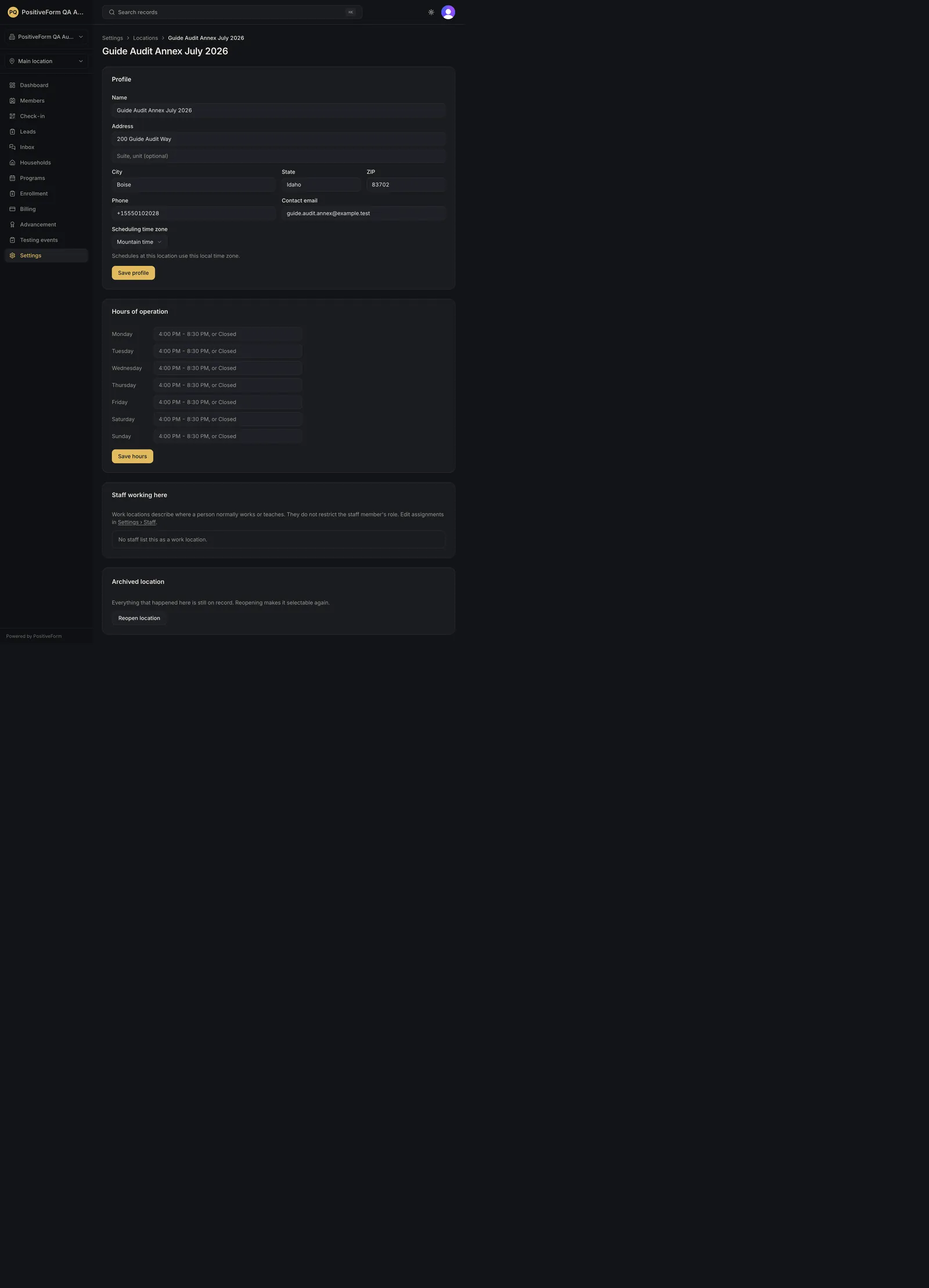
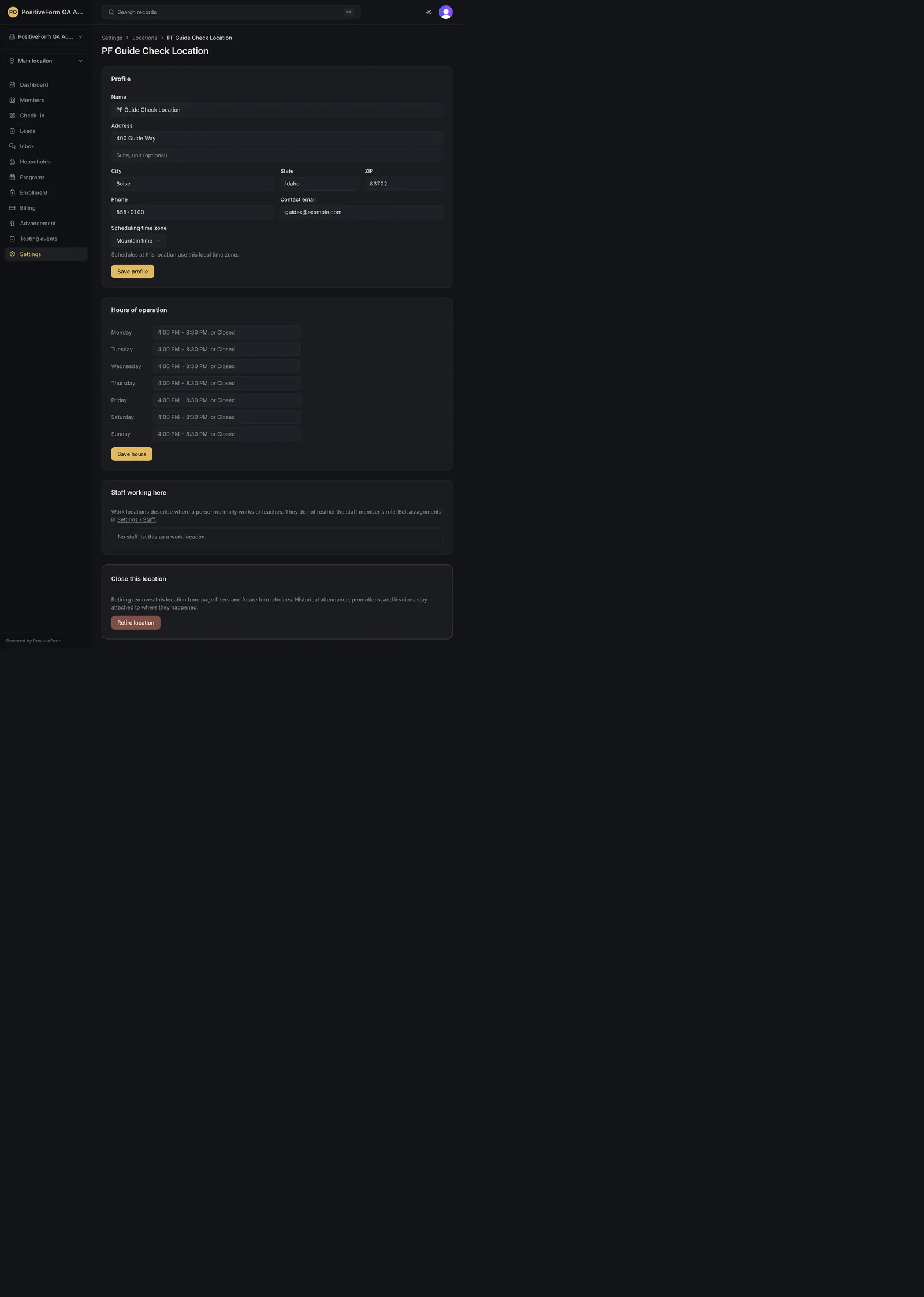
- In the Profile card, edit Name, Address, Address line 2, City, State, ZIP, Phone, and Contact email.
- Set Scheduling time zone. Leave it on Use organization time zone when this site runs on the same clock as the rest of the business, or pick a specific zone when it does not. Program schedules at this location follow this setting.
- Click Save profile.
Set the hours families see
- In Hours of operation, type each day's hours in plain language, for
example
4:00 PM - 8:30 PM, orClosedfor a day you are shut. - Click Save hours.
Check who works here
- Read the Staff working here card. Each person is listed as either Home location or Additional work location, and Open profile takes you to their staff record.
- To change who works here, go to Settings › Staff and edit the person there. A work location says where someone normally teaches; it does not grant or restrict their role.
The named parts of this location's floor, such as a front and back mat, are not on this page. They live in Settings › Training areas, grouped under each location's name, and a class time points at one from the program's Schedule tab. Most studios never need them.
Retire a location you are closing
- Scroll to Close this location and click Retire location. If the button is greyed out with An organization needs at least one active location, this is your only active site and cannot be retired.
- Read the Retire
dialog. It first shows what is still active here, for example the number of members, households, staff assignments, and future programs. If nothing needs to move it says so. The default location always requires a replacement, and the dialog says so. - If a replacement is required, click Continue, then choose a Replacement location. Active members and households are rehomed there, staff assignments move, and future programs, testing, and open leads continue there.
- Click Retire location in the dialog and complete the sign-in check PositiveForm asks for.
Reopen a location you closed
- Open the retired location from Settings › Locations. Its card now reads Archived location.
- Click Reopen location.
Expected outcome
Saving the profile confirms with Location updated, and saving hours confirms with Hours updated. Both persist: reload the page and the new values are still there, and the setup checklist at the top drops the items you completed. The location's address and hours are what families and staff see for that site.
Retiring confirms with
Screenshots
Recovery
If saving the profile fails, PositiveForm shows Couldn't save. Check the fields and try again. Your typing is still on screen. Correct the fields and click Save profile again. Saving hours fails with Couldn't save hours. and behaves the same way.
If the fields are greyed out, your role does not carry locations.manage. Ask
an organization owner to make the change.
If retiring fails, PositiveForm shows That location could not be retired. with the reason, and the location stays active. The most common reason is that active work still needs a replacement location; reopen the dialog and choose one.
If you cancel the sign-in check, nothing is retired. Start again from Retire location when you are ready.
Retiring the wrong location is recoverable: open it again and click Reopen location. Records that were rehomed to the replacement location do not move back on their own, so check the members and staff that were affected. Reopening does not put the location's training areas back either; each one still shows Retired in Settings › Training areas until you click Put back in use.
Related guides
- Create a location — add a new site before retiring an old one, so there is somewhere for its active work to continue.
- Switch operating locations — switch the console to another location after retiring the one you were working in.