Manage reusable roles
Create, duplicate, edit, import, export, or remove reusable permission roles. Role changes validate server-defined capabilities and do not silently change…
- Status
- Draft, not yet re-verified
- Who can do this
- Studio owners, Organization owners
- Required access
organization.owner- Where in PositiveForm
/settings/roles
"Copy for AI" puts the full Markdown of this page on your clipboard. Paste it into ChatGPT, Claude, or any assistant and ask it to walk you through the steps.
Who this is for
This guide is for the organization owner. Roles decide what your staff can reach, so only an owner can create, change, or delete them.
A role is a reusable bundle of permissions. A staff member holds everything from all of their roles, plus any direct grants given to them individually. Roles are the maintainable way to run this: change the role once and everyone holding it changes with it.
Before you begin
- Think in jobs, not people. Front desk, Manager, and Billing manager are roles; "Kim's permissions" is not.
- Know that a role never affects ownership. Owners hold every permission, and nothing you do here can grant or remove that.
- Locations do not narrow a role. Roles apply across the whole organization, so a person's home location does not restrict what their role lets them do.
Steps
See the roles you have
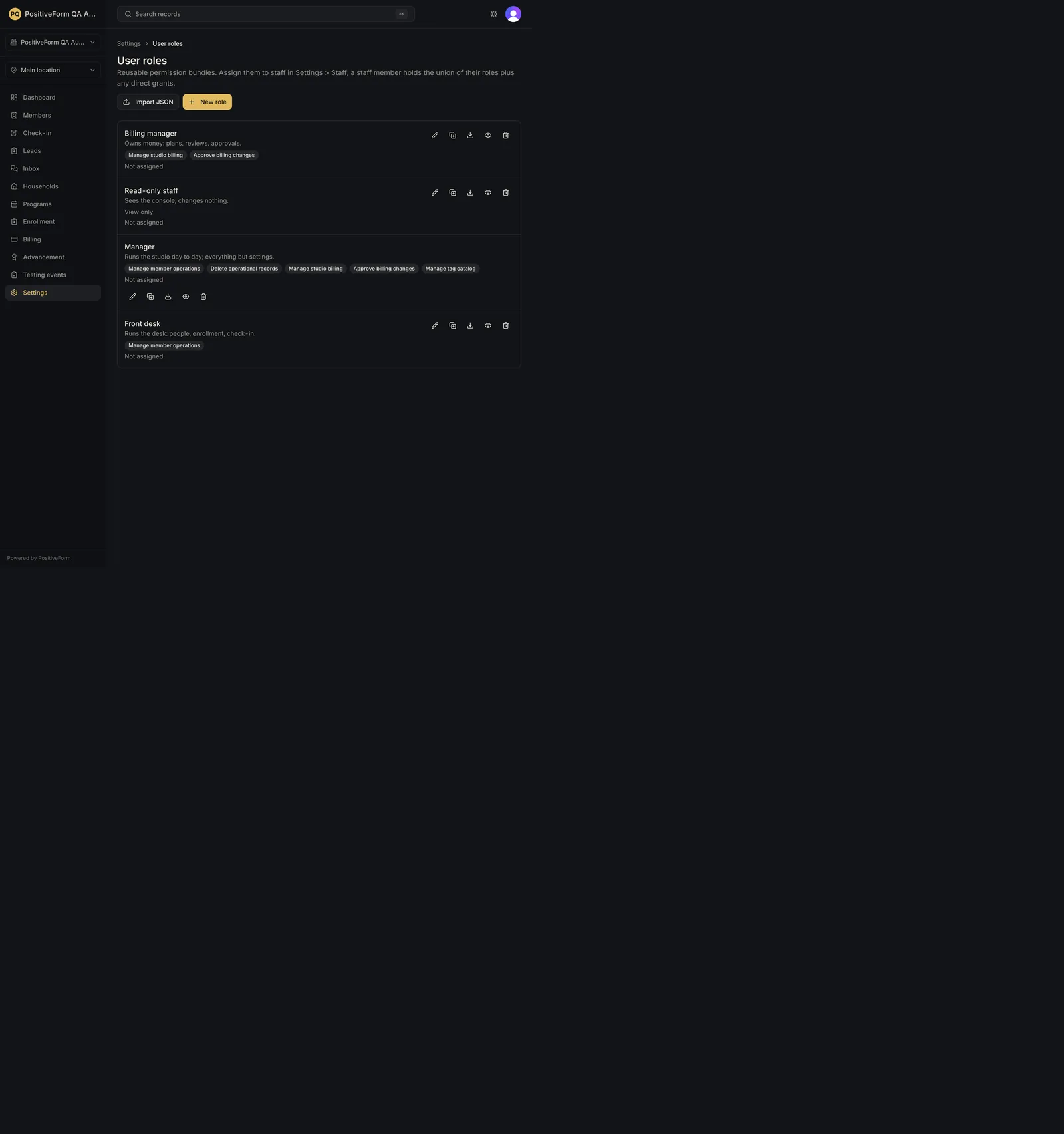
- Click Settings in the left navigation, then click User roles.
- Each role is listed with its description, the permissions it carries, and how many staff hold it. A role nobody holds is marked Not assigned.
Create a role
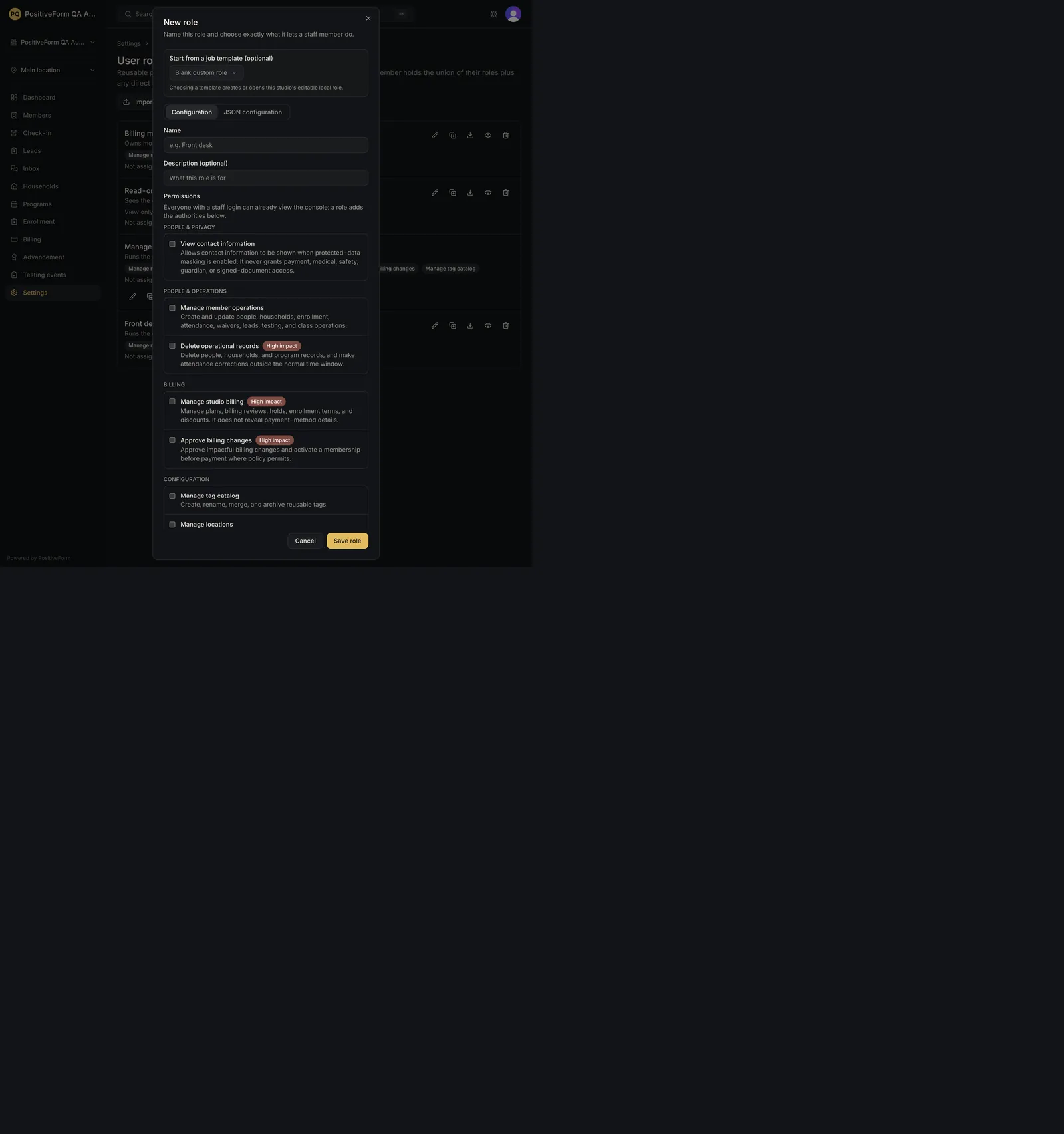
- Click New role.
- Optionally pick a Start from a job template (optional), or leave it on Blank custom role. Choosing a template creates or opens this studio's own editable copy; the template itself is never changed.
- Give it a Name that describes the job, for example
Front desk, and use Description (optional) to say what the role is for. - Tick the permissions it should carry under Permissions. They are grouped by area, and each one describes what it allows. Read the note above them: everyone with a staff login can already view the console, so a role adds authority rather than granting basic access.
- Watch for the High impact badge. It marks the permissions worth pausing over, such as Delete operational records, Manage studio billing, and Approve billing changes.
- Click Save role. PositiveForm checks your choices against the permissions the server actually defines, so a role cannot claim something that does not exist.
The editor also has a JSON configuration tab, which shows the same role as a definition you can read or paste. Use it when moving a role between studios; otherwise stay on Configuration.
Change or copy a role
- Open an existing role to edit its name, description, or permissions. Saving changes it for everyone who holds it.
- Each role in the list carries icon buttons for Edit, Duplicate,
Export ... JSON, Preview, and Delete. Duplicating opens the same
editor on a copy named
<role> copy. If you save it without changing the description or the permissions, PositiveForm asks Create an exact duplicate? first; Create duplicate confirms with Role duplicated and leaves the original untouched, and Keep editing returns you to the copy.
Move a role between studios
- Click Import JSON to paste a role definition into Import role JSON. Load example JSON (optional) fills the box with a job-role example. Click Preview import to validate it on the server, read what it will create, then click Create local role. Create local role stays disabled until the preview succeeds, so a bad paste is refused rather than half-applied.
- Use the export action on a role to open Role definition JSON and Copy JSON its definition out. JSON cannot grant owner authority, assign staff, scope locations, or carry credentials.
Delete a role
- Delete a role you no longer use. Delete is disabled while anyone holds the role, and hovering it says Unassign this role everywhere before deleting it. Remove the role from every staff member first; see Manage staff access. Once it is unassigned, deleting is immediate and there is no confirmation step.
Expected outcome
Saving confirms with Role saved, and the role appears in the list with its permissions and assignment count. Deleting confirms with Role deleted.
The change takes effect for every staff member holding that role, without touching their other roles or their direct grants. Assign a role to someone from their profile; see Manage staff access.
Nothing here changes ownership. Owner authority is not editable from this page.
Screenshots
Recovery
If you save without a name on Configuration, PositiveForm marks the Name field with Name is required. On JSON configuration it refuses with The role needs a name. instead, because there is no name field there to mark.
If saving fails, you get Could not save that role. with the reason, and the role is unchanged. Your edits stay on screen.
If a pasted definition is rejected, PositiveForm says That role definition is not valid. or asks you to enter valid role-definition JSON first. Nothing is created until a definition validates, so a bad paste cannot half-apply.
If the JSON in the editor will not parse, PositiveForm refuses to switch back to Configuration with Fix the role JSON before switching to the configuration editor.
If deleting fails, you get Could not delete that role. and the role stays.
If you delete a role by mistake, recreate it and reassign it to the affected staff. There is no undo.
Related guides
- Preview a role safely — see the console as a role sees it before you give it to anyone.
- Manage staff access — assign roles to a person and inspect what they end up with.