Preview a role safely
Preview a role with server-enforced read-only access. The preview clearly identifies the role, masks protected data when configured, prevents mutation, and…
- Status
- Draft, not yet re-verified
- Who can do this
- Studio owners, Organization owners
- Required access
organization.owner- Where in PositiveForm
/settings/roles
"Copy for AI" puts the full Markdown of this page on your clipboard. Paste it into ChatGPT, Claude, or any assistant and ask it to walk you through the steps.
Who this is for
This guide is for the organization owner who wants to see the console the way a role sees it, before handing that role to a person.
A preview is read-only, and the server enforces that, not just the screen. You cannot change anything while previewing, however the page looks.
Before you begin
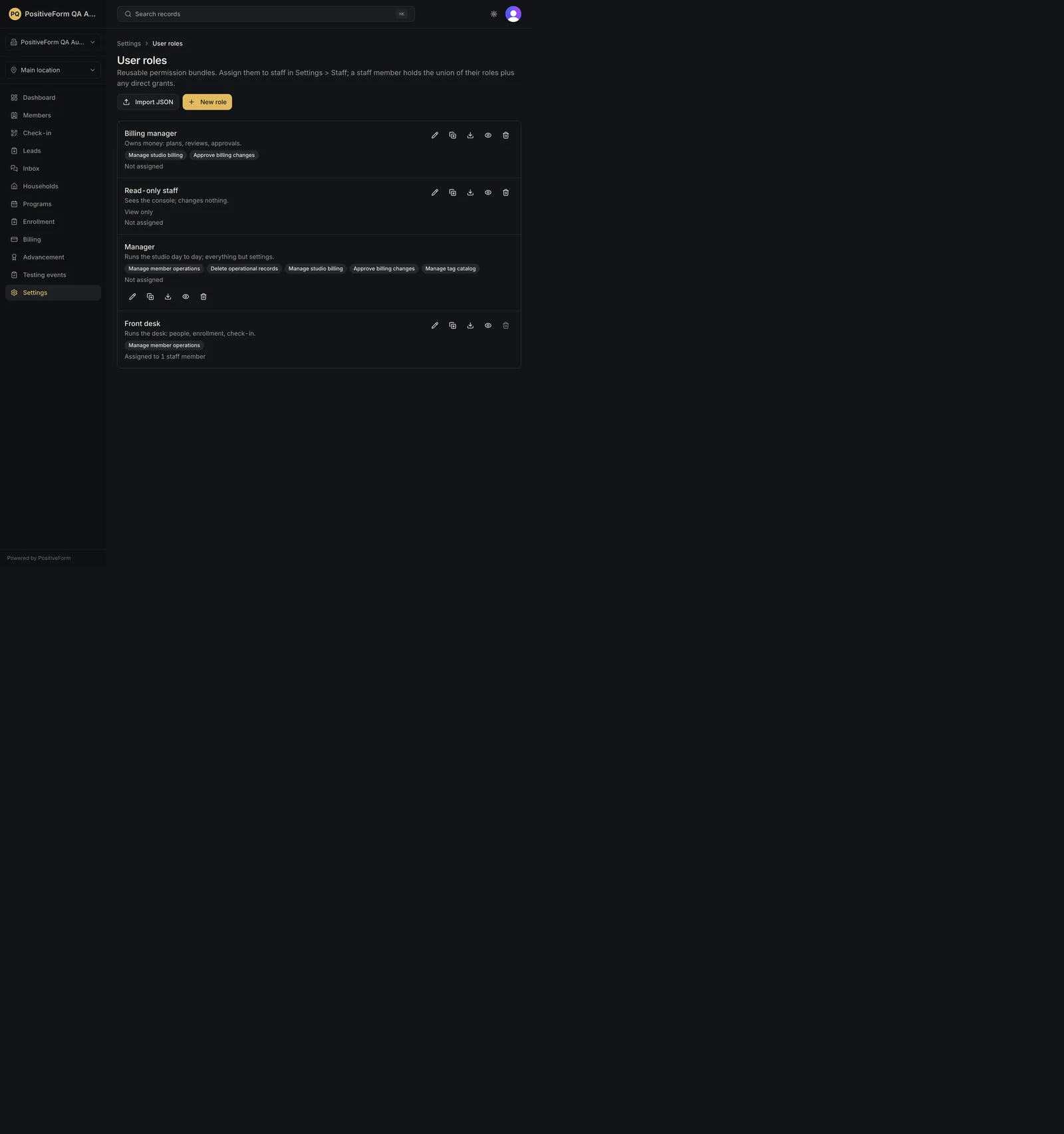
- Create the role first, in Settings › User roles; see Manage reusable roles.
- Know that a preview expires on its own after a short window, and that leaving it is a verification, not a click. Give yourself the time and the credentials to sign in again.
Steps
- Click Settings in the left navigation, then click User roles.
- Find the role you want to check and click its preview action, labelled
Preview
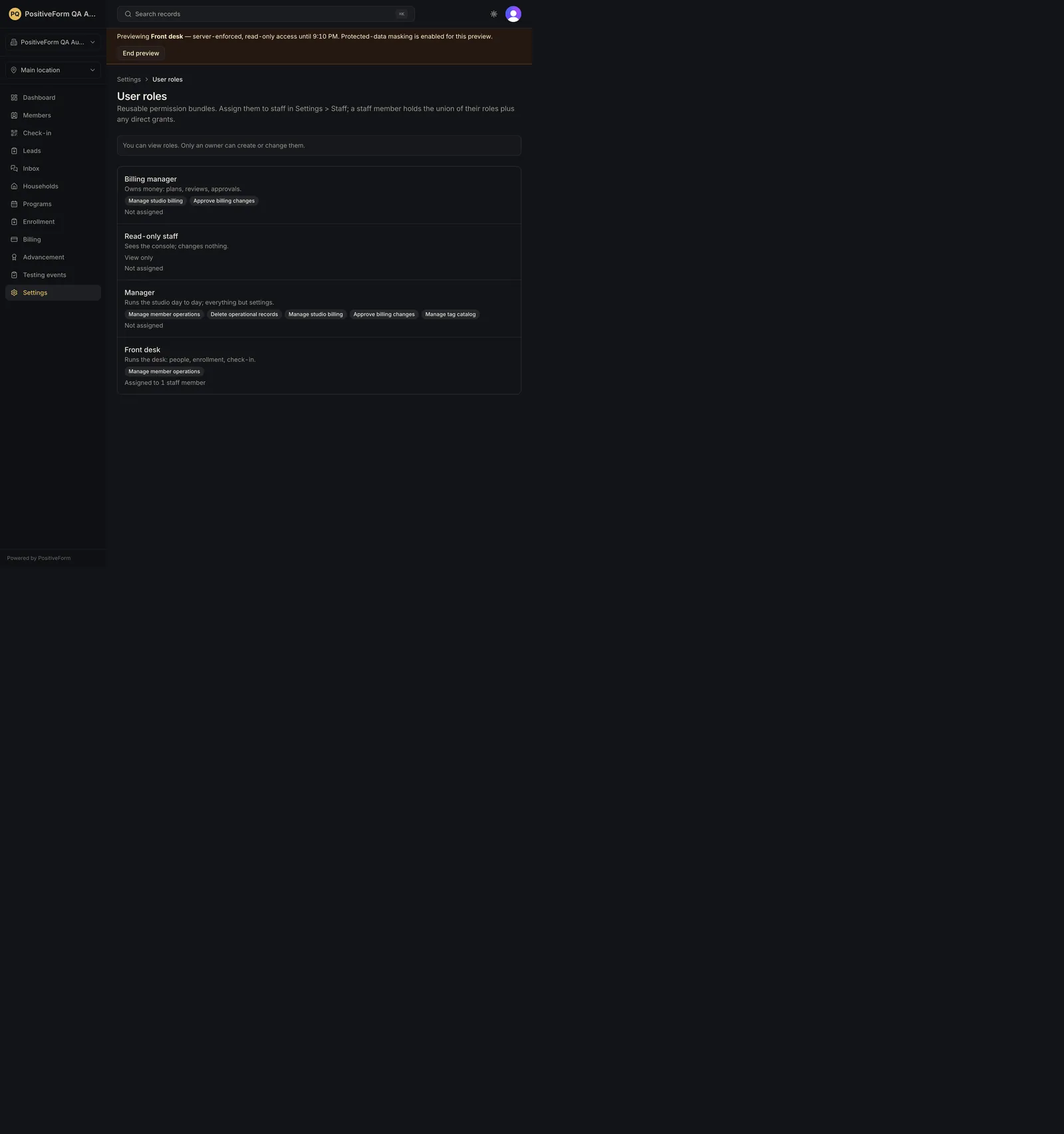
. - PositiveForm confirms with Previewing
in read-only mode and takes you to the dashboard as that role. - Move around the console. Navigation, pages, and actions appear as they would for someone holding only that role.
- Read the banner across the top. It names the role you are previewing, says the access is server-enforced and read-only, and gives the time the preview expires. If the role masks protected data, the banner adds Protected-data masking is enabled for this preview.
- Click Verify and return to Owner access in the banner when you are done. PositiveForm ends the preview only after the server confirms a freshly verified return, so it may sign you out of this tab and hand you to sign-in first. Sign in again and it returns you to the page you were on.
Expected outcome
While the preview runs, the banner is on every page, so you can never mistake a previewed console for your own. Attempts to change anything are refused by the server, not merely hidden, so previewing cannot damage a record.
Verify and return to Owner access restores your own access once the return is verified.
If the preview expires or its credential cannot be verified, PositiveForm replaces the whole console with Owner access is locked and asks you to sign in again to return to Studio Owner access. That screen carries the same Verify and return to Owner access button and a Sign out button. An expired preview is recovered by signing in, not by waiting.
Nothing about the role changes by previewing it, and no staff member is affected.
Screenshots
Recovery
If the preview will not start, PositiveForm shows Could not start that role preview. with the reason, and your access is unchanged.
If you are unsure whether you are previewing, look for the banner. No banner means you are yourself.
If returning fails, PositiveForm shows Could not return to Owner access. Try again. and you are still in the preview. Click the button again.
If PositiveForm shows Owner access is locked, the preview expired or its credential could not be verified. Click Verify and return to Owner access and sign in. Waiting does not clear this screen.
If the console looks more limited than you expected, that is the point: the role carries fewer permissions than you thought. End the preview and adjust the role in Manage reusable roles.
Related guides
- Manage reusable roles — change the role once the preview shows you what it actually reaches.
- Manage staff access — give the role to a person once you are satisfied.