Maintain a staff profile
Update staff identity, photo, status, work locations, and optional member link. Changes persist without confusing staff employment status, login access…
- Status
- Draft, not yet re-verified
- Who can do this
- Studio owners, Organization owners
- Required access
organization.owner- Where in PositiveForm
/settings/staff/:staffId/identity
"Copy for AI" puts the full Markdown of this page on your clipboard. Paste it into ChatGPT, Claude, or any assistant and ask it to walk you through the steps.
Who this is for
This guide is for the organization owner keeping a staff member's record current: their name and photo, whether they are teaching, whether they can sign in, where they work, and whether they also train with you as a member.
Those are separate things, and PositiveForm keeps them separate on purpose. Turning off teaching does not remove someone's login, and neither one deletes their profile.
Before you begin
- Know which one you are actually changing. The page groups them under Profile, Staff status and access, Contact details, Work locations, and Member profile.
- Contact details are protected by the contact-information permission, so what you can see there depends on your access.
- A login email can only be changed by the account holder, so a new address can be verified. You cannot change it for them.
Steps
Open the profile
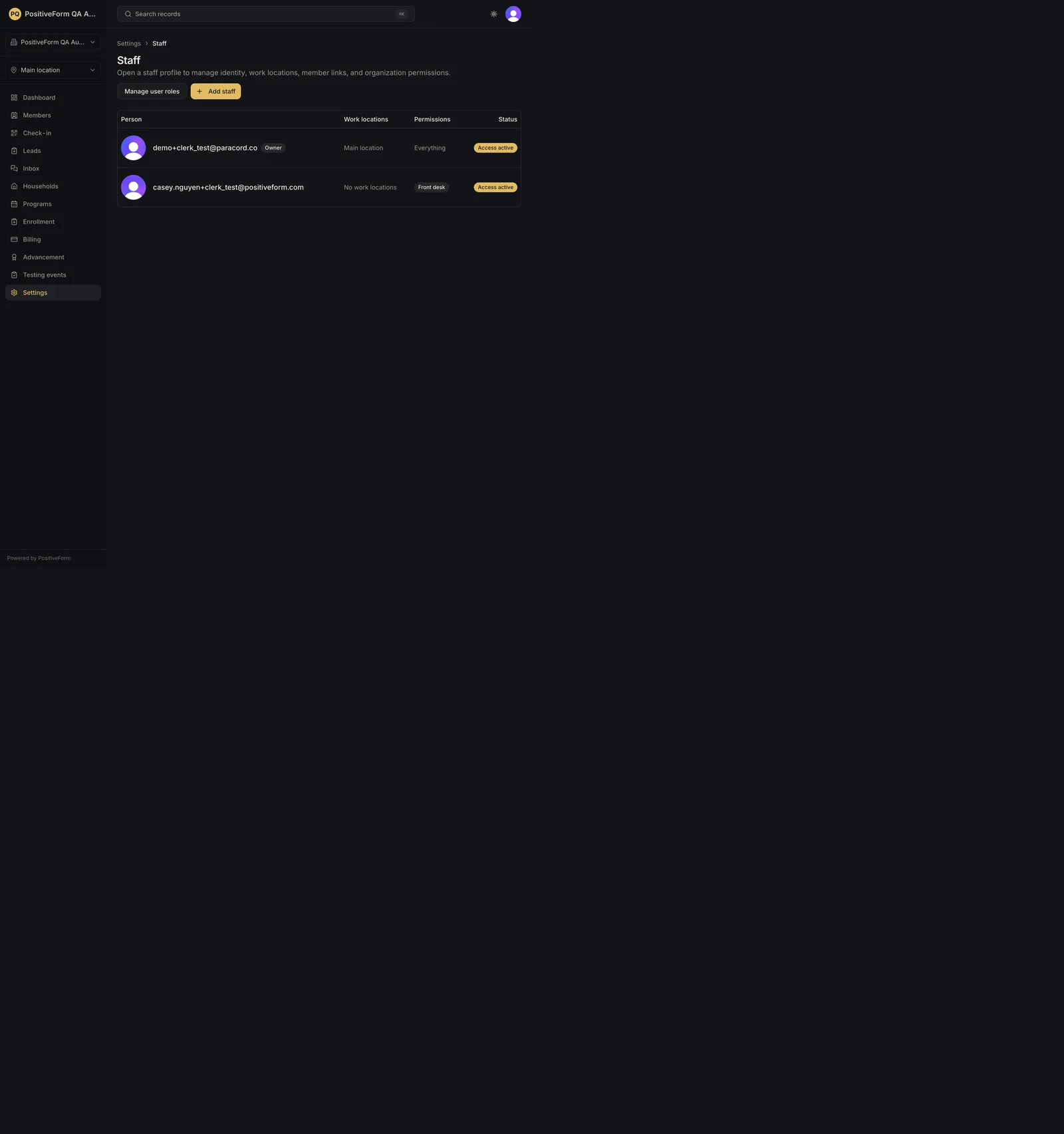
- Click Settings in the left navigation, then click Staff.
- Click the person. Their profile opens on the Identity tab, beside Achievements and Permissions.
Name, photo, and bio
- Edit Name. Use Choose photo to add a profile photo, or Replace photo when one is already set. Position and Zoom the image, then click Crop and upload. Remove takes an existing photo off. JPEG, PNG, or WebP up to 10 MB, cropped to a square.
- Use Bio for a short description. Staff since below it is the date the record was created and is not editable.
Teaching, login access, and status
- Read Staff status and access before changing anything. It says plainly that teaching, organization login access, and the staff identity lifecycle are separate.
- Teaching at the studio shows this person as current instructional staff.
- PositiveForm organization access allows their linked account to enter this organization. Turning it off removes their way in without deleting anything.
- Staff status is shown here and changed at the bottom of the page in the Danger zone, with Set staff inactive or Reactivate staff. Making someone inactive turns off teaching and this organization's login access and never deletes their profile, their identity, or their achievements. Reactivating does not silently restore teaching or access; you turn those back on here. The danger zone is not shown for an owner.
Contact details
- Fill in Email, Phone number, and the address fields. These are operational contact details for the studio's use.
- Login email is shown but not editable by you. Change my login email appears only on your own profile, for changing your own.
- Before someone has linked an account, the PositiveForm account invitation panel is here instead. It shows whether the invitation was Delivered, Delivery failed, or Not sent, and carries Send invitation or Resend invitation. This is where you retry an invitation that did not reach someone; do not run Add staff again for the same email.
Where they work
- Choose a Home location. It decides which workspace opens for them by default. Its placeholder is No default, and Clear removes the choice. Choosing a home location adds it to their work locations and locks that tickbox, badged Home.
- Tick any other locations they work at. Location choices do not grant or restrict permissions; roles and direct grants apply across the organization and are managed under Permissions.
Link them to a member profile
- If this person also trains with you, use Find an existing member to search by name, email, phone, or member ID, then click Link profile on the right record. Type at least two characters. The link is deliberate: matching an email never links an account automatically, and PositiveForm never creates a duplicate member.
- Once linked, the card shows the member with Open member profile and Unlink profile, and Training ranks shows that member profile's current ranks. Changes here appear on the member profile too, because it is one record.
Save
- Click Save profile.
Teaches lower down lists the programs this person is assigned to. That is set on each program's Staff tab, not here.
Expected outcome
The profile saves and the staff list reflects it: name, work locations, permissions summary, and status.
The separate concerns stay separate. Someone can stop teaching and keep their login, lose their login and keep their profile, or be inactive and keep every historical record attached to them. Nothing on this page deletes a person.
If you linked a member profile, training, attendance, subscriptions, and ranks stay on that member record rather than being copied here.
Screenshots

Recovery
If saving fails, PositiveForm shows the reason and keeps your edits on screen. Correct what it names and click Save profile again.
If a photo will not upload, check it is a JPEG, PNG, or WebP under 10 MB. The existing photo stays until a new one succeeds.
If you cannot see or edit contact details, your access does not carry the contact-information permission.
If you linked the wrong member profile, click Unlink profile and search again. Linking does not merge the two records, so nothing is lost by correcting it.
If someone cannot sign in, check PositiveForm organization access here before changing their roles. An account without organization access cannot enter whatever permissions it holds.
Related guides
- Invite staff — create the profile in the first place.
- Record staff achievements and ranks — record ranks, certifications, and awards that belong to the person.
- Manage staff access — change what they can reach.