Record staff achievements and ranks
Record staff achievements and optional training rank history. Achievements and rank changes appear on the staff identity without granting permissions.
- Status
- Draft, not yet re-verified
- Who can do this
- Studio owners, Organization owners
- Required access
organization.owner- Where in PositiveForm
/settings/staff/:staffId/achievements
"Copy for AI" puts the full Markdown of this page on your clipboard. Paste it into ChatGPT, Claude, or any assistant and ask it to walk you through the steps.
Who this is for
This guide is for the organization owner recording what an instructor has earned: ranks from other schools, certifications, awards, and other recognition.
These belong to the person, not to one of your programs. A rank a student earns in your curriculum lives on their member record and comes from advancement; see Configure a progression. This page is for everything else the person brings with them.
Nothing recorded here grants any permission. An achievement is a credential you are noting, not access you are giving.
Before you begin
- Have the details to hand: what it is, who issued it, when it was earned, and a link if the credential can be verified online.
- Know the difference from training ranks. If the person also trains with you and their member profile is linked, their Training ranks appear on the Identity tab and are managed there.
Steps
- Click Settings in the left navigation, then click Staff, then click the person.
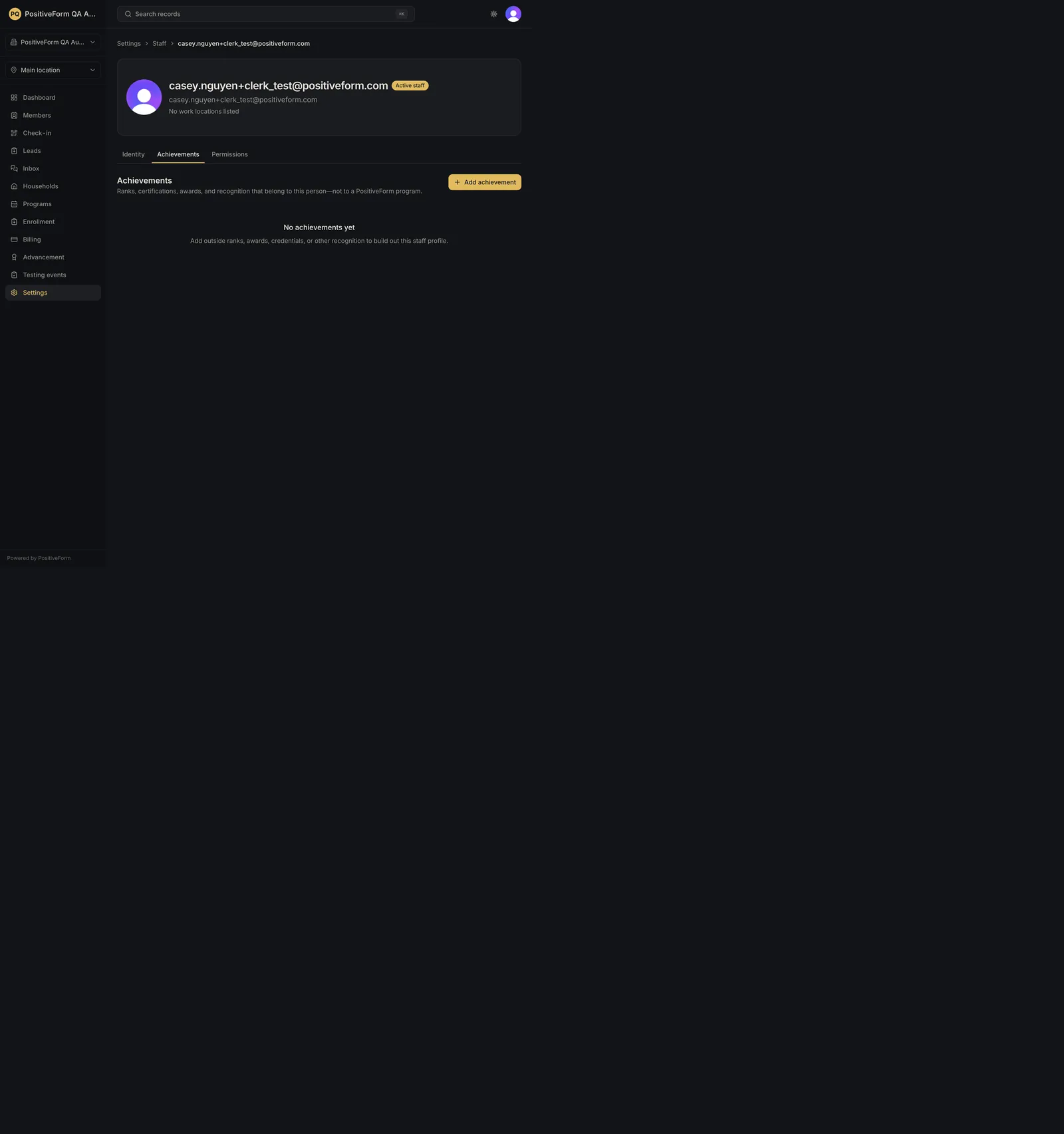
- Click the Achievements tab. With nothing recorded it reads No achievements yet.
- Click Add achievement.
- Fill in Title, for example
Black belt. This is the only required field. - Choose a Type. For a belt or rank, set the Belt or rank color so it shows the way your studio expects.
- Fill in Discipline or field, for example
Taekwondo, and Issuer or organization for whoever awarded it. - Add a Credential link if the award can be verified online. It must be a full web address.
- Set Date earned, and Expiration (optional) for anything that lapses, such as a first-aid certificate.
- Use Description for context the other fields do not capture.
- Click Save achievement.
To change one later, click Edit on its row in the list. To take one off, click Remove on its row.
Expected outcome
PositiveForm confirms with Achievement added, or Achievement updated when you edited an existing one, and the achievement appears on the person's profile.
It is part of their staff identity from then on: visible to anyone who can view the profile, and unchanged by their roles, their teaching status, or their login access. Removing one confirms with Achievement removed.
Recording an achievement changes nothing about what this person can do in PositiveForm. Access is managed under Permissions; see Manage staff access.
Screenshots
Recovery
If you save without a title, PositiveForm marks the field with Title is required. and puts the cursor in it.
If the credential link is malformed, the field is marked with Enter credential link as a full web address, including https://. Fix it, or clear it, and save again.
If Expiration (optional) falls before Date earned, PositiveForm marks the expiration field and refuses to save.
If saving fails, you get Could not save this achievement. with the reason, and your entries stay on screen.
If removing fails, you get Could not remove this achievement. and it stays on the profile.
If you meant to record a rank the person earned in your curriculum, this is the wrong page. Link their member profile on the Identity tab and manage training ranks there, so the rank sits with their training history.
Related guides
- Maintain a staff profile — the identity these achievements sit on, and where a linked member profile's training ranks are managed.
- Configure a progression — the progressions that produce ranks inside your own programs.