Configure a progression
Create or edit a progression from a supported template. The progression and rank visuals persist and become available to member advancement workflows.
- Status
- Draft, not yet re-verified
- Who can do this
- Organization owners, Managers
- Required access
members.change- Where in PositiveForm
/settings/progressions
"Copy for AI" puts the full Markdown of this page on your clipboard. Paste it into ChatGPT, Claude, or any assistant and ask it to walk you through the steps.
Who this is for
This guide is for organization owners and managers who define belt or level sequences before staff review readiness or run testing events.
You need the members.change permission.
Before you begin
- Decide whether you are creating a new progression or reviewing one that already exists.
- Progressions live under Settings › Progressions.
Steps
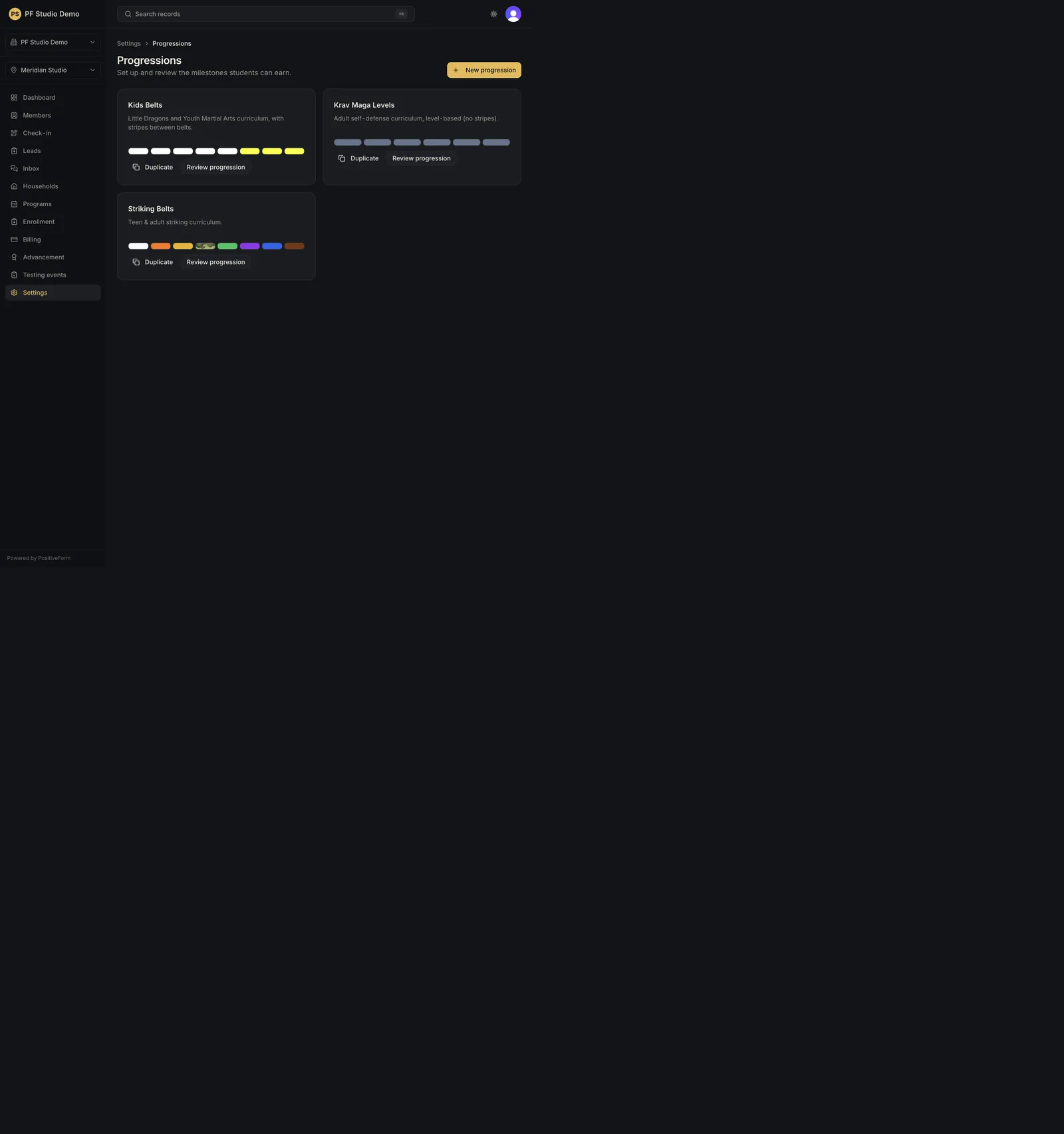
- Open Settings, then Progressions (or use Configure progressions from the Advancement page). The page is subtitled Set up and review the milestones students can earn.
- Read the cards for the progressions you already have. Each shows its milestone colors, a Draft badge when it is not published, Review progression, and, when your role can manage them, Duplicate.
- Click New progression to open Choose a starting point. The button toggles: while the options are open it reads Hide options. A studio with no progressions yet sees the options without clicking anything.
- Pick a template card and click Use template, or take the Start fresh card for a blank, fully editable progression. Every detail of a template can still be changed before you create it.
- In the builder, name the progression in the large name field and add the optional description, school, and style. Build the ordered list under Sequence: Add next (copy previous) appends a milestone based on the one before it, the arrows or a drag reorder a row, the color swatch opens the visual editor, and Details opens the rest of that milestone's settings.
- Save with Create progression, or Save changes when you are editing an existing one. PositiveForm confirms Progression saved. Cancel changes discards edits to an existing progression.
- Optional: on a saved progression, use Progression connections to declare the exact milestone where this progression follows or leads into another. Unconnected milestones stay incomparable, and a connection never promotes anybody or enforces eligibility on its own.
- Use Duplicate when you need a variation without rebuilding from scratch. The copy is created as a draft (Progression duplicated as a draft) and the builder opens on it.
Expected outcome
A progression is available for Advancement readiness and for testing events. Staff can choose it on Advancement, and it is what a testing event's candidate ranks are drawn from.
Screenshots
Recovery
If New progression is missing, your role cannot manage progressions.
If the list is empty for a non-manager, wait until an owner creates one. The empty state says No progressions yet and explains that progressions appear once staff create one.
If save fails, PositiveForm says so and leaves you on the builder. It refuses an unnamed progression (Name this progression first.) and one with nothing in it (Add at least one milestone before saving.), so fill those in and try again before leaving.
Removing a milestone that members have already earned, or that another progression is connected to, retires it rather than deleting it. The control says Retire instead of Remove in that case, and the same distinction applies to the progression itself.
Related guides
- Review advancement readiness — review who is ready to advance.
- Schedule a testing event — schedule testing against a progression.