Schedule a testing event
Schedule a testing event with eligibility, fee, location, and notes. The event opens at a stable route with the reviewed date, eligibility, and fee.
- Status
- Draft, not yet re-verified
- Who can do this
- Organization owners, Managers, Staff
- Required access
members.change- Where in PositiveForm
/events
"Copy for AI" puts the full Markdown of this page on your clipboard. Paste it into ChatGPT, Claude, or any assistant and ask it to walk you through the steps.
Who this is for
This guide is for staff, managers, and owners scheduling a studio event: a testing day against a progression, and also a tournament, a studio or seasonal party, or anything else the studio runs.
You need the members.change permission.
Before you begin
- Configure at least one progression (Configure a progression). Events live under Events and refuse to open until the studio has one.
- Choose the location and date for the event. A date is optional at creation: an event with no start time stays off the calendar as Date pending until you set one.
Steps
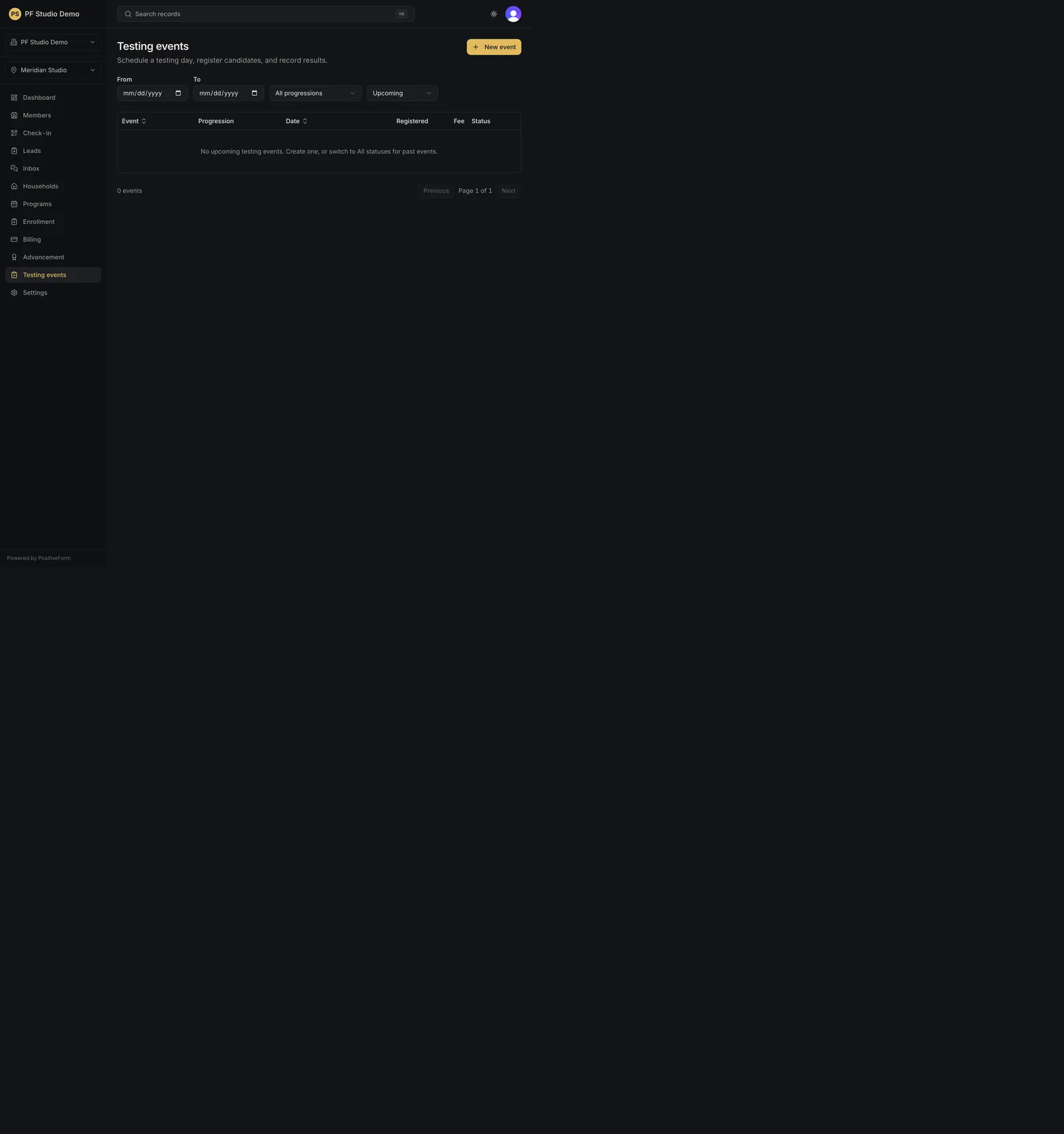
- Click Events in the left navigation. The page is subtitled Testing, parties, tournaments, and other studio events. Register people and take attendance.
- Review the list and filters (From / To dates, All progressions, and a status filter that opens on Upcoming) if you are looking for an existing day first. The columns are Event, Kind, Planning, Visibility, Progression, Date, Registered, fee, and Status; Event and Date sort.
- Click New event. Schedule an event walks four steps, shown as numbered chips: Kind, When, Name, Where. Continue and Back move between them, and Cancel returns to Events.
- Kind: choose Testing, Tournament, Studio party, Seasonal party, or Other. Each names what it is for; Testing is preselected.
- When: set Starts and, optionally, Ends (duration) for a multi-hour or multi-day block. Leave both blank if you do not have a date yet. The end cannot fall before the start.
- Name: give the event a name (required) and an optional Description covering what families should know.
- Where: keep Studio, which shows the active location's address, or pick Elsewhere and type an Address or venue.
- Click Create and set who. PositiveForm confirms Event created. Set who is invited next. and opens the new event's Audience tab.
- On Audience, build the candidate pool under Audience seeds by ticking Programs and Training groups; the pool is the union of both. For a testing event, Who can test? narrows which current ranks may test, and is advisory only: leave every box unchecked to let anyone register. Family and friends controls whether companions may attend and how many per invitee.
- New events start as Draft and Only me. When you are ready to share and take RSVPs, set Planning (Draft, Planning, Ready) and Visibility (Only me, Only staff, Only members, Everyone) in the banner at the top of the event. The banner reads Ready to share and take RSVPs once it is.
- Open the Roster tab when you are ready to register people (Run and finish testing).
Expected outcome
The event appears in the Events list with its kind, planning status, visibility, date, and lifecycle status (for example Scheduled, or Draft when it has no date yet), ready for audience and roster work.
Screenshots
Recovery
If the Events page tells you to set up a progression in Settings › Progressions before scheduling a testing event, do that first (Configure a progression).
A testing event must name a progression, and neither the create steps nor the event's Edit dialog currently offers a place to choose one, so creating one with Kind: Testing reports Choose a progression for a testing event. and saves nothing. The other event kinds create normally. Report this rather than working around it.
If filters hide everything, reset the status and progression filters. The empty states are distinct: No events match these filters. means your filters, No upcoming events. Create one, or switch to All statuses for past events. means the default Upcoming view, and No events yet. Create one when you're ready to schedule an event. means the studio has none.
If you set From later than To, no list is shown at all. PositiveForm says the dates are the wrong way round and offers Swap the dates.
If New event is missing, your role does not carry members.change.
Related guides
- Run and finish testing — run the roster and finish testing.
- Configure a progression — progression setup.