Run and finish testing
Register candidates, record results, and finish a testing event. Roster and fee state are explicit, results persist, and finishing the event prevents…
- Status
- Draft, not yet re-verified
- Who can do this
- Organization owners, Managers, Staff
- Required access
members.change- Where in PositiveForm
/events/:eventId/roster
"Copy for AI" puts the full Markdown of this page on your clipboard. Paste it into ChatGPT, Claude, or any assistant and ask it to walk you through the steps.
Who this is for
This guide is for staff, managers, and owners running a scheduled testing day: building the roster, recording results, and finishing the event.
You need the members.change permission.
Before you begin
- Schedule the event first (Schedule a testing event) and set its audience seeds, which is where the candidate pool comes from.
- Know which progression and candidates belong on the roster.
- Know that recording a pass can change which training groups somebody belongs to. PositiveForm asks before it does that.
Steps
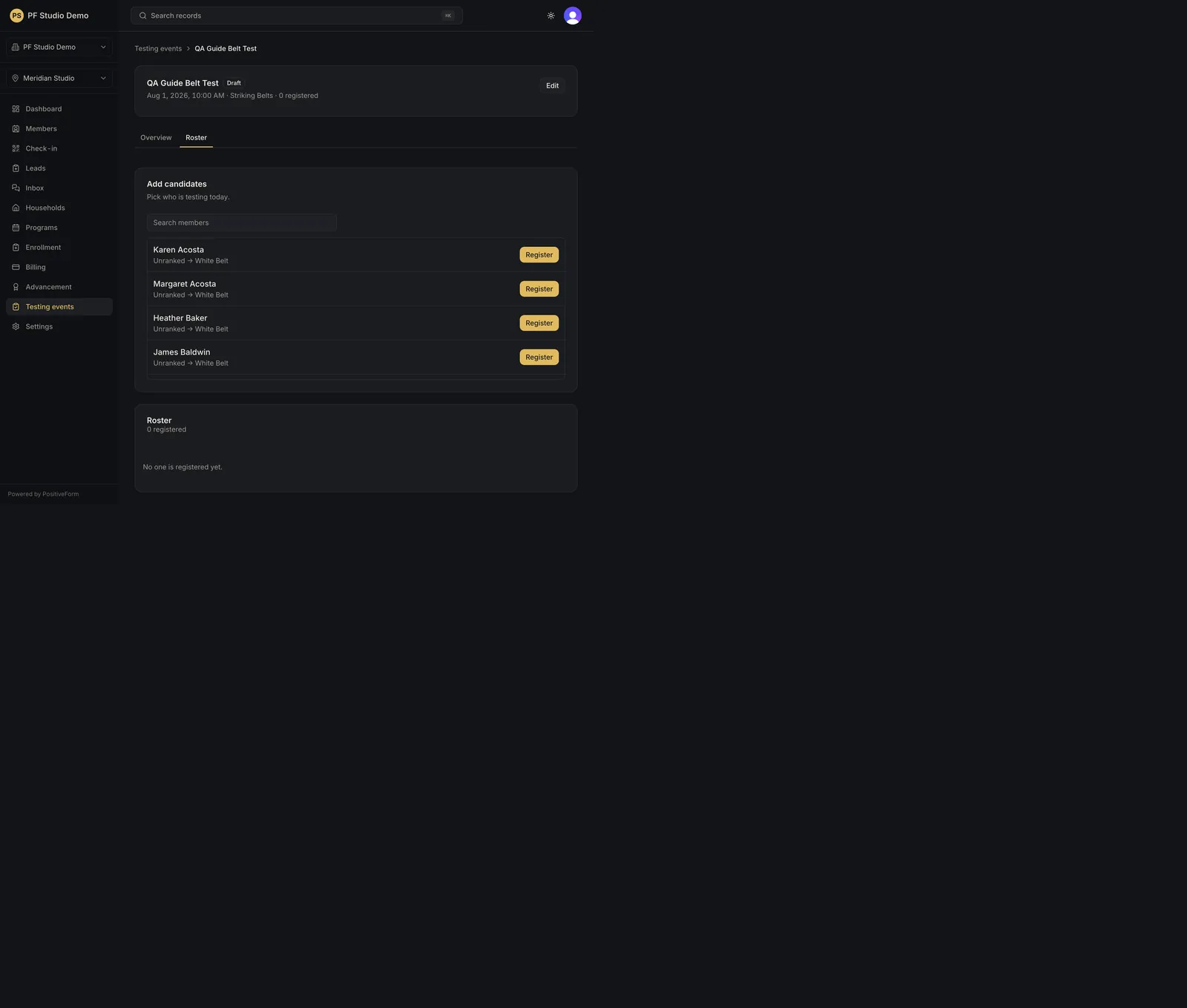
- Open Events and select the event. It opens on Overview; the tabs are Overview, Audience, and Roster.
- Open the Roster tab.
- Under Add people, find who you are registering. The pool comes from the
event's audience seeds, and staff can still add anyone:
- Search with Search members and click Register on a row. Each row
shows the member's current rank and the rank they would test for, such as
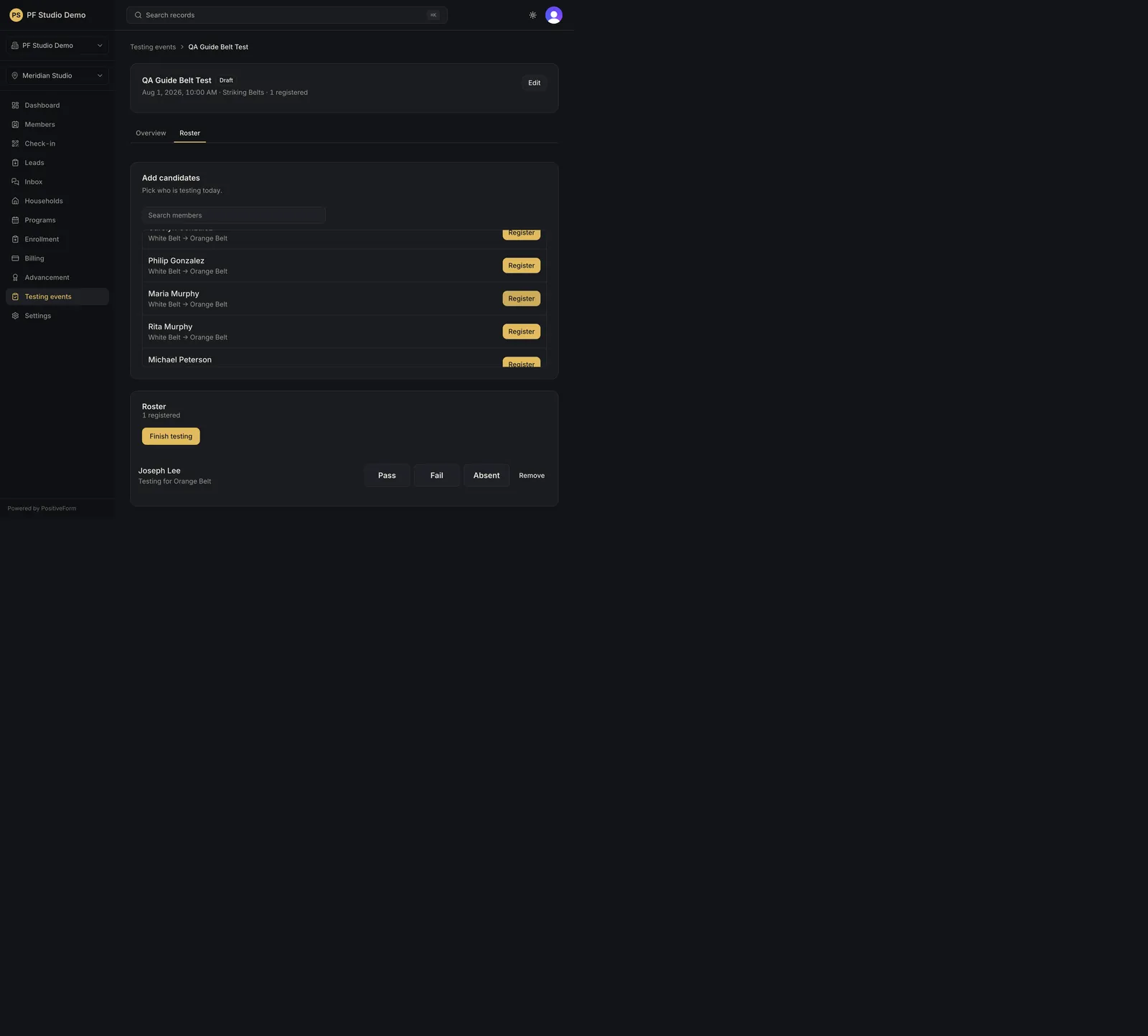
White Belt → Orange Belt, and flags anyone outside advisory ranks. - Register available pool registers up to fifty people from the pool at once and reports how many it took. - Add guest registers a non-member by name. - Tick Mark next registrations as make-up before registering to flag those rows Make-up. - Remove from pool takes somebody out of the candidate list without registering them. Put them back from the Audience tab's Excluded from pool card. - When the event carries an in-product fee, choose a Discount and whether to Charge card on file or Email invoice before registering. That applies to the next member you register, and registration is never blocked on payment. - In the Roster section, mark each person's Attendance as Present, Absent, or Unknown.
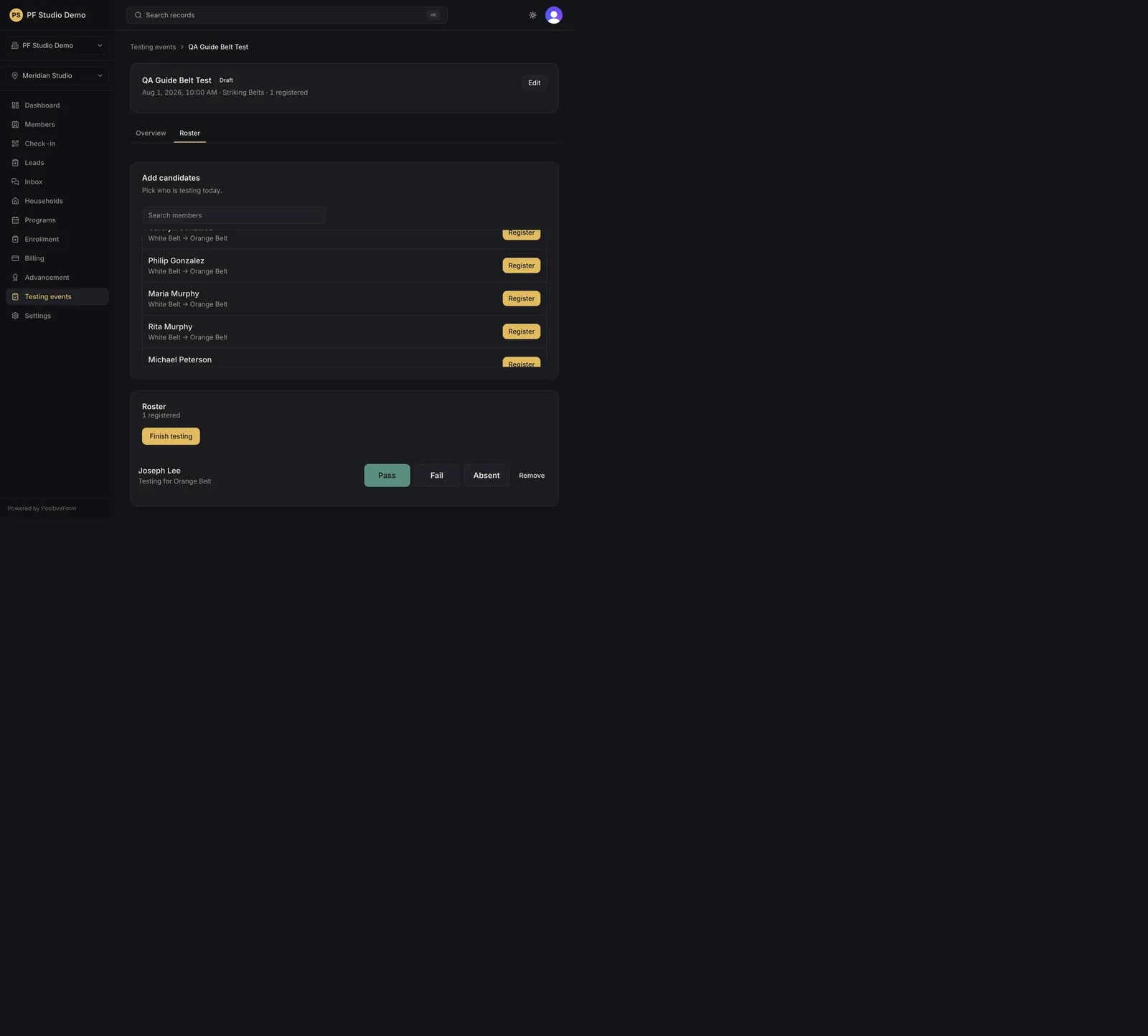
- On a testing event, record each candidate's result with Pass, Fail, or No-show. The selected result stays highlighted, and Remove takes somebody off the roster (Removed from this event. They can register again anytime.). Other event kinds take attendance only, with no result buttons.
- When a pass would change who somebody trains with, PositiveForm stops and asks. Accept the move to record the rank and let their training groups follow, keep an existing pin where one was set on purpose, or cancel to record nothing. Neither choice enrolls, withdraws, or transfers programs.
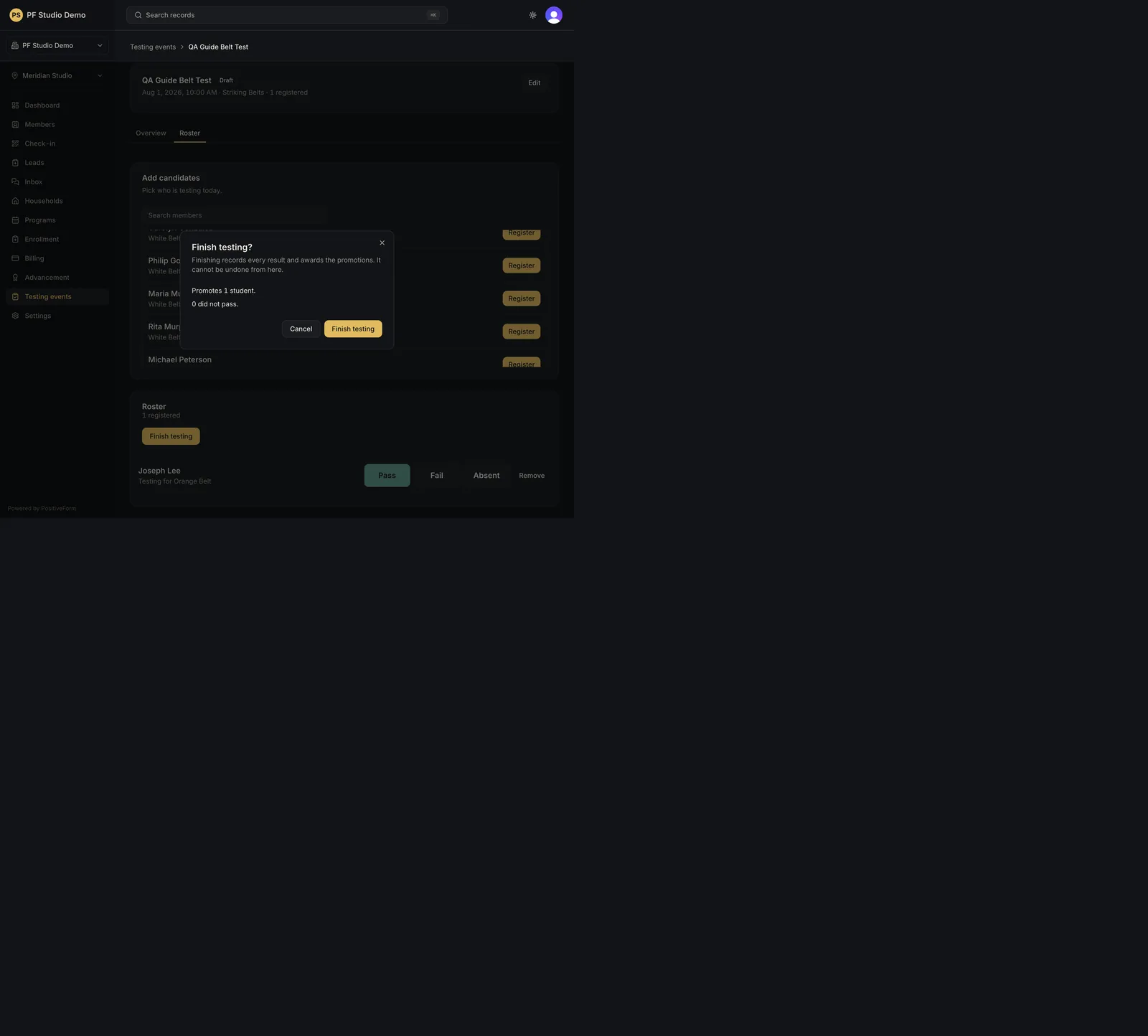
- Click Finish testing when the day is complete. The Finish testing? dialog says that finishing records every result and awards the promotions, that it cannot be undone from here, how many registered students it covers across every roster page, and that saved passes are promoted while failed, absent, and pending results keep their recorded status. Review every roster page first, then click Finish testing in the dialog to confirm.
Expected outcome
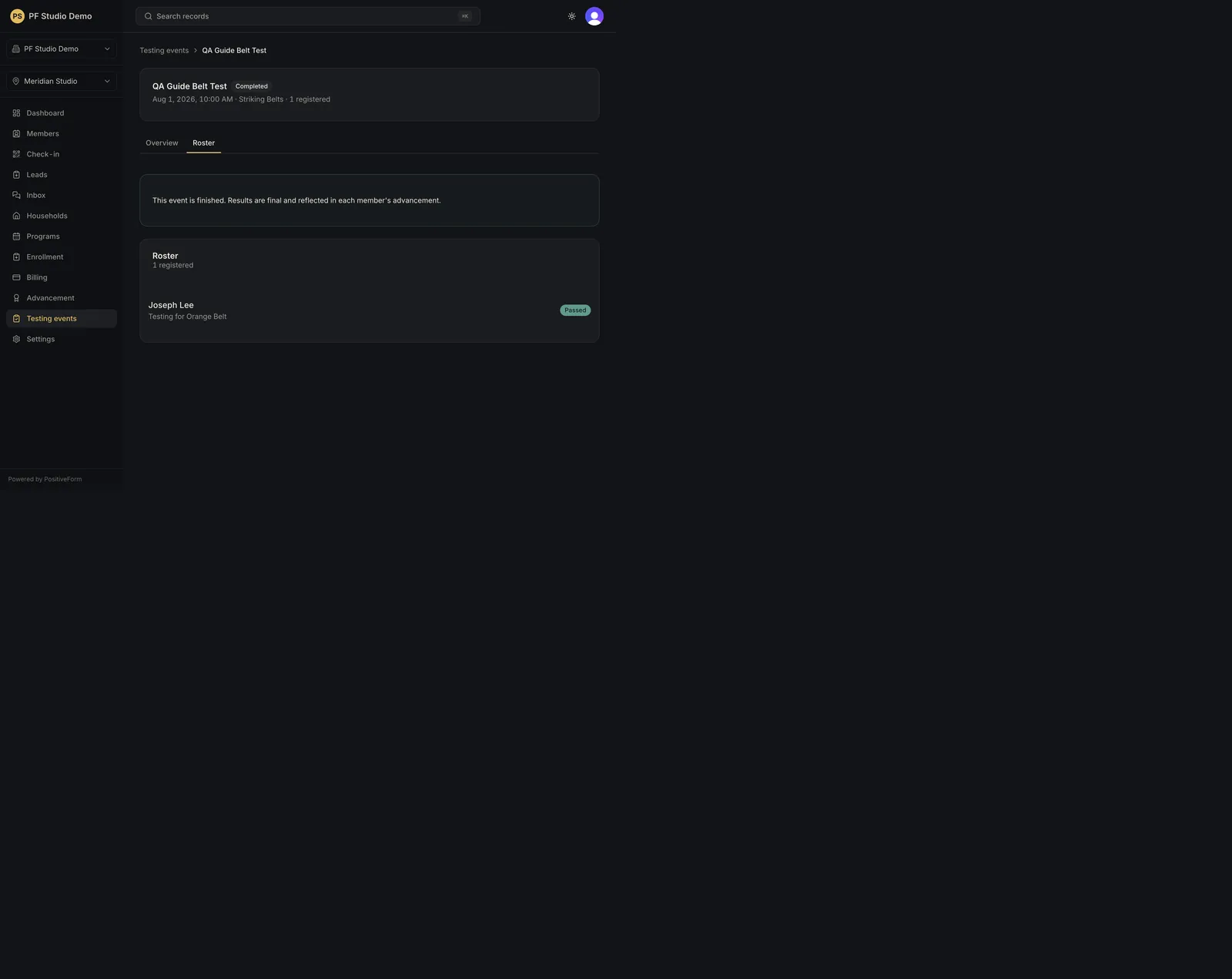
The event's badge changes to Completed, and the roster shows the final result for each candidate: Passed, Did not pass, Absent, or Pending. A notice explains that the event is finished and results are final and reflected in each member's advancement. Registration, attendance, result, and remove controls are no longer offered, so the finished event cannot be edited by accident.
Screenshots
Recovery
If the roster fails to load, PositiveForm says Could not load the roster. with a retry. When the event itself will not open, use All events to return to the list and reopen it. Report a product defect if it persists.
If nobody is available to register, PositiveForm says Everyone available has been registered., or No members match that search. when a search is active. Widen the audience seeds on the Audience tab if the pool is too small.
If you registered the wrong person, click Remove on their roster row before finishing. They can register again afterwards. Results and promotions become final once the event is finished, so review every roster page before confirming.
If Finish testing is not offered, the event is already completed, nobody is
registered, your role does not carry members.change, or the event is not a
testing event.
Related guides
- Schedule a testing event — schedule the day.
- Record member advancement — record promotions outside a testing event.