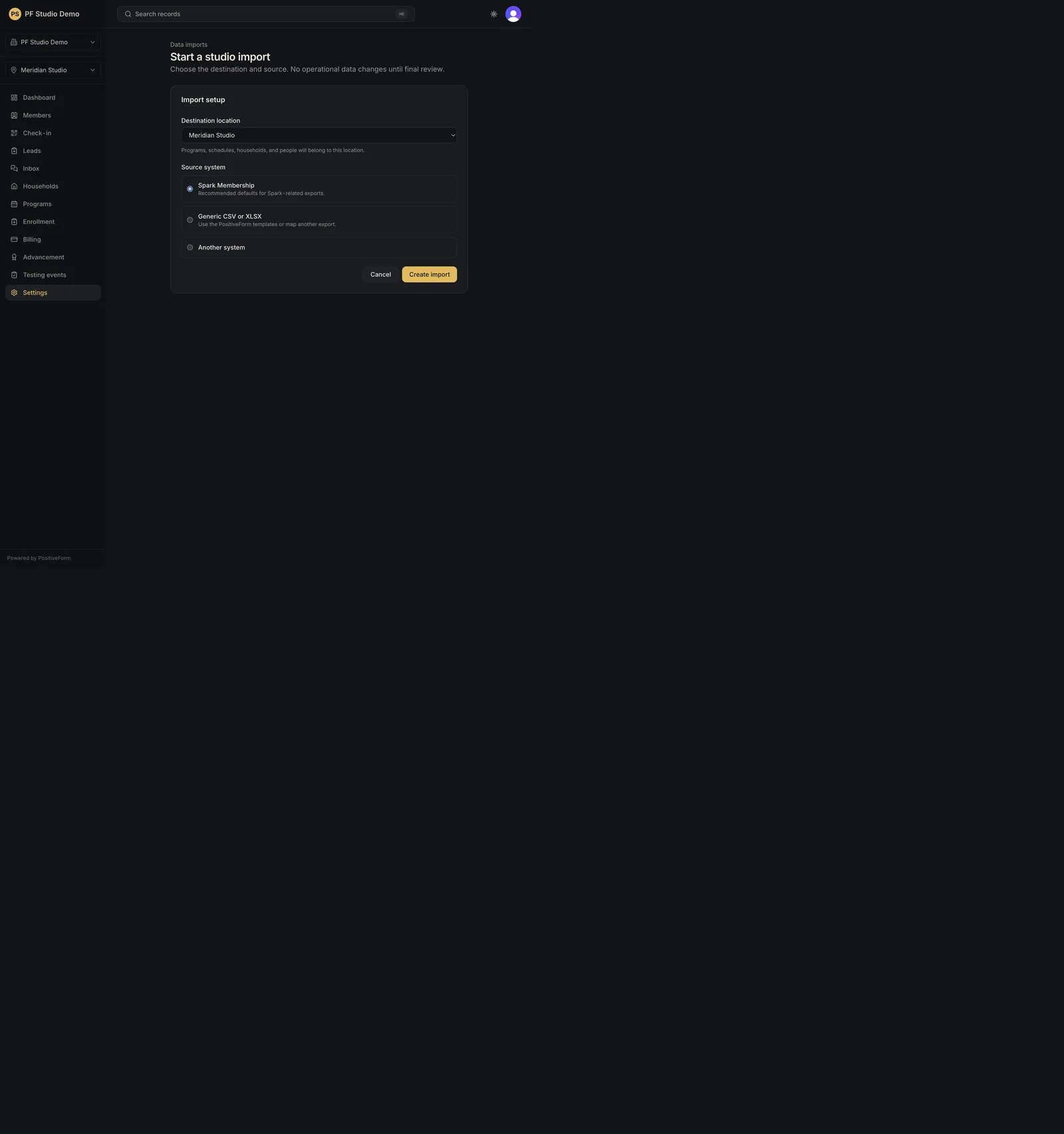
Start a studio import
Download canonical templates and create an isolated import job. The import job opens without creating operational records.
- Status
- Draft, not yet re-verified
- Who can do this
- Organization owners, Managers
- Required access
imports.manage- Where in PositiveForm
/settings/imports/new
"Copy for AI" puts the full Markdown of this page on your clipboard. Paste it into ChatGPT, Claude, or any assistant and ask it to walk you through the steps.
Who this is for
This guide is for migration staff creating an isolated import job before any operational records are written.
Before you begin
- Download the canonical templates when you need file shapes. They are on
Import templates (
/settings/import-templates), and the same downloads appear on the job's Files step under Prepare your files. - Choose the destination location carefully; the job is scoped to it. Only active locations are offered.
- Know which system the data came from. The form asks.
Steps
- Open Settings, then Data imports. The page lists Import history with each job's source, location, record count, and status.
- Click New import, or Start an import when there are no jobs yet. That
opens Start a studio import (
/settings/imports/new). - Choose Destination location. Programs, schedules, households, and people will belong to it.
- Choose a Source system: Spark Membership, Generic CSV or XLSX, or Another system. Choosing Another system reveals a Source system identifier field; type a short lowercase name for the system you are leaving.
- Click Create import. Use Cancel to leave without creating a job.
- After create, the import job opens on its Files step
(
/settings/imports/<job>/upload) so you can download templates, upload files, and map them (Upload, map, validate, and review import data).
Expected outcome
An import job exists without creating operational members or households yet. You are on the job's Files step, the first of eight: Files, Map, Validate, Records, Final review, Import, Verify, and Finish.
Screenshots
Recovery
Create import stays disabled until a destination location is chosen and the source system identifier is a short lowercase name. If it fails after that, confirm your permissions; managing imports needs the manage-imports permission, and the page says so instead of showing the form. If the console is read only because the subscription lapsed, the form is disabled and a notice explains why.
Discard stray jobs from the job itself rather than leaving half-started migrations (Discard or safely roll back an import).
Related guides
- IMP-002
- ONB-002