Record migration and service needs
Review the migration offer and tell PositiveForm what help I need. The owner can continue through the migration offer and save service needs without exposing…
- Status
-
Verified 2026-07-28
on build
9096f81 - Who can do this
- Studio owners, Organization owners
- Required access
organization.owner- Where in PositiveForm
/migration-offer
"Copy for AI" puts the full Markdown of this page on your clipboard. Paste it into ChatGPT, Claude, or any assistant and ask it to walk you through the steps.
Who this is for
This guide is for the organization owner who has just created a studio organization and is deciding how their existing data gets into PositiveForm.
PositiveForm shows you this straight after checkout. You are choosing between having us move your data for you, and moving it yourself. Neither choice traps you: you can import your own data later either way.
Before you begin
- Finish Create a studio organization first. This offer opens on its own once Stripe confirms your first payment.
- Know roughly what you are moving from, for example another studio management system, spreadsheets, or paper.
- Understand the offer is a real one-time charge. Read the amount on screen before you click; it is not part of your monthly plan.
Steps
Choose how your data moves
- Read Bring your data with you. It shows the one-time price and what it covers: a full white-glove migration from your current system, your next 12 months of PositiveForm included, and the money-back guarantee extended across all 13 covered months. Underneath, it states how much of the price is the migration work once the included plan is accounted for.
- To have PositiveForm do the migration, click Add migration for
. You are handed to Stripe Checkout. Pay there, and Stripe returns you to PositiveForm. - To move your own data instead, click I'll migrate my data myself. That takes you to your dashboard and charges nothing. You can import your own data whenever you are ready; see Start a studio import.
Tell us what to take off your plate
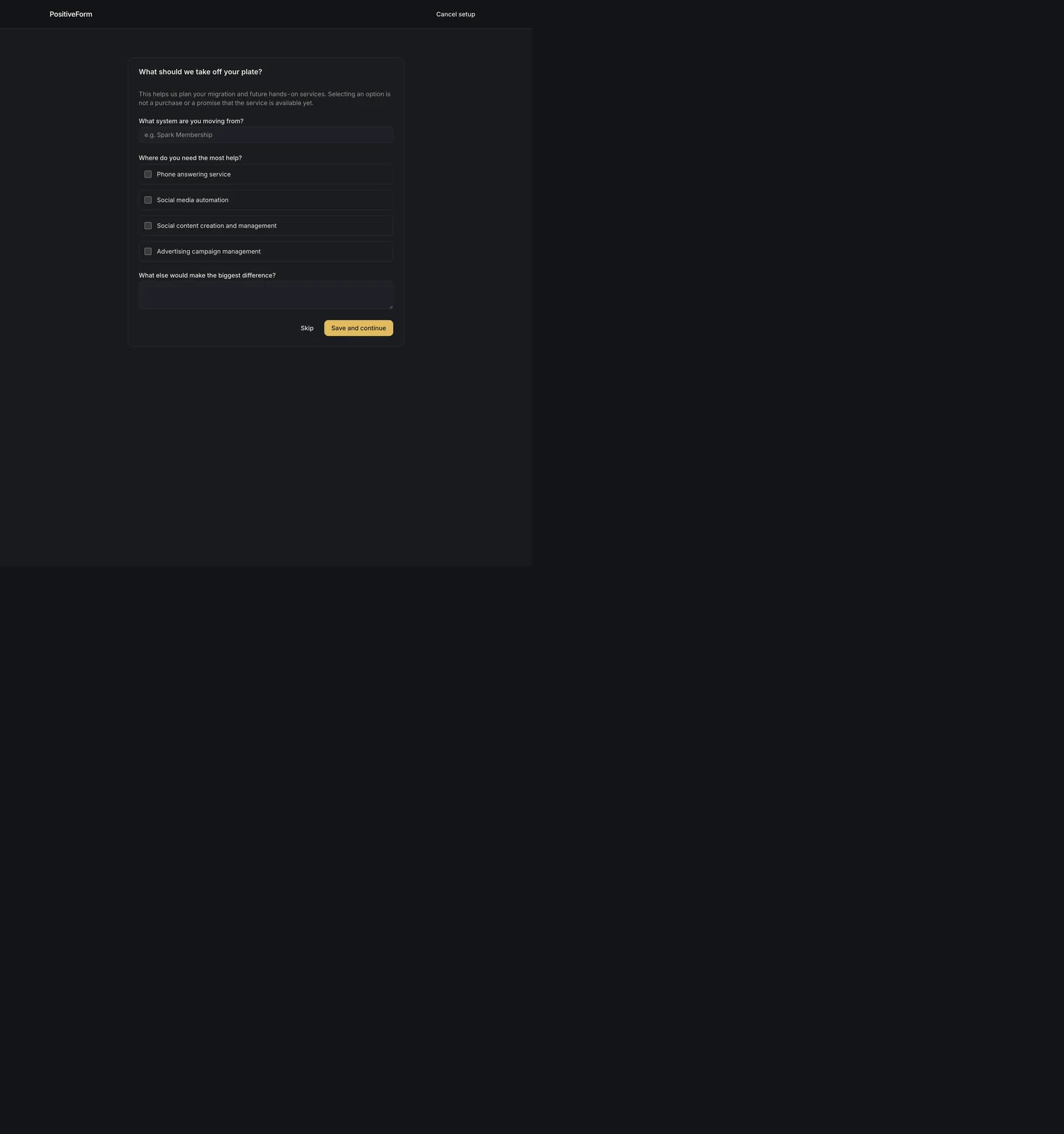
- After a paid migration, PositiveForm opens What should we take off your plate?. Answering this is how the handoff gets planned; nothing here is a purchase.
- In What system are you moving from?, name your current system, for
example
Spark Membership. - Under Where do you need the most help?, tick any of Phone answering service, Social media automation, Social content creation and management, and Advertising campaign management. Ticking an option registers interest; it is not a purchase or a promise that the service is available yet.
- Use What else would make the biggest difference? for anything the checkboxes miss.
- Click Save and continue, or click Skip to answer later.
Expected outcome
If you paid for migration, PositiveForm records the purchase and opens the service questions. Returning to the migration offer afterwards shows Continue migration intake instead of the price, so you cannot be charged twice.
Saving the questions confirms with Migration preferences saved and takes you to your dashboard. Your answers reach the PositiveForm team so they can plan the handoff.
If you chose to migrate your own data, you land on the dashboard with nothing charged and nothing recorded, and the studio is ready to set up.
Screenshots

Recovery
If starting the migration checkout fails, PositiveForm shows Could not start migration checkout. Nothing was charged. Try again.
If you cancel in Stripe, PositiveForm tells you Migration checkout canceled. and returns you to the offer.
If your payment is still settling, PositiveForm says Your migration payment is still processing. and returns you to the offer. Do not pay again. Check back shortly; once it settles the offer shows Continue migration intake.
If PositiveForm cannot confirm a completed payment, you see Could not confirm migration checkout. Do not pay a second time. Reload the page, and contact support if the offer still shows the price.
If saving the questions fails, PositiveForm shows Could not save your preferences. with the reason and keeps your answers on screen.
To leave either screen without answering, click Cancel setup in the top left, or Skip on the questions. You keep whatever you have already paid for, and you can answer later.
Related guides
- Create a studio organization — the organization setup this offer follows.
- Start a studio import — import your own members and households when you are migrating your data yourself.