Convert a lead
Convert a lead into a new or deliberately selected returning member. The lead leaves the active pipeline and the resulting member opens without an implicit…
- Status
- Draft, not yet re-verified
- Who can do this
- Organization owners, Managers, Staff
- Required access
members.change- Where in PositiveForm
/leads/:leadId/convert
"Copy for AI" puts the full Markdown of this page on your clipboard. Paste it into ChatGPT, Claude, or any assistant and ask it to walk you through the steps.
Who this is for
This guide is for sales staff turning a ready lead into a member without an accidental person match.
Before you begin
- The lead should be at the right stage (usually after a trial, or with clear intent). No stage gate is enforced.
- Decide whether this is a new member or a returning member you will select deliberately.
- Decide whether paid membership starts now. Starting billing needs a program plan on the program and permission to manage billing.
Steps
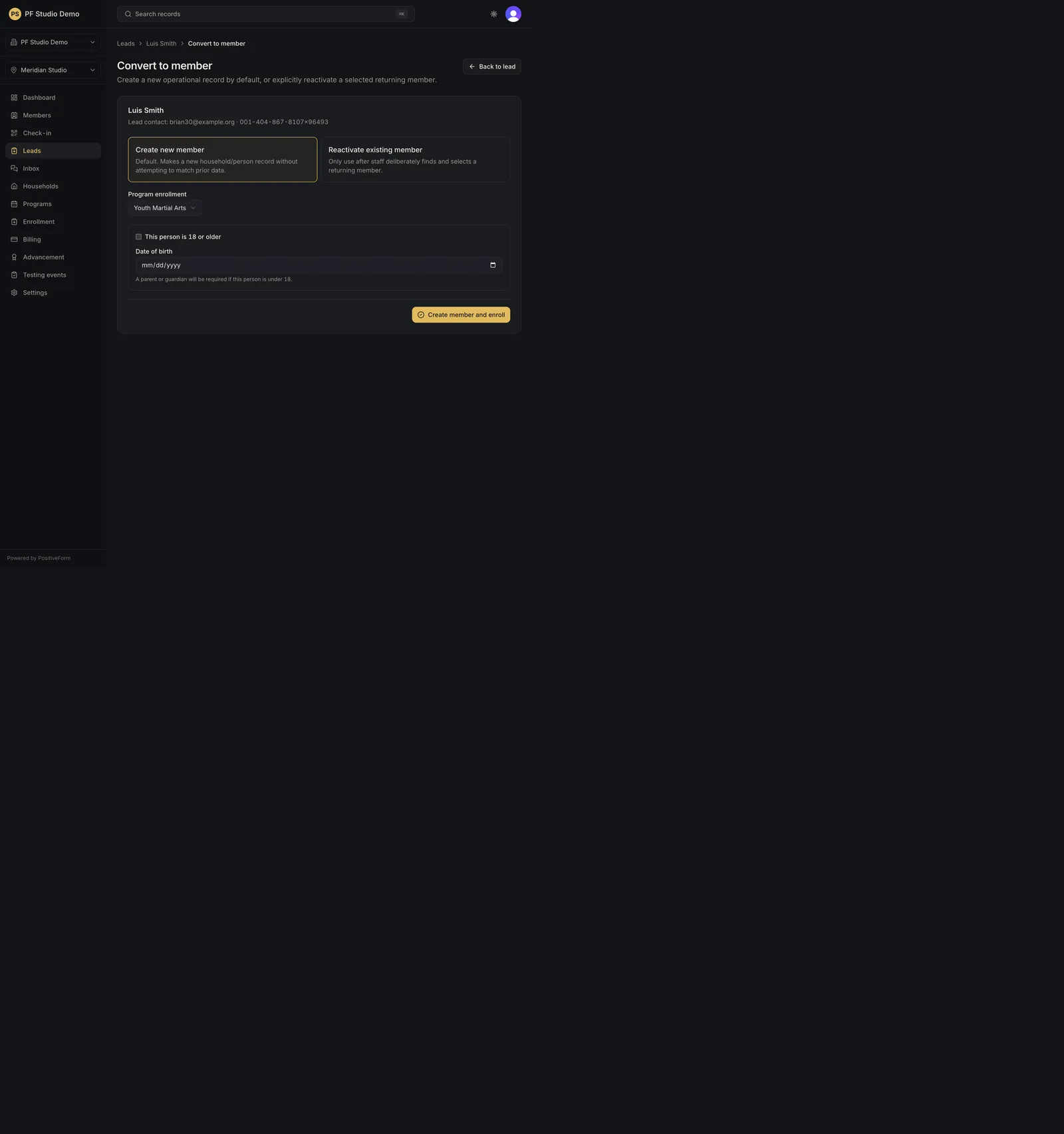
- Open the lead and click Convert to member (route
/leads/:leadId/convert). The heading is Convert to member. - When the inquiry has more than one participant, choose Who is joining?. One conversion enrolls one participant; the others stay on the lead.
- Choose one: - Create new member (default): makes a new household/person without matching prior data. - Reactivate existing member: use Find an inactive member, then pick the returning member from the results. Nothing is matched for you.
- Set Program enrollment. It is prefilled from the participant's recommended program when there is one.
- Choose the Program plan. If the program has no plans yet, the page says so and links to adding one on the program; you can still convert without billing.
- To start billing at conversion, tick Start paid membership now and set Discount (optional), Trial period (days), Collection method (Send invoice or Charge card on file), and Apply activation fee when the plan has one. Leave the box unticked for a roster-only conversion and set up payment later.
- Confirm age with This person is 18 or older, or enter Date of birth. For anyone under 18 the form requires Guardian first name, Guardian last name, and Guardian email, prefilled from the inquiry contact when the participant is their child.
- Click Create member and enroll.
- Use Back to lead if you need to leave without converting.
- On the confirmation, use Open member record to open the new member's enrollment, or use Optional payment setup to finish billing: tick the confirmation that payment setup should go to the named adult and click Email payment setup, or click Open checkout here to run it on this device. If the browser blocks that tab, the page shows the one-time link with Open checkout and Copy link.
Expected outcome
The page reads Member and program enrollment created. The lead is retained as conversion history and leaves the active pipeline, and no implicit person match is invented for you. Enrollment and attendance work immediately whether or not payment setup is complete.
Screenshots
Recovery
If conversion fails, read the message and fix the field it names: the program, the program plan when billing is starting, the age confirmation or date of birth, and the guardian name and email for a minor. Nothing is created until it succeeds. Do not switch to Reactivate existing member unless you have found and selected the correct returning member. If payment setup reports that the conversion has no billable household adult, review the household before retrying; the enrollment itself is already in place.
Related guides
- CRM-003
- MEM-001