Create a lead and schedule a trial
Create an inquiry and schedule a program trial. The lead appears in the pipeline with the scheduled trial date and program.
- Status
- Draft, not yet re-verified
- Who can do this
- Organization owners, Managers, Staff
- Required access
members.change- Where in PositiveForm
/leads/new
"Copy for AI" puts the full Markdown of this page on your clipboard. Paste it into ChatGPT, Claude, or any assistant and ask it to walk you through the steps.
Who this is for
This guide is for sales staff, managers, and owners capturing a new inquiry and booking their first trial class.
You need permission to change members/leads for the selected location.
Before you begin
- Select the location from the Location control in the sidebar. New leads are created there, and the form shows that location as a read-only field.
- Have at least a first name for the person who called, plus a first name for each person who wants to train. Email, phone, and source help follow-up later.
Steps
- Click Leads in the left navigation.
- Click New lead (or go to
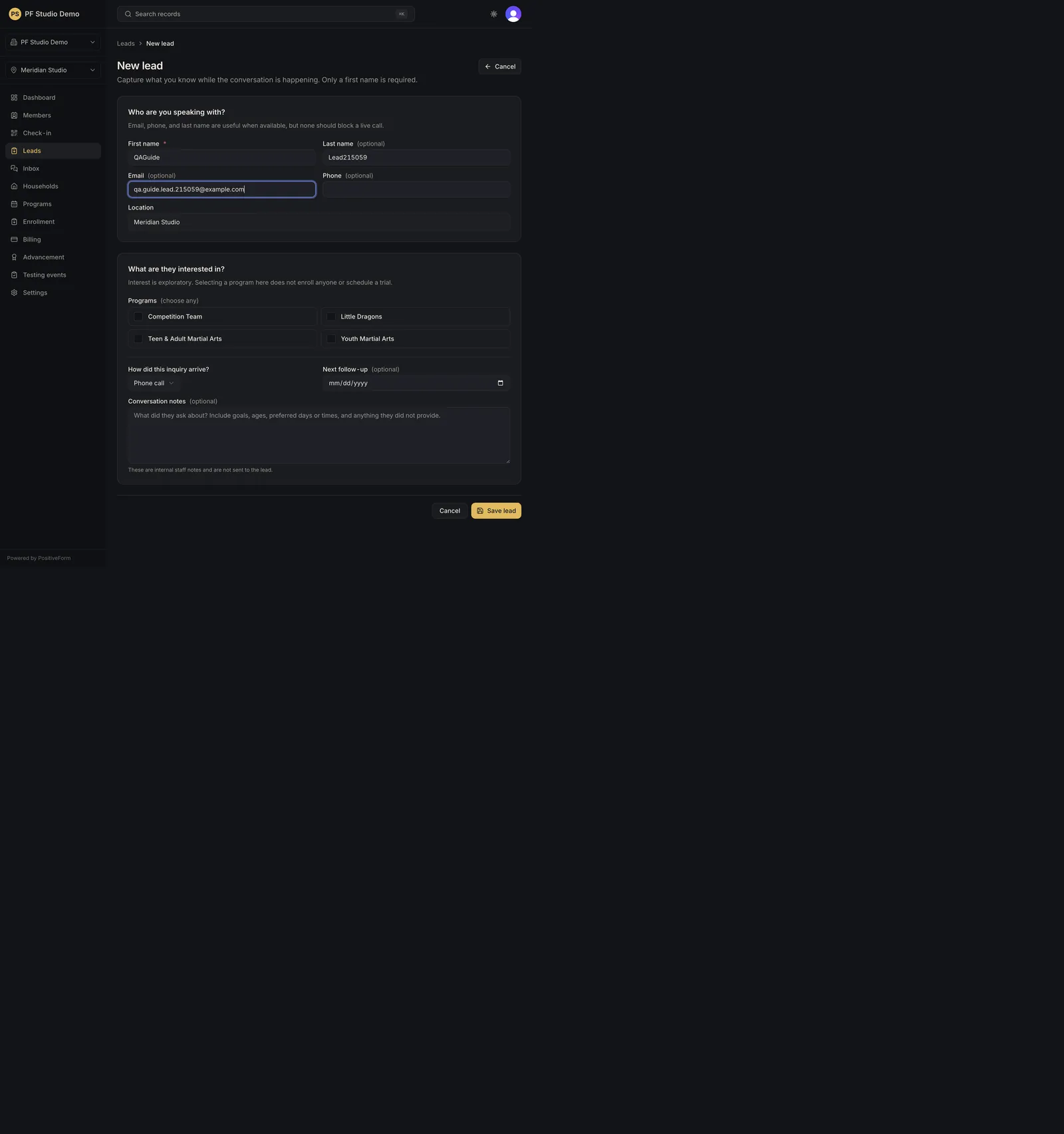
/leads/new). The page heading is New lead and the line under it reads Step 1 of 2 · Who. - On Who?, fill First name (required). Optionally fill Last name, Email, and Phone. Email and phone only appear when your role can see contact information. Location is read-only and reflects the sidebar selection.
- Under Who wants to train?, choose Me or My child or children. - Me adds Age and Or birth date for the caller. - My child or children adds Child 1 first name, Last name, Age, and Or birth date. Use Add another child for siblings and Remove to drop one. - Enter an age or a birth date for each participant, never both.
- Click Next to reach Step 2 of 2 · Training plan.
- On Recommended program, choose a Program for each participant. This is a recommendation, not a booking.
- Set Source (Phone call, Walk-in, Website, Referral, Social media, or Other) and add Notes about goals, questions, and preferred times.
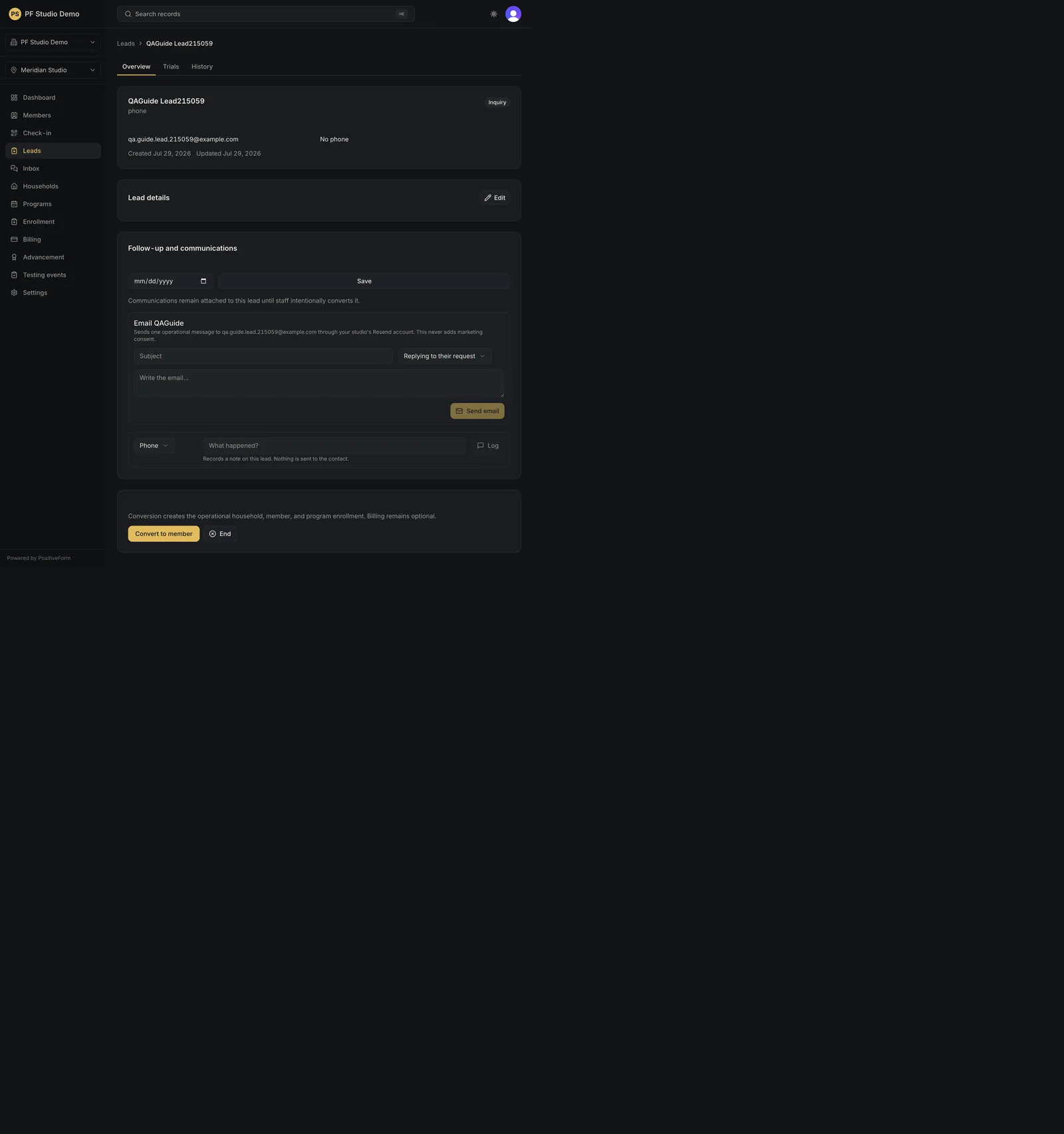
- Finish one of two ways: - Save without trial creates the lead and opens its record. - Save and schedule trial creates the lead and opens its Trials tab with the scheduler already open for the first participant.
- Use Back to return to step 1 with your entries intact, or Cancel in the page header to leave without saving.
Expected outcome
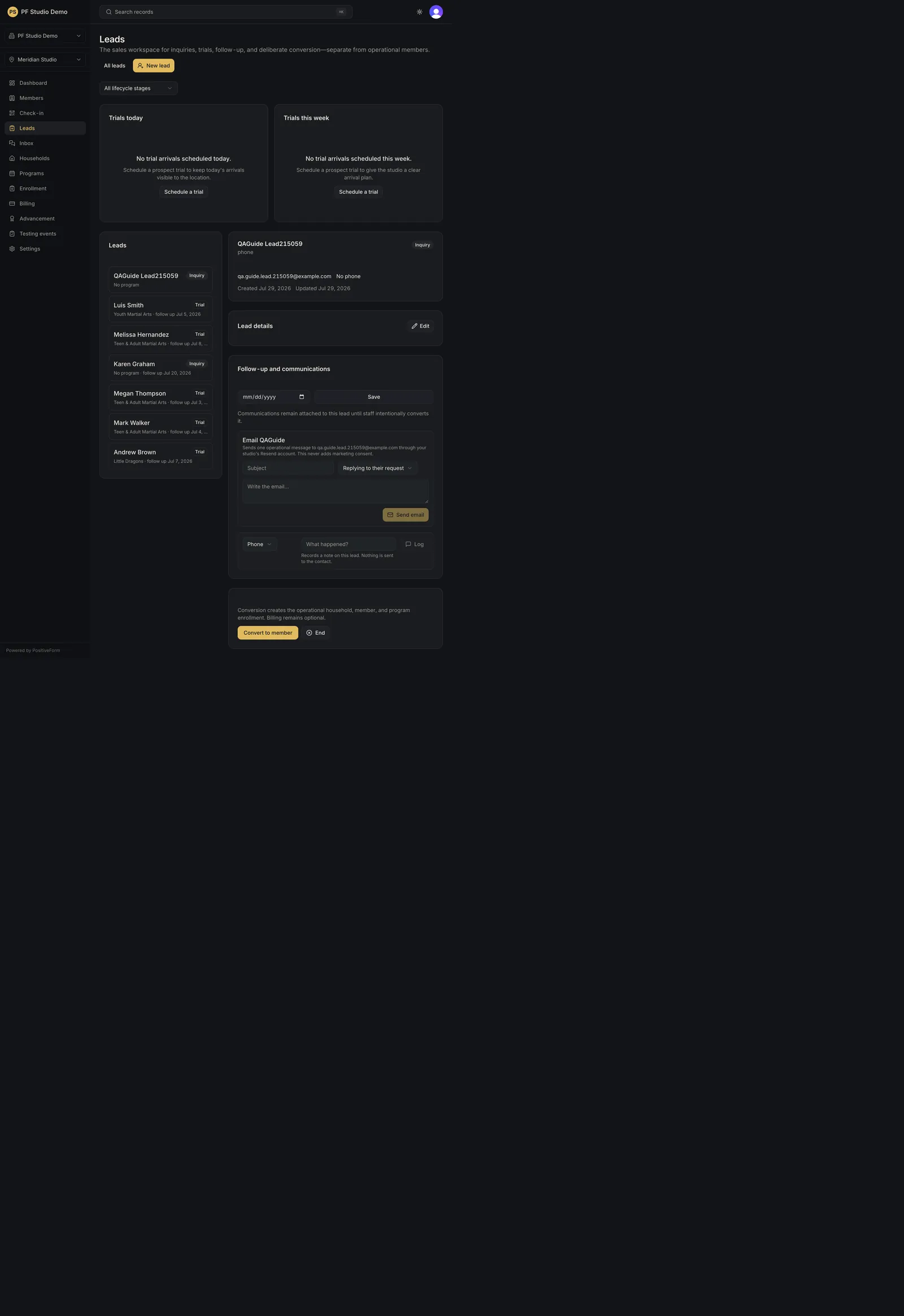
A toast reads Lead saved and the lead appears on the Leads board with its participants and recommended programs. No trial is booked from this form: Save and schedule trial hands you to the booking step described in Review a lead record, and you can reach the lead again from Leads or All leads to continue follow-up in Work the lead pipeline.
Screenshots
Recovery
If Next refuses to advance, read the message under the field it names: First name is required, each participant needs a first name, and an age and a birth date cannot both be set on one participant. If saving fails, the form keeps everything you typed; use Back to check step 1 and save again. With no location chosen, saving reports Choose a location before adding a lead. Nothing is created until a save succeeds. If you created a duplicate, archive one from Find and archive leads rather than deleting history.
Related guides
- CRM-002
- CRM-004