Find and archive leads
Use recent or complete lead tables and archive or restore a lead. Search and status filters retain context and archived leads leave the active pipeline…
- Status
- Draft, not yet re-verified
- Who can do this
- Organization owners, Managers, Staff
- Required access
members.change- Where in PositiveForm
/leads/all
"Copy for AI" puts the full Markdown of this page on your clipboard. Paste it into ChatGPT, Claude, or any assistant and ask it to walk you through the steps.
Who this is for
This guide is for staff searching the full lead table and archiving or restoring leads without deleting history.
Before you begin
- Prefer the Lead board for day-to-day work; use All leads when you need search across stages.
Steps
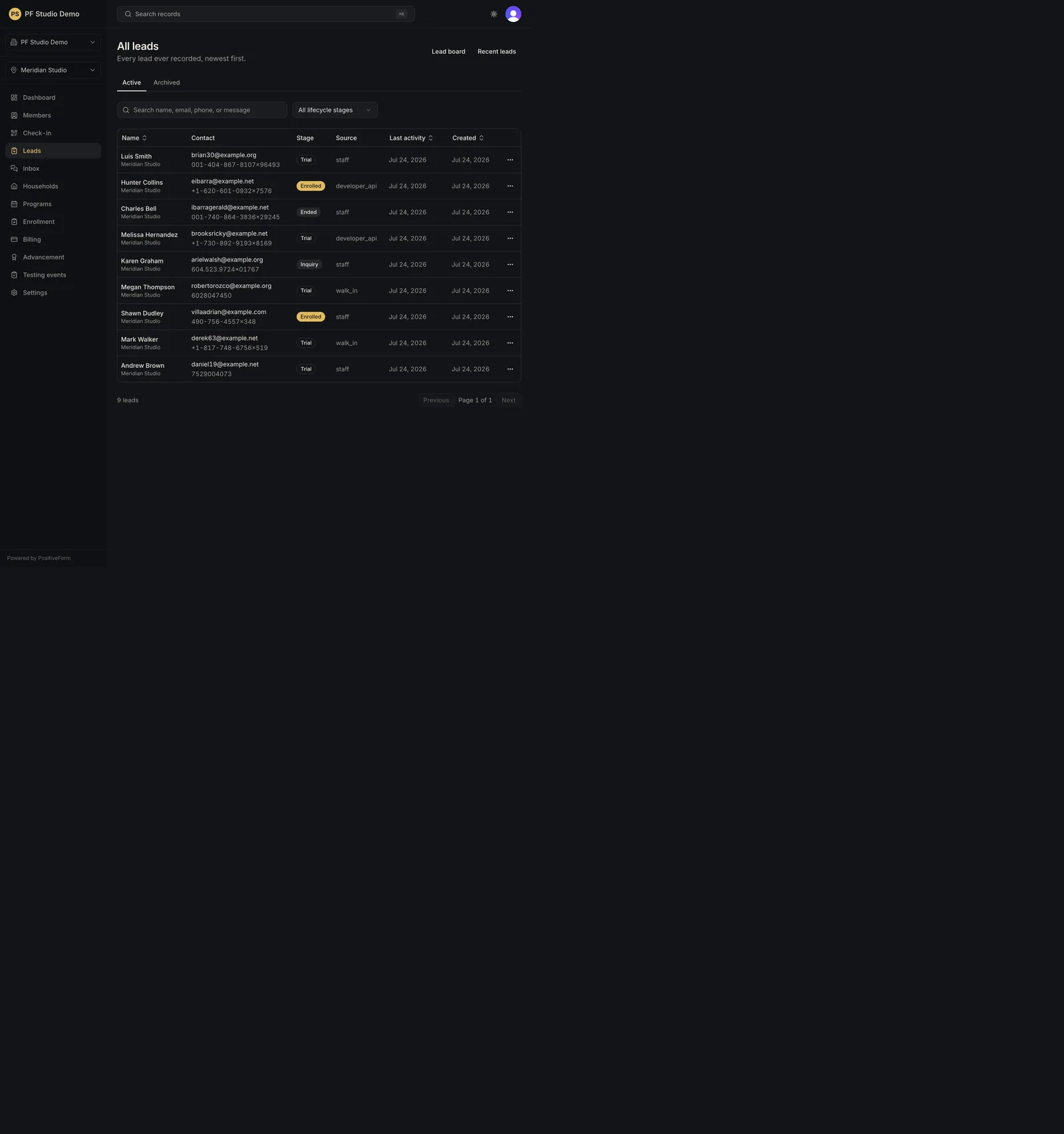
- From Leads, click All leads (heading All leads, described as
every lead ever recorded, newest first). Recent leads at
/leads/recentis the same table ordered by most recent activity. - Type into Search leads to narrow by name, email, phone, or message.
- Switch between the Active and Archived views, and narrow with the Stage filter (All lifecycle stages, Inquiry, Trial, Enrolled, Ended).
- Sort with the Name, Last activity, and Created column headers. The other columns are display only.
- Page with Previous and Next.
- Open a lead name to review it, or use Actions for … on a row for Open, Archive, or Unarchive. Archiving asks to confirm and keeps the lead's stage and full history.
- Use Lead board to return to the working board, or the link beside it to swap between All leads and Recent leads.
Expected outcome
Search and status filters keep context. Archived leads leave the active pipeline without deleting history.
Screenshots
Recovery
If results look empty, clear Search leads, set the Stage filter to All lifecycle stages, select the Active view, and confirm the sidebar location. If you archived the wrong lead, open the Archived view and choose Unarchive from its row actions. Archiving never deletes the record.
Related guides
- CRM-002
- CRM-003