Work the lead pipeline
Move leads through follow-up and trial states and record communication. Pipeline changes, follow-up dates, trial attendance, and communication notes persist…
- Status
- Draft, not yet re-verified
- Who can do this
- Organization owners, Managers, Staff
- Required access
members.change- Where in PositiveForm
/leads
"Copy for AI" puts the full Markdown of this page on your clipboard. Paste it into ChatGPT, Claude, or any assistant and ask it to walk you through the steps.
Who this is for
This guide is for sales staff working the daily lead board: seeing who is owed a follow-up, who is arriving for a trial, and who has gone quiet.
Before you begin
- Select the location from the Location control in the sidebar. The board only shows leads for that location.
- Open Leads for the working board, or All leads for the full table (Find and archive leads).
Steps
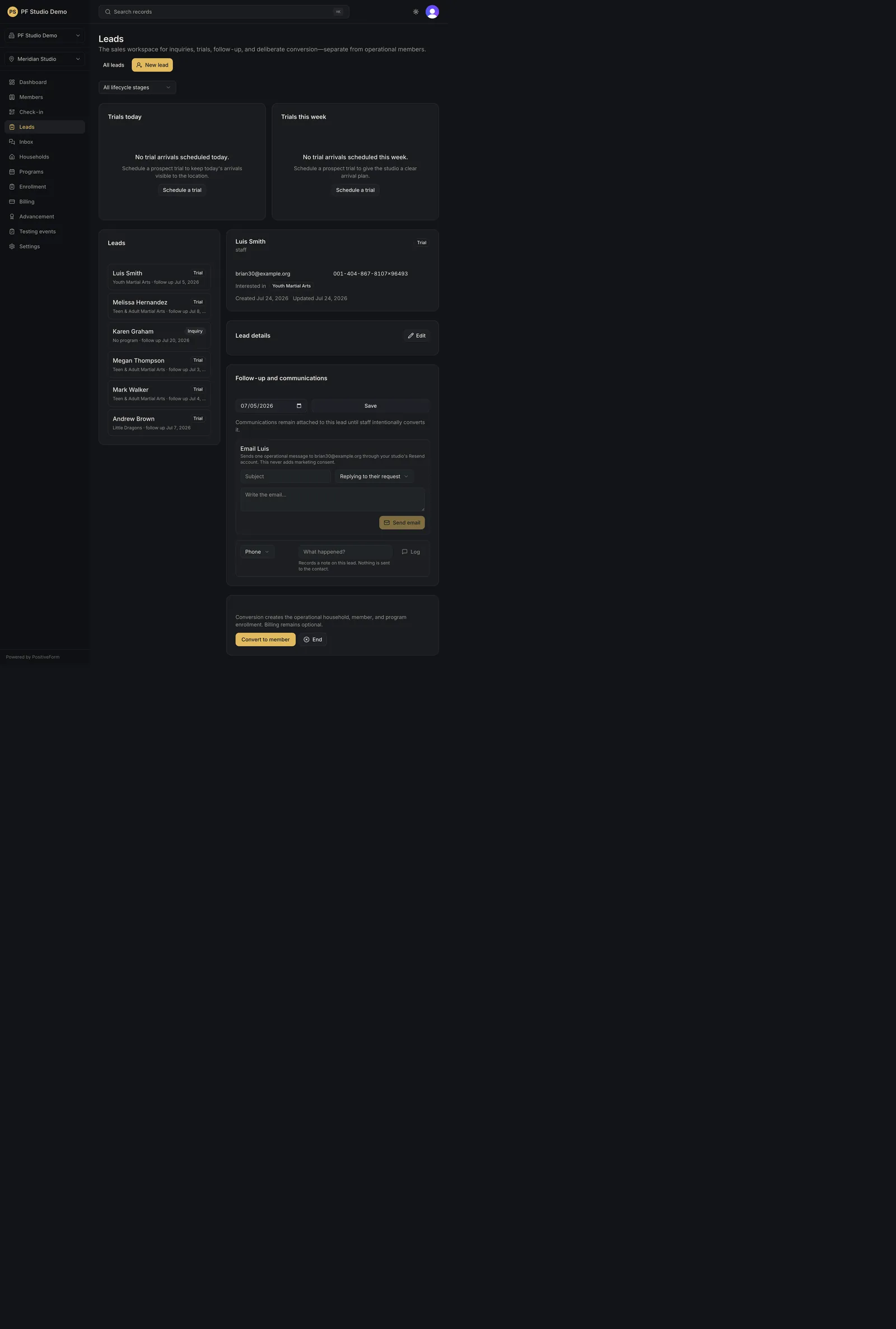
- Click Leads. The page explains that the board shows active, unarchived inquiry and trial leads by next step, and that All leads opens the complete history including enrolled and ended records.
- Narrow the board with Search leads (name, email, phone, or message) or the Stage filter. The filter defaults to Open leads (Inquiry + Trial) and also offers Inquiry, Trial, Enrolled, and Ended.
- Read Trial funnel this week for Book rate, Show rate, Close rate, and No-shows open for rebook. Each tile names the counts behind it, and the window and timezone are printed beside the heading.
- Check Trials today and Trials this week for who is arriving. Each row opens that visit on the lead's Trials tab.
- Work Lead queue from the top. Its headings are the priority order: Overdue follow-up, Follow-up due today, No next step, Upcoming trials, then Recent activity. Each row names why it sits where it does, plus when the lead started, its last activity, and its source. A lead with no activity for 14 days is badged No activity in 14+ days.
- Act on a row without leaving the board using its three buttons: - Set follow-up for … opens a date field; Save stores it, and saving an empty date clears the follow-up. - Schedule a trial for … opens the pick-or-create trial dialog. - Archive … asks to confirm, then moves the lead out of the working views with its stage and history intact.
- Click the lead's name to open the record and continue in Review a lead record: editing details, emailing, logging contact, booking a visit, converting, or closing the lead.
- Page through the queue with Previous and Next when the count exceeds one page.
Expected outcome
Follow-up dates, archive state, and the trial you booked persist on the intended lead, and the queue reorders that lead into the heading its next step now implies.
Screenshots
Recovery
If a lead is missing, clear Search leads, set the Stage filter back to Open leads (Inquiry + Trial), and confirm the sidebar location. An enrolled, ended, or archived lead is out of that default and is found from All leads. If a follow-up will not save, the toast names the reason and the date on the lead is unchanged. If you archived the wrong lead, restore it from the Archived view in Find and archive leads.
Related guides
- CRM-001
- CRM-003
- COMMS-001