Create a member
Create a member with identity and contact details. The member is created and opens in the canonical member workspace.
- Status
- Draft, not yet re-verified
- Who can do this
- Organization owners, Managers, Staff
- Required access
members.change- Where in PositiveForm
/members
"Copy for AI" puts the full Markdown of this page on your clipboard. Paste it into ChatGPT, Claude, or any assistant and ask it to walk you through the steps.
Who this is for
This guide is for desk staff, managers, and owners adding somebody who is starting at the studio.
You need the members.change permission. If Add member is greyed out, check
you have a location selected before assuming it is a permission problem.
PositiveForm asks a different second question for a child than for an adult, because a child needs a responsible adult on file. Answer the age question honestly and the rest follows.
Before you begin
- Select the location this person trains at, using the picker at the top of the console. A member is created at the selected location, and Add member will not proceed without one.
- Have their first and last name, and their date of birth if they are under 18.
- For a child, have the parent or guardian's first name, last name, and email. Those are required, because that adult becomes the household's contact.
Steps
- Click Members in the left navigation.
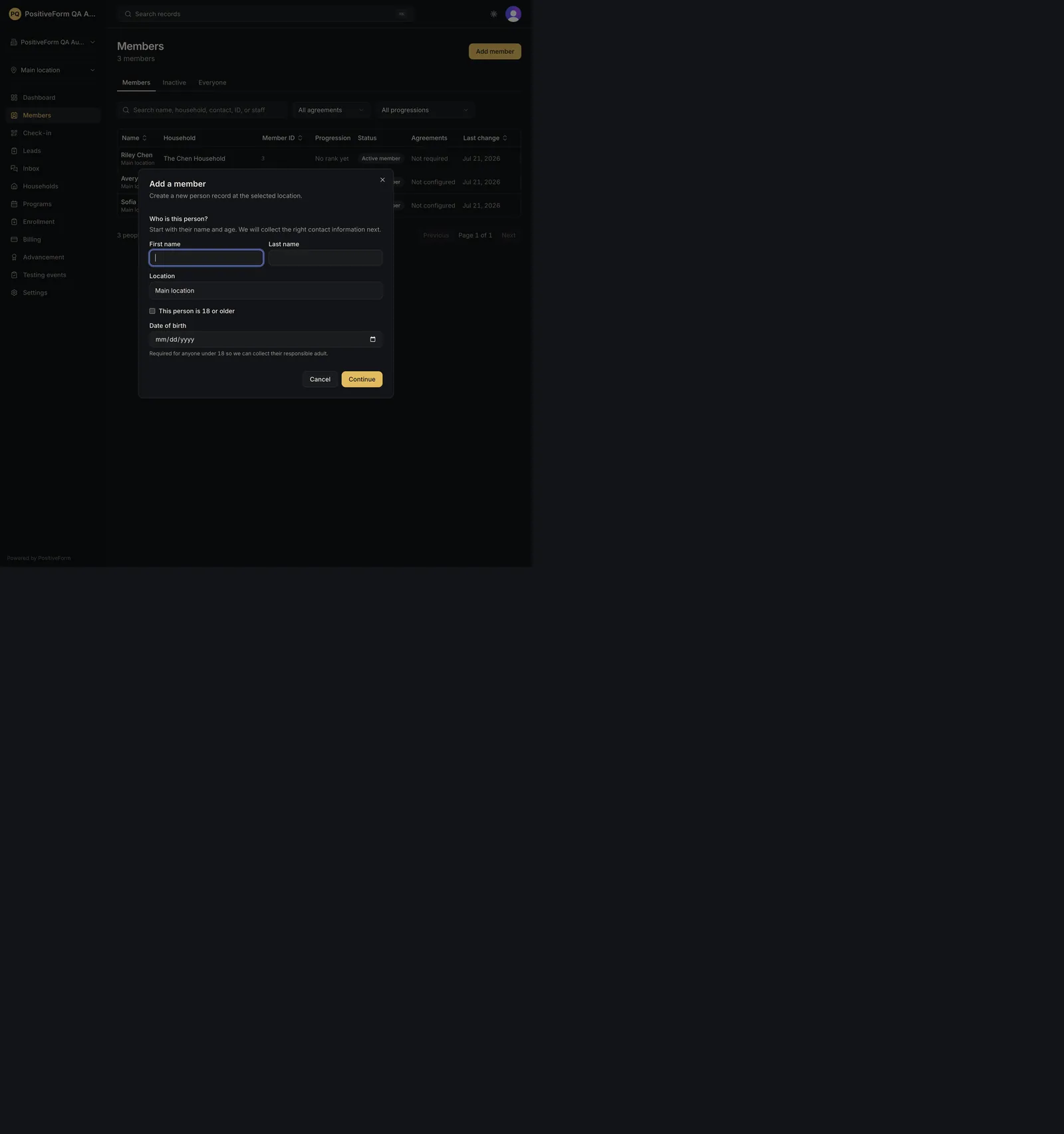
- Click Add member. Add a member opens, and names the location the person will be created at.
- Under Who is this person?, fill in First name and Last name.
- Answer the age question. Tick This person is 18 or older for an adult. Leave it clear for a child and fill in Date of birth, which PositiveForm requires so it can collect their responsible adult.
- Continue. The next step tells you which path you are on: Adult — a household will be created automatically, or Child — parent or guardian details are required.
- For a child, the step is headed Parent or guardian. Fill in that adult's First name, Last name, Email, and Relationship (Parent or Guardian). Phone (optional) is worth adding if you have it. This adult is added to the new household and linked to the child.
- For an adult, the step is headed Contact details, and those details belong to the new household's adult. Add Email (optional) and Phone (optional) if you have them.
- Click Add member to save. Back returns you to the first step with your entries intact.
Expected outcome
PositiveForm confirms with Member added, and the person opens in their member workspace, which is where everything about them lives from now on.
They also have a household. An adult gets one created automatically; a child gets one containing the parent or guardian you named. That household is what billing attaches to later, which is why the parent's details are required rather than optional.
The parent or guardian you named is created as a household adult, not as a member. They have their own profile and can be reached, billed, and linked, but they carry no member ID and no rank until somebody enrolls them. Their profile shows Enroll for exactly that.
The new member appears in the members list at the selected location, with a member ID, a status of Active member, and no rank yet. Continue in Maintain member profile and notes to fill in the rest of their profile, or check them into a class straight away with Check in from a member workspace.
Screenshots
Recovery
If you continue without both names, PositiveForm marks each empty field and says First name is required. and Last name is required. under the ones it means.
If you leave the age question unanswered, it refuses with Enter a date of birth or confirm that this person is an adult. There is no default: a wrong guess about a child's age would put their record in the wrong shape.
For a child with incomplete adult details, it marks the guardian fields the same way: First name is required., Last name is required., and Email is required. An address that is not an address is refused with Enter email as an email address, like [email protected]., and the same check applies to an adult's optional address.
If you see Set an active location before adding a member., no location is selected. Choose one with the picker at the top and try again.
If saving fails for another reason, PositiveForm shows Failed to add member with the reason, and nothing is created. Your entries stay on screen.
If you created somebody twice, do not delete the duplicate blindly; check which one has attendance or billing attached first. Search for the name to see both; see Browse and filter people.
Related guides
- Maintain member profile and notes — finish the profile: contact details, emergency contacts, rank, and notes.
- Check in from a member workspace — check the new member into a class.