Browse and filter people
Search, filter, and page through members, non-members, and staff. The directory exposes reachable, URL-backed result sets without leaking protected contact…
- Status
- Draft, not yet re-verified
- Who can do this
- Organization owners, Managers, Staff
- Required access
organization.membership- Where in PositiveForm
/members
"Copy for AI" puts the full Markdown of this page on your clipboard. Paste it into ChatGPT, Claude, or any assistant and ask it to walk you through the steps.
Who this is for
This guide is for any staff member who needs to find the right person: at the desk, before a class, or while answering a parent's question.
Everyone with a staff login can open this page. The directory itself lists no email addresses, phone numbers, or addresses; open a person's record for those.
Before you begin
- Check which location you are working in. The picker at the top of the console decides which people this page lists by default, and the Locations filter can widen it to more than one.
- Know that the page opens on people who have done something in the last 90 days. That is the Active within filter's default, not a bug, and it is the first thing to widen when somebody you expect is not listed.
- Know whether you want a member or a household adult. Both are reachable here through the People filter; the dedicated parent and guardian directory is Review parents and guardians.
Steps
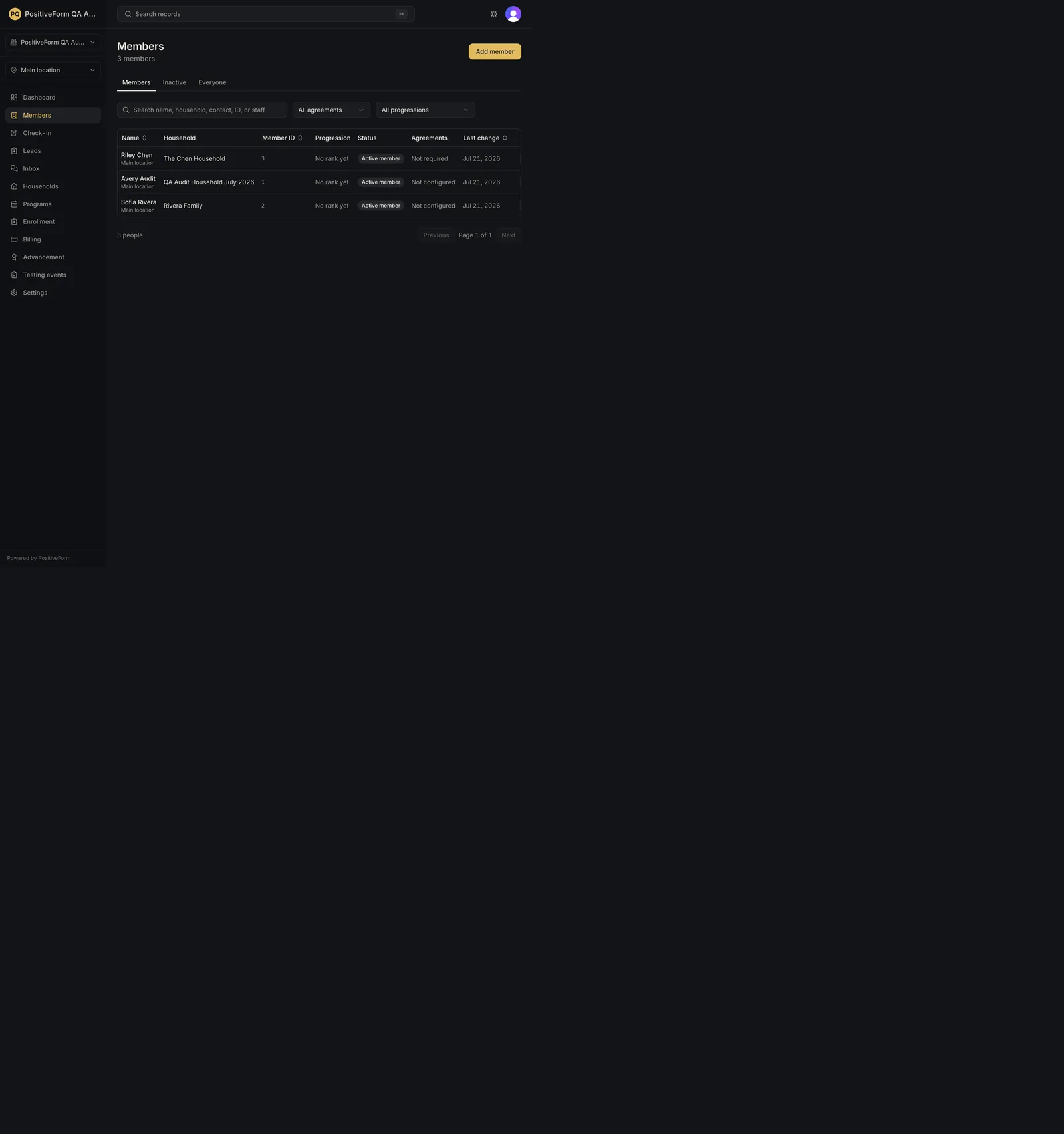
- Click Members in the left navigation. The count under the heading names the population it is counting, for example 3 members or 5 people.
- Work in the Filters sidebar down the left of the results. On a wide screen it is always open; on a narrow one, open it with Filters. The facets it opens with are: - People: Everyone, which is where the page opens, or Members, Non-members, or Staff. - Enrollment: Any enrollment, Active enrollment, Trial enrollment, or No active enrollment. - Show retired/inactive members, a checkbox. Leave it clear and the list is the active roster; tick it and retired and inactive people join the list. - Active within: Last 90 days by default, plus Last 7 days, Last 30 days, Last 365 days, Any time, and Custom start date…. Anything other than Any time hides people with no attendance, message, enrollment change, promotion, or agreement activity inside the window. - Locations, which starts on your current location and accepts more. - Progression, and beneath it the rank picker named for whatever your studio calls a rung, for example Belt. Both take more than one value and match any of them.
- Click More filters for the rest: Is staff, Household role, Age range, Programs, Tags, Tag matching (once two tags are chosen), Agreements, and Training group. Show fewer filters collapses them again, and a facet already in use stays visible.
- Type into Search name, household, contact, ID, or staff above the table to find somebody directly. It matches more than the name, so a household name or a member ID works when a spelling does not. The list updates a moment after you stop typing.
- Check the Applied: row above the table. Every filter in force is a chip there, and each chip removes its own filter. Clear all, or Clear filters in the sidebar, resets everything at once. Create filter and the sidebar's Save filter name the current combination and keep it in the studio library, reachable again through Manage saved filters.
- Read the columns: Name with the person's location beneath it, Household, Member ID, Student number, Barcode, Progression, Status, Recent activity, and Joined. Rank joins them only while exactly one progression is selected, because a rank is only comparable inside one ladder.
- Sort by clicking a column heading. The server does the sorting, so the whole result set is ordered, not just the page in front of you. Clicking cycles ascending, then descending, then back to the page's own default of newest join first. Student number and Action are not sortable.
- Use Check in in the Action column to record attendance without leaving the list; a banner then offers Undo check-in. See Check in from a member workspace.
- Click a person's name to open their member workspace. A staff-only row opens the staff record instead, and its action reads Open staff.
- Move through long lists with Previous and Next. The page counter between them shows where you are, for example Page 1 of 5.
Expected outcome
The list shows the people at your current location who match the filters you chose, with the count above and below it agreeing.
Your filters, your sort, and your page are held in the page address, so the list you are looking at can be returned to or handed to a colleague, and going back does not lose them. Your search text is deliberately not: it can carry a name, an email address, or a phone number, so it stays in the browser and never in a link you might paste. A link that arrives carrying one is emptied before the page uses it.
The directory shows no contact details in any column, whatever your access. Open the person's record for those.
Screenshots
Recovery
If somebody is missing, work through this in order:
- Set Active within to Any time. The page opens on the last 90 days, so somebody who has not trained, been messaged, been enrolled, been promoted, or signed anything since then is filtered out before any other reason applies.
- Tick Show retired/inactive members. Someone who has left the studio is excluded until you do.
- Check the location picker at the top and the Locations filter. The list is scoped to your current location until you widen it.
- Read the Applied: row. Every filter in force is a chip there, so a progression, tag, program, or agreement filter left set from earlier is visible rather than silent. Clear all removes them together.
- Clear the search box. A search left from earlier narrows everything below it.
- Check the People filter. Members hides staff and non-members; Everyone shows all three. A parent or guardian who does not train also has their own directory in Review parents and guardians.
If you know part of a name but not where the person sits, use global search instead; see Find operational records.
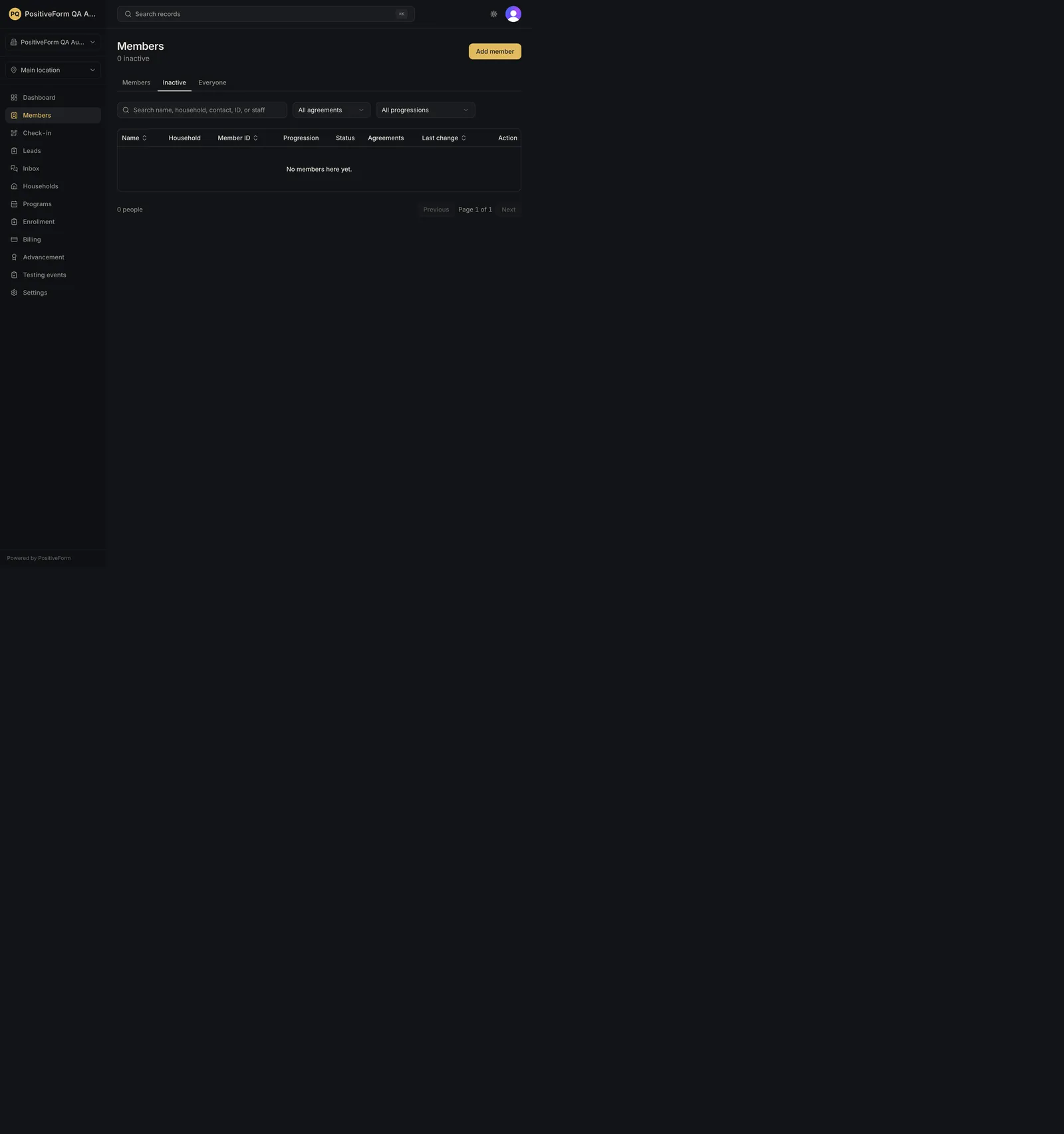
If the list is empty and you cannot see why, the page says which case it is: No people match the search. for a search, No members match these filters. or No people match these filters. for a filter, and No people here yet. only when the location genuinely holds nobody. A bookmarked link carrying a progression or rank that no longer exists lands on the filtered message, not the empty one.
If Save filter or Create filter is refused, your role does not carry permission to author studio filters. Ask an organization owner.
Related guides
- Create a member — add somebody who is genuinely not here yet.
- Review parents and guardians — find a parent or guardian rather than a member.
- Find operational records — search across records when you do not know where to look.