Duplicate a program
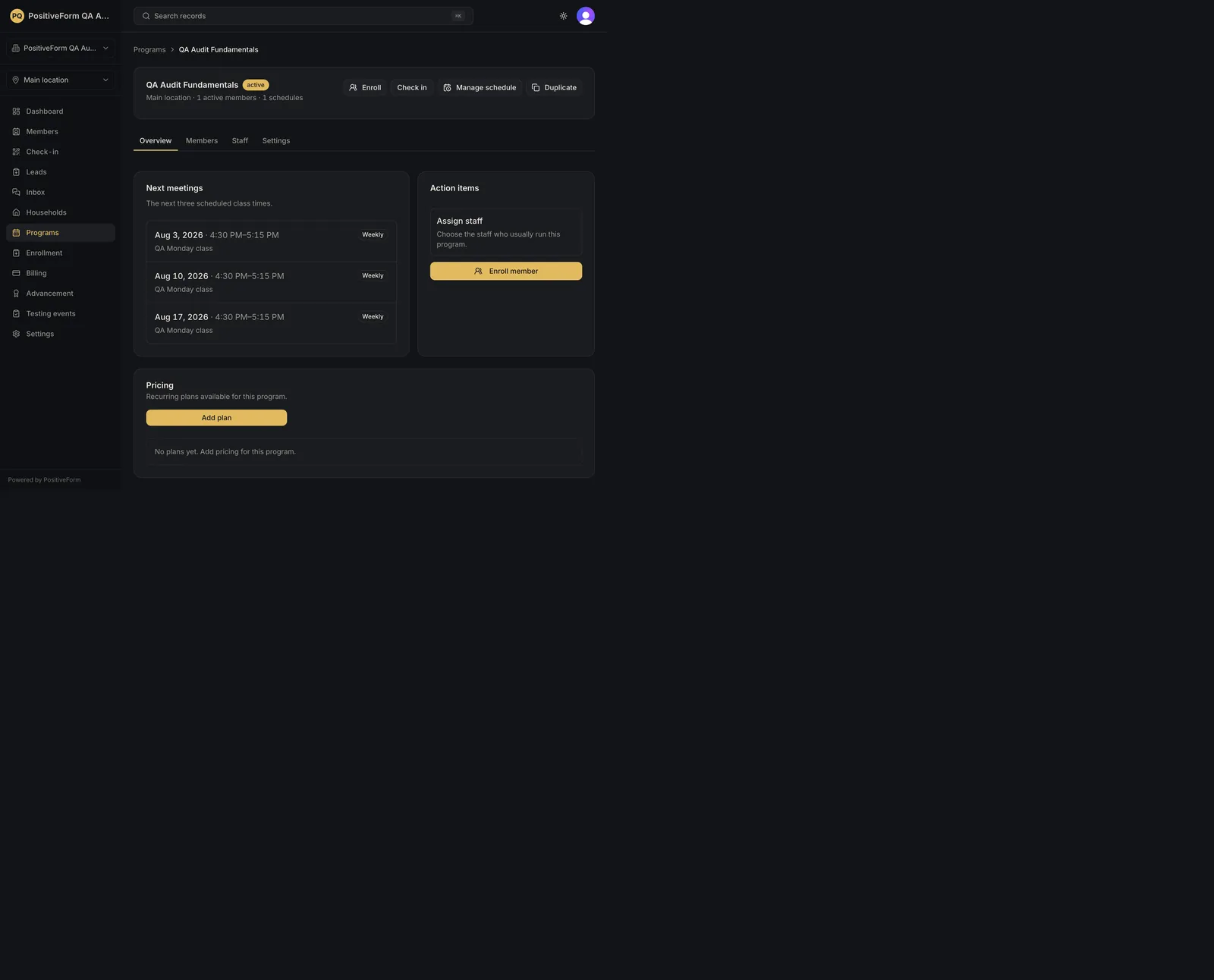
Duplicate a program configuration with an explicit choice about active members. An inactive copy opens with the selected safe configuration and no accidental…
- Status
- Draft, not yet re-verified
- Who can do this
- Organization owners, Managers, Staff
- Required access
members.change- Where in PositiveForm
/programs/:slug/overview
"Copy for AI" puts the full Markdown of this page on your clipboard. Paste it into ChatGPT, Claude, or any assistant and ask it to walk you through the steps.
Who this is for
This guide is for desk staff, managers, and owners setting up next term, a second time slot, or the same class at a different level.
There is no Duplicate control in PositiveForm today. It was removed from the program workspace in v0.36.0. Nothing in the staff console copies one program into another, so a second offering is created the same way the first one was, and this guide covers what that costs you and what it does not.
You need the members.change permission.
Before you begin
- Have the source program open in another tab. You will be reading its settings across rather than copying them, so seeing both at once is the fastest way.
- Note what you actually need carried over: the dates, the progression, the tags, the training groups, the usual staff, and the class times. The create wizard asks for all of those except the class times.
- Know that no members come across. A new program starts with an empty roster, and enrolling people into it is Manage the enrollment queue.
Steps
- Open the source program and read off its Settings tab: status, Starts on and Ends on, the age range, the Advancement progression, and the Program tags. Note the Staff tab's assigned staff and the Enrollment tab's Available training groups.
- Open its Schedule tab and note each class time: the weekdays it runs on, the start and end, the label, the training staff, the eligibility, and the training area.
- Go to Programs and click Create program.
- Walk the wizard, entering what you read off in steps 1 and 2. The When, Progression, Groups, and Staff steps take the same answers the source program holds. Leave Status on Inactive so nothing is offered before you have checked it. See Create a program for the wizard step by step.
- Click Finalize and save.
- On the new program's Schedule tab, re-enter the class times. A weekly class time that runs on several weekdays is one entry, not one per day; see Manage program schedules.
- Attach pricing on the new program if it needs its own plans; see Manage program pricing plans.
Expected outcome
You have a second program that carries the configuration you re-entered, with an empty roster and no plans, and the source program is untouched.
Left inactive, it is not offered, not charged for, and not on anyone's list of current classes until you activate it in Manage program lifecycle. It is also hidden by the programs list's default status filter while it stays inactive.
Nothing carries over that you did not type: no members, no attendance history, no waitlist, and no pricing plans.
Screenshots
Recovery
If you are looking for a Duplicate button on the program workspace, it is not there and no other surface carries it. The header has Check in and Enroll only.
If the new program is not appearing where you expect, check the programs list's status filter. A program left inactive is hidden by a list showing only active programs.
If you named the new program the same as the source and now cannot tell them apart, rename one on its Settings tab; see Manage program lifecycle.
Nothing is charged by creating a program. Pricing plans are configured separately; see Manage program pricing plans.
Related guides
- Create a program: the wizard that creates the new program.
- Manage program schedules: re-enter the class times on it.
- Manage program lifecycle: activate it once it is right.