Manage program lifecycle
Activate, update, or end a program deliberately. The program status and settings persist and the UI explains roster effects.
- Status
- Draft, not yet re-verified
- Who can do this
- Organization owners, Managers, Staff
- Required access
members.change- Where in PositiveForm
/programs/:slug/settings
"Copy for AI" puts the full Markdown of this page on your clipboard. Paste it into ChatGPT, Claude, or any assistant and ask it to walk you through the steps.
Who this is for
This guide is for desk staff, managers, and owners deciding what a program is called, when it runs, whether it is currently offered, and which belt system it feeds.
The thing worth knowing before you change anything: an inactive program keeps its roster. Members can even be planned into one. Making a program inactive stops it being offered; it does not unenroll anybody.
You need the members.change permission.
Before you begin
- Know the difference between ending a program and making it inactive. Ending is a date; inactive is a status. Neither removes members.
- If you are changing the URL slug, know that it is what the program's address is built from, so existing links stop working.
- Ages here are guidance, not a rule. They tell the desk who a program is for when it books a trial; they do not stop anybody enrolling.
Steps
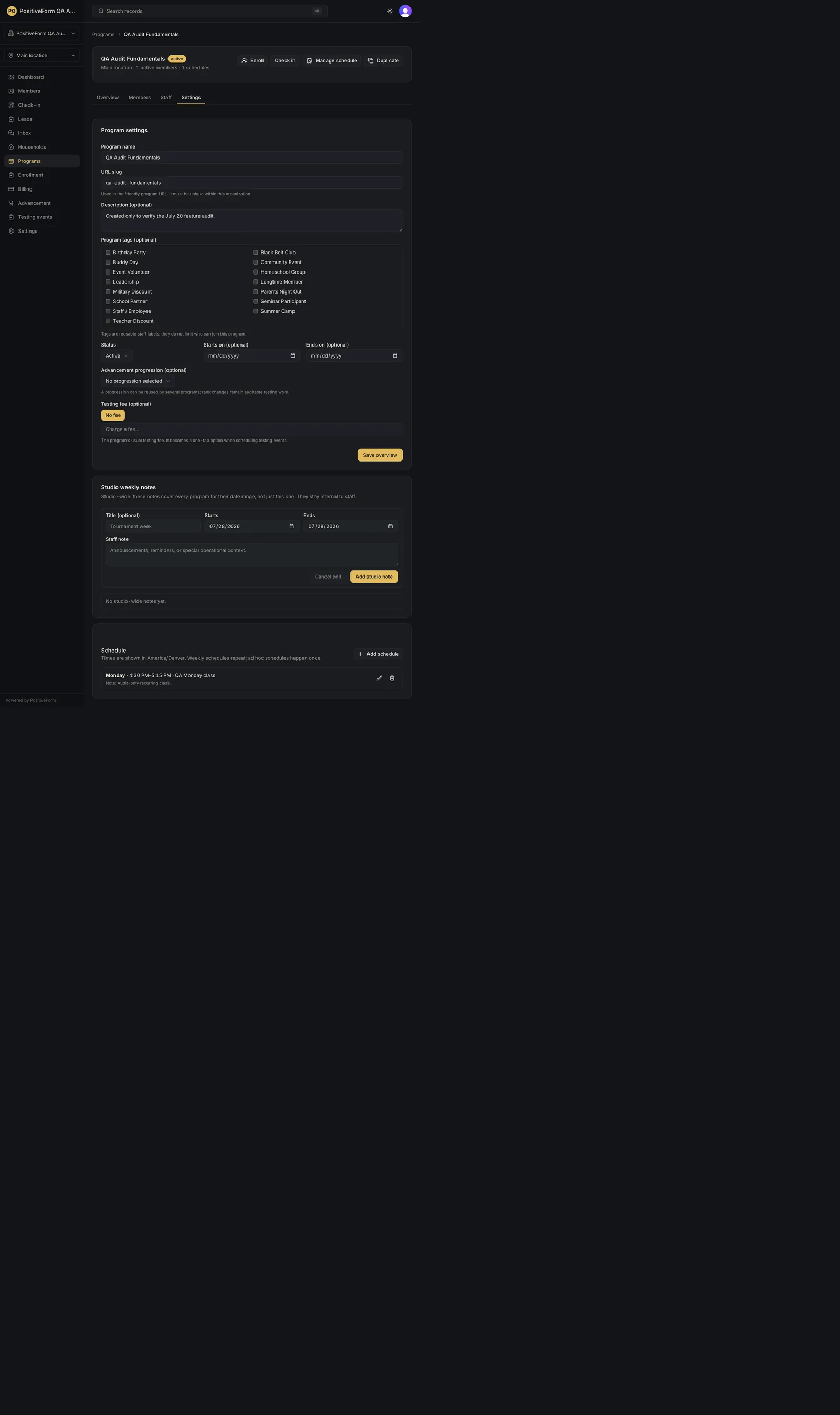
- Open the program and click the Settings tab. The card is titled Program settings.
- Edit Program name.
- Check the URL slug. It is used in the friendly program URL and must be unique within your organization.
- Use Description (optional) for context staff need.
- Add Program tags (optional) from your reusable tag list, for example
Summer CamporHomeschool Group. The page says what they are for: they are staff labels and do not limit who can join the program. - Set Status: Inactive, Active, or Archived.
- Set Starts on (optional) and Ends on (optional) if the program runs for a defined period.
- Set Youngest age (optional) and Oldest age (optional) for who the program is aimed at. Blank means all ages.
- Choose an Advancement progression (optional) to link the belt or level system this program feeds. A progression can be reused by several programs, and rank changes stay auditable testing work rather than happening silently here. Clear beside the picker removes the link.
- Click Save overview.
Expected outcome
PositiveForm confirms with Program overview saved, and the program workspace header reflects the change: the name, a status badge, and a line reading the location, the active enrollment count, and the number of class times. Renaming the slug moves you to the new address as you save, so the page you are on stays the page you are editing.
In the programs list, a program whose Ends on has passed carries an Ended badge alongside its status.
Changing status changes what is offered, not who is enrolled. An inactive program keeps its roster and still appears in the programs list with its member count. Members can be planned into an inactive program, which is how you set up next term before it opens.
Setting a progression links the program to that belt system without promoting anybody. Rank changes remain testing work with their own record.
To see who is enrolled after a lifecycle change, use the enrollment queue; see Manage the enrollment queue.
Screenshots
Recovery
If the slug is refused with That program URL is already used by this organization., another program already has it. Slugs are unique per organization; pick a different one.
A backwards date range is refused at the field with Ends on cannot be before starts on., and an impossible age range with The oldest age cannot be below the youngest. A single-day program is fine.
If saving fails, PositiveForm shows the reason and your edits stay on screen.
If you changed the slug and links now break, change it back. The address is built from the slug, so an old bookmark or a link you sent a colleague points at the previous one.
If you made a program inactive expecting the roster to clear, it has not, and that is deliberate. Change the enrollments themselves in Manage the enrollment queue.
If tags are not narrowing who can enrol, they are not meant to. The page says so: tags are reusable staff labels.
Related guides
- Manage program schedules — set or change when the program meets.
- Manage the enrollment queue — change who is on the roster, which a status change does not do.