Manage program schedules
Create or edit recurring and one-time program meetings and meeting notes. The schedule and date-specific staff notes persist in the program settings context.
- Status
- Draft, not yet re-verified
- Who can do this
- Organization owners, Managers, Staff
- Required access
members.change- Where in PositiveForm
/programs/:slug/schedule/new
"Copy for AI" puts the full Markdown of this page on your clipboard. Paste it into ChatGPT, Claude, or any assistant and ask it to walk you through the steps.
Who this is for
This guide is for desk staff, managers, and owners setting when a program actually meets.
There are two kinds of class time, and picking the right one saves work:
- Weekly (recurring) for a class that repeats, for example every Monday and Wednesday at 4:30.
- Ad hoc (one time) for a one-off, for example a seminar on a single date.
A weekly class time is one set across all the weekdays it runs on. You create Monday and Wednesday together, you edit them together, and an edit that touches more than one weekday walks you through what it changes before anything is saved.
Separately from either, you can leave a staff note on one specific date, for example "belt gradings tonight" or "no class, public holiday", without touching the recurring pattern. Those notes live on an existing class time rather than on the form that creates one.
You need the members.change permission.
Before you begin
- Know the start and end time. Both are required, the end must be after the start, and any minute is allowed: 4:35 to 5:50 is a valid class.
- For a weekly class time, know every weekday it runs on, not just the first.
- Remember the program's location time zone decides what these times mean; see Maintain or retire a location if that is not what you expect.
- If you want the class restricted to particular members, have the training group, saved filter, or tag ready first. Eligibility here is advisory: it says who the class is for, and enrolls nobody.
Steps
Add a class time
- Open the program and click the Schedule tab. It lists the program's class times, grouped by training group by default; Group by switches between Training group and Day of the week.
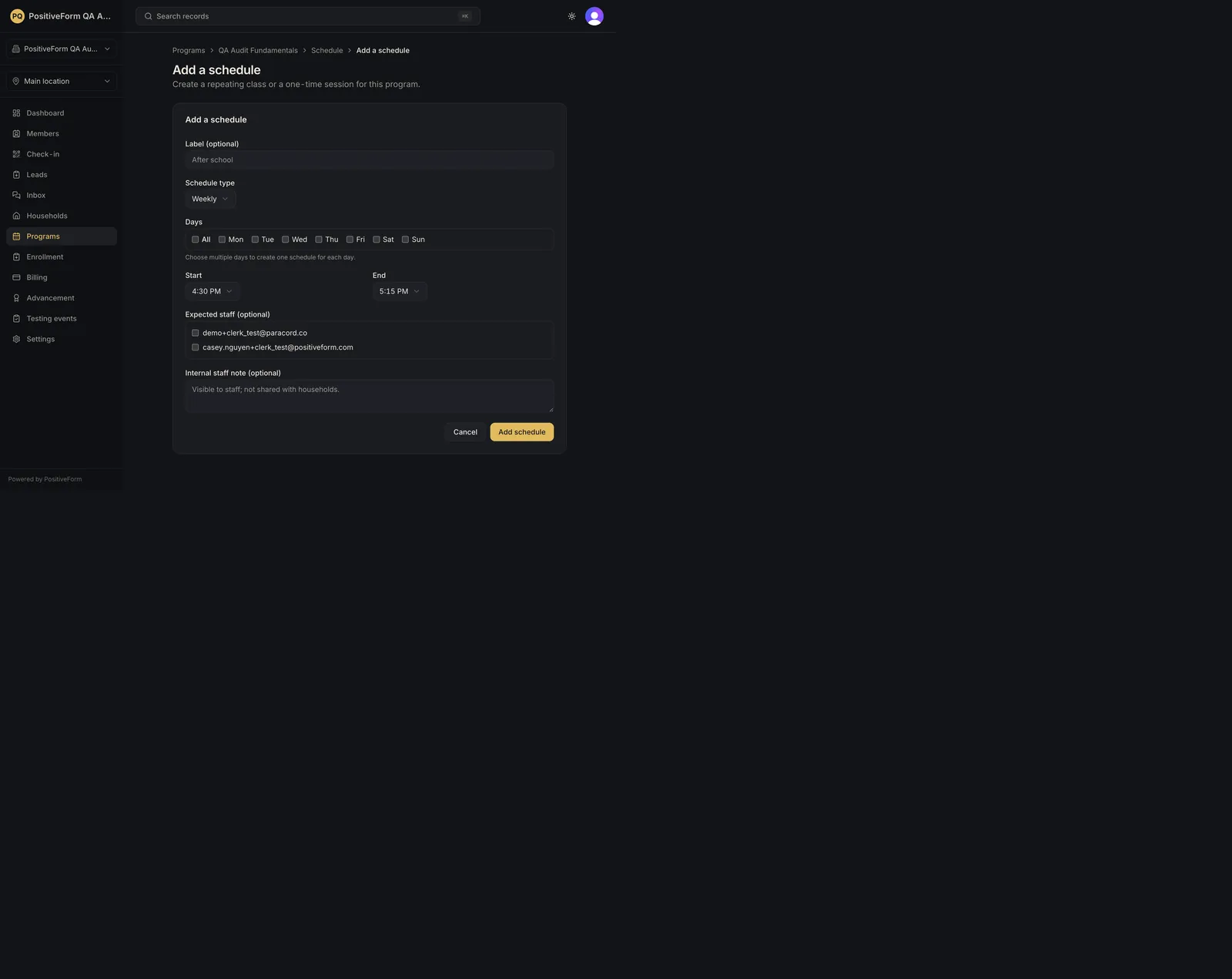
- Click Add schedule. Add a schedule opens on its own page.
- Use Label to name the slot, for example
BeginnersorAfter school. This is how staff tell two class times in the same program apart. - Choose a Schedule type: Weekly (recurring) or Ad hoc (one time).
- For a weekly class time, tick every weekday under Days this time slot repeats that shares this start and end time. All ticks the whole week. For an ad hoc one, set the Date instead.
- Set Start and End. Any minute is allowed, and the line under the fields reports the length back, for example Runs 1 hr 15 min.
- Add Training staff if you know who normally runs this sitting. This is per class time, and is separate from the program's assigned staff in Assign program staff and operating notes.
- Set Eligibility. Anyone (program roster) opens it to everybody on the program. Specific: groups, filters, and/or tags narrows it, and then you tick any combination of Training groups, Saved filters, and Tags; the members who match are the union of everything you tick. Who matches lists them as you choose, so you can see the rule is right before you save. Ticking a group the program does not use yet is allowed, and the page says saving will add it to the program too.
- Choose a Training area (optional) if the location has named areas. This control only appears when it does; see Maintain or retire a location to name them.
- Use Internal staff note (optional) for anything staff should see about this class time. It is not shared with households.
- Click Add schedule, or Back to schedule to leave without saving.
Change an existing class time
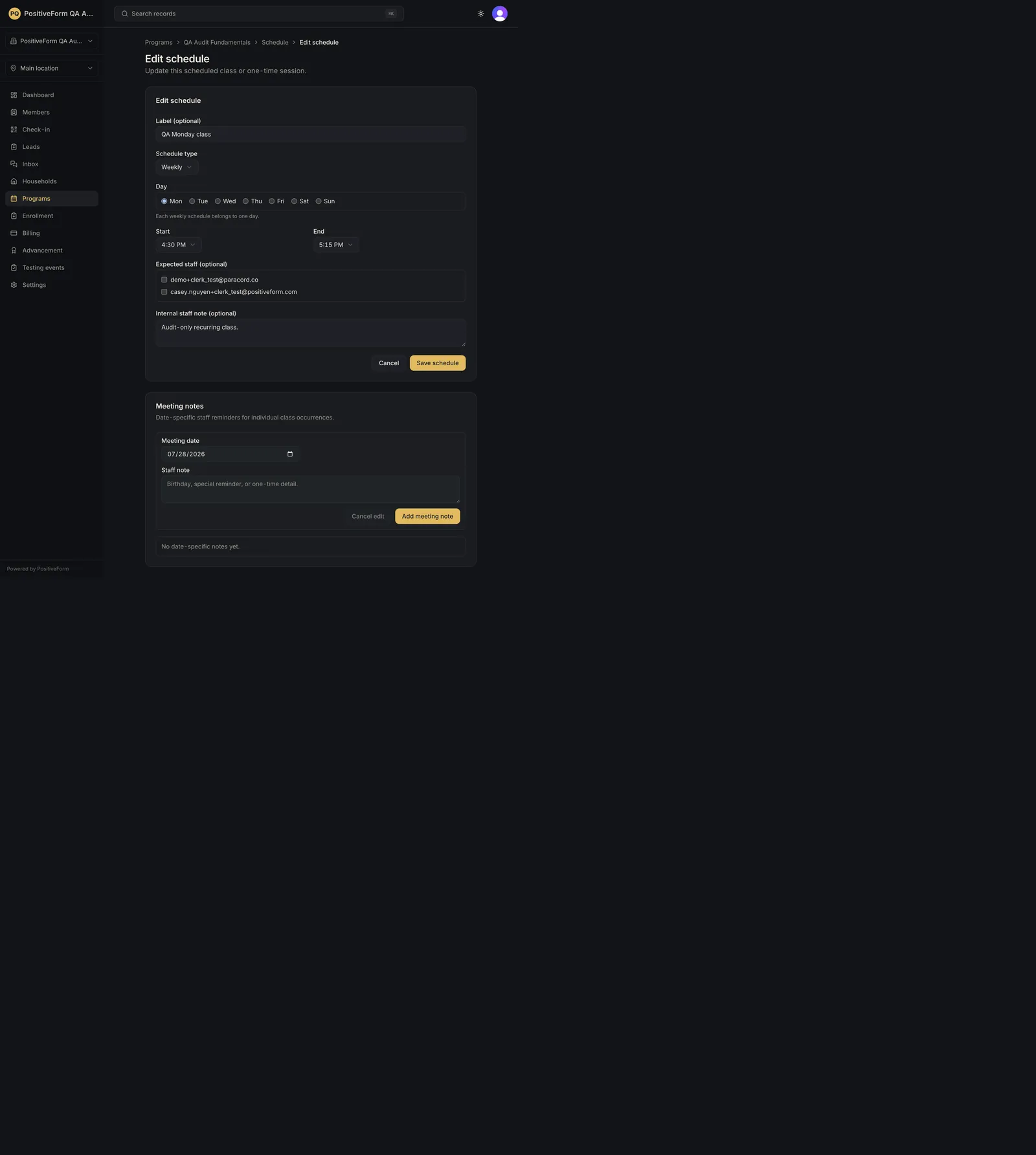
- On the Schedule tab, click the pencil beside the class time. It opens as Edit schedule, with a This class time summary at the top showing the days, times, length, and the next few dates it falls on.
- Every weekday the class runs on is already ticked under Repeats on, not just the row you clicked. Editing one weekday of a Monday/Wednesday class means editing both.
- Change what you need and click Save schedule. A class time that runs on a single weekday saves straight away.
Apply a change across several weekdays
A weekly class time that spans more than one weekday never saves straight from the form. Save schedule opens a two-step wizard instead.
- On Which class times does this change?, every weekday is ticked. Untick any that should keep its current day and time. Click Review change.
- Review this change spells out what happens to each weekday: which ones move to the new time, which are added, which are left out untouched, and which are leaving the set. Every weekday that stays takes this edit's training staff, eligibility, and note, even one whose time did not change.
- For each weekday leaving the set, choose Stop running it. Past check-ins stay on the record. or the option offering to keep that weekday running at its current time (Keep monday for now, at its current time.). If people are booked into a day you are stopping, you must also choose to Move them to another weekday in the set or Cancel them, recorded as cancelled by the studio. Until every one of those is answered, the apply button stays disabled.
- Click Apply to these class times. Back returns to the first step and nothing is saved until you apply.
Remove a class time
- The trash icon beside a class time on the Schedule tab removes it immediately. There is no confirmation step, so check the day and time on the row first.
Leave a note on one date
Meeting notes live on an existing class time, not on the form that creates one, so create the class time first.
- On Edit schedule, scroll to Meeting notes, which holds date-specific staff reminders for individual class occurrences. With none recorded it reads No date-specific notes yet.
- Choose a Meeting date and write a Staff note, for example a birthday or a one-time detail. On an ad hoc class time the date is fixed to the one date it runs.
- Click Add meeting note. To change one later, use Edit beside it, which turns the button into Save meeting note; Cancel edit backs out.
- Use Delete beside a note to remove it. You are asked to confirm. Newer notes and Older notes page through a long history.
Expected outcome
The class time persists on the program and the Schedule tab lists it under its training group (or under Whole program, Targeted by saved filters or tags, No audience selected, or One-time classes when no group applies). Switching Group by to Day of the week files the same rows under Mondays, Tuesdays, and so on. Show upcoming on a row expands the next few dates it falls on.
Creating a weekly class time on several weekdays is one action, and PositiveForm reports what it actually did: Schedule added, 2 schedules added, Those class times were already scheduled, or 1 added; 1 were already scheduled when some of the days existed already. Applying a set edit confirms with the count it changed, for example 3 class times updated, plus any visits it moved or cancelled.
The program workspace reflects it immediately: Next meetings lists the next three scheduled class times with their date, time, label, and whether they repeat. In the programs list, the program stops reading Not scheduled and starts showing how many class times are configured.
A meeting note is attached to that one date. It does not change the recurring pattern, and it does not create or cancel a class; it is a note staff see against that day.
Scheduled times are what attendance is taken against; see Record bulk attendance.
Screenshots
Recovery
If saving is refused with Choose both a start and end time., one of the two is empty. End must be after start. means the pair is backwards; the page also says so while you are still typing, and correcting either field clears it.
For a weekly class time, Choose at least one weekday. means no days are selected.
For an ad hoc class time, Choose the date for an ad hoc schedule. means the date is missing.
If you chose Specific eligibility and ticked nothing, saving is refused with Choose at least one training group, saved filter, or tag for eligibility. Either tick something or set eligibility back to Anyone.
If Edit schedule will not open and says Editing is held back until the other weekdays this class runs on are known, the other weekdays could not be loaded. Retry rather than working around it: this is what stops a change landing on one day and missing the rest.
If removing a class time fails, PositiveForm says Could not remove schedule and it stays on the list.
For a meeting note, both the date and the text are required. A note with no text is not a note.
If a note will not delete, PositiveForm says Could not delete meeting note and it stays.
If the class times look wrong by a fixed number of hours, the program's location time zone is not what you assumed. Fix it on the location rather than shifting every schedule; see Maintain or retire a location.
Related guides
- Create a program — create the program these times belong to.
- Record bulk attendance — take attendance against the scheduled meetings.